Registry & Master Data
To ensure that invoices are captured, coded, and approved with maximum precision, Winvoice maintains a set of central master data registers under the main Registry menu. These registers are continuously synchronized with your connected ERP system via our ERP integration, and Winvoice fully supports bidirectional synchronization (2-way sync) — allowing you to create and edit accounts, suppliers, dimensions, and projects directly within Winvoice and have them automatically exported to your ERP.
Registry Menu Structure
In Winvoice's main left-hand navigation under Registry, you will find:
- Suppliers: Complete vendor subledger, bank details, and default accounting rules.
- Chart of Accounts / Accounts: General ledger accounts, VAT mappings, and active/inactive status.
- Projects: Projects and project tasks for cost accounting.
- Dimensions / Segmented Codes: Cost centers, departments, subaccounts, and segments.
- Purchase Orders: Open and matched purchase orders imported from the ERP.
- Purchase Receipts: Goods receipts (Purchase Receipts) linked to invoice reconciliation.
- VAT Codes: Tax rates and VAT categories for domestic and international trade.
- Currencies: Currency registry and daily exchange rates.
- Deferral Codes: Templates for monthly cost accruals and deferrals.
- Accounting Periods: Open and closed fiscal months and entry validation.
- Units of Measure (UOM): Measurement units for line items and order matching (pcs, hrs, kg, etc.).
Common Features Across All Registries
All registry views in Winvoice share a unified and intuitive table interface:
- Search and Fast Filtering: Search instantly by code, number, name, or external reference with real-time table filtering.
- Column Sorting: Sort ascending or descending on any column by clicking the column header.
- Excel Export: Export registry data to Excel using the export button. The export strictly preserves your active filters and column sort order.
- Direct Create and Edit: Add new records via the top-right button. For integrated ERP systems with 2-way sync (e.g. Visma.net and Fortnox), entries are immediately pushed to the ERP via API.
- Active / Inactive Status: Deactivated records can be hidden from standard views while preserving historical audit integrity. The system prevents inactive accounts, vendors, or projects from being selected on incoming invoices.
- Pagination: Select your preferred row count per page and navigate smoothly across pages.
Chart of Accounts & Creating New Accounts (2-Way Sync)
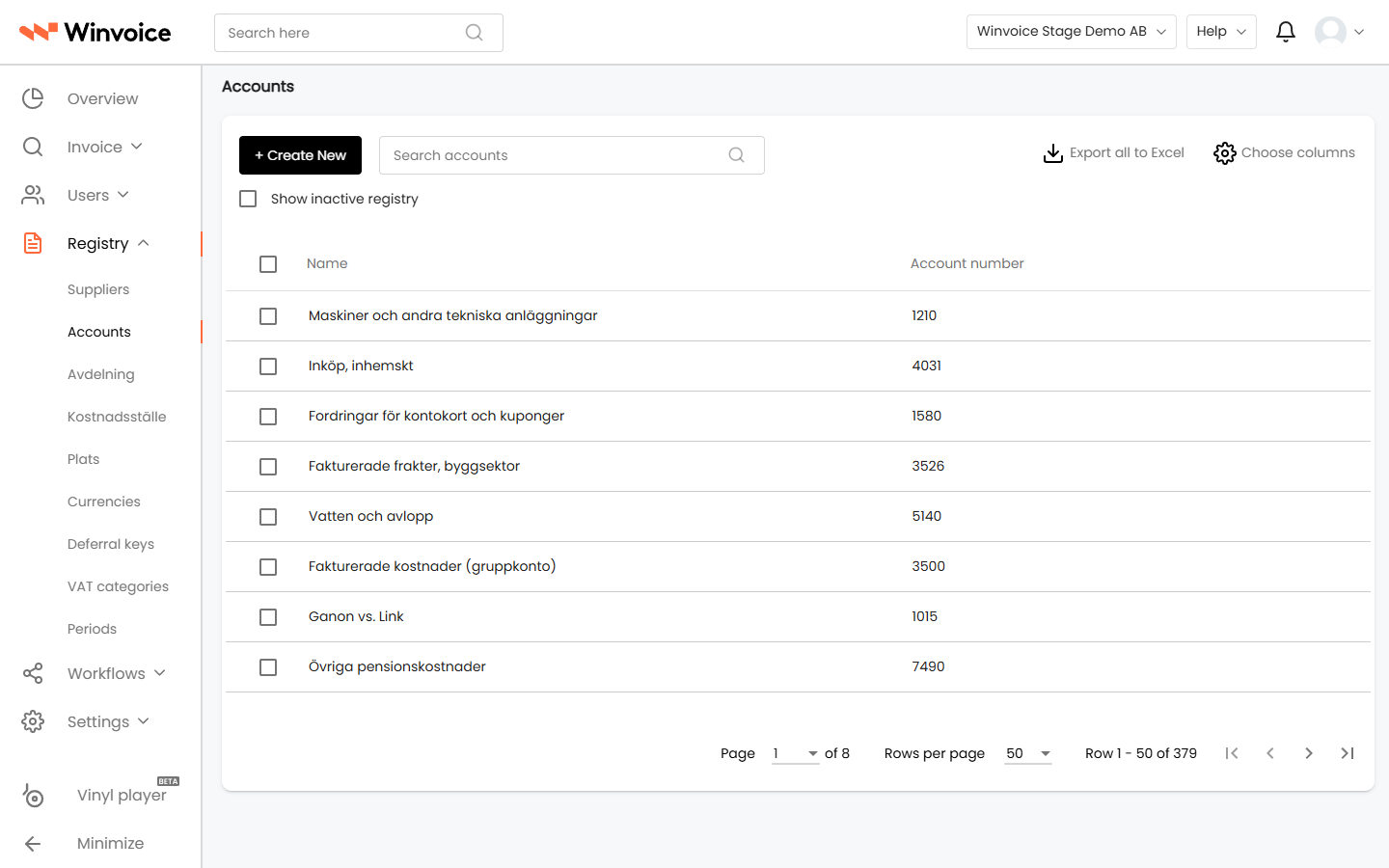
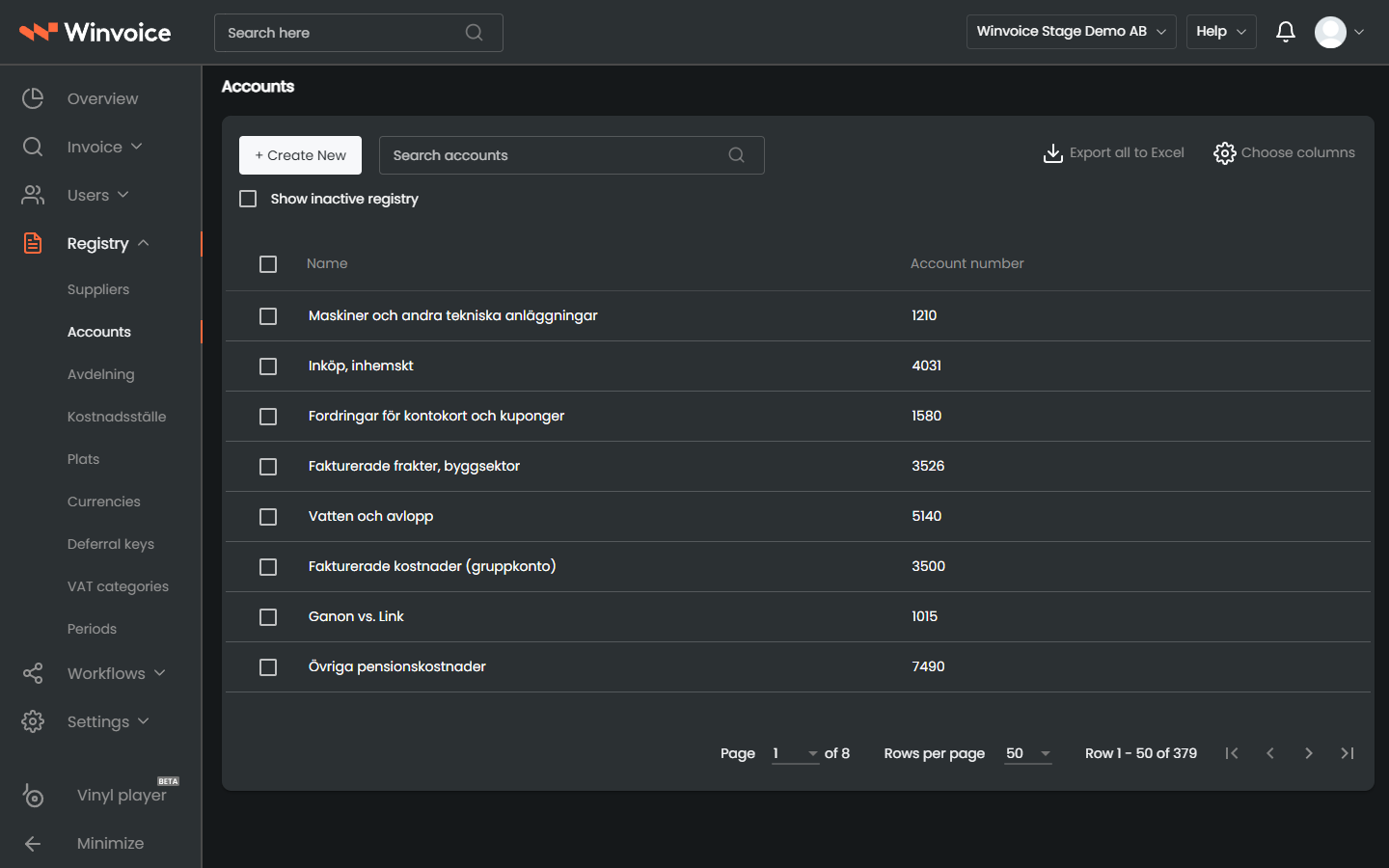
Under Registry > Accounts, all active and inactive general ledger accounts are listed.
Creating a New Account in Winvoice:
- Navigate to Registry > Accounts.
- Click the New account button in the top right.
- Fill in the account details:
- Account Number: E.g.
5410or6540. - Account Name / Description: E.g. Software Licenses or IT Consulting.
- Default VAT Code: The VAT code automatically proposed when the account is selected on an invoice line.
- Account Number: E.g.
- Click Save.
When you save the account, it is saved in Winvoice and immediately exported via REST API to your ERP system (e.g. Visma.net Financials via POST /controller/api/v1/account or Visma Spiris). The account becomes instantly available for approvers and line coding.
Active / Inactive Status & Validation:
- Accounts deactivated in the ERP system automatically update to inactive status upon the next sync.
- Winvoice features built-in validation rules that block invoices with inactive accounts from being saved or exported, preventing downstream API errors such as
{"AccountID":"The account is inactive"}in Visma.net.
Supplier Registry & Creating New Suppliers
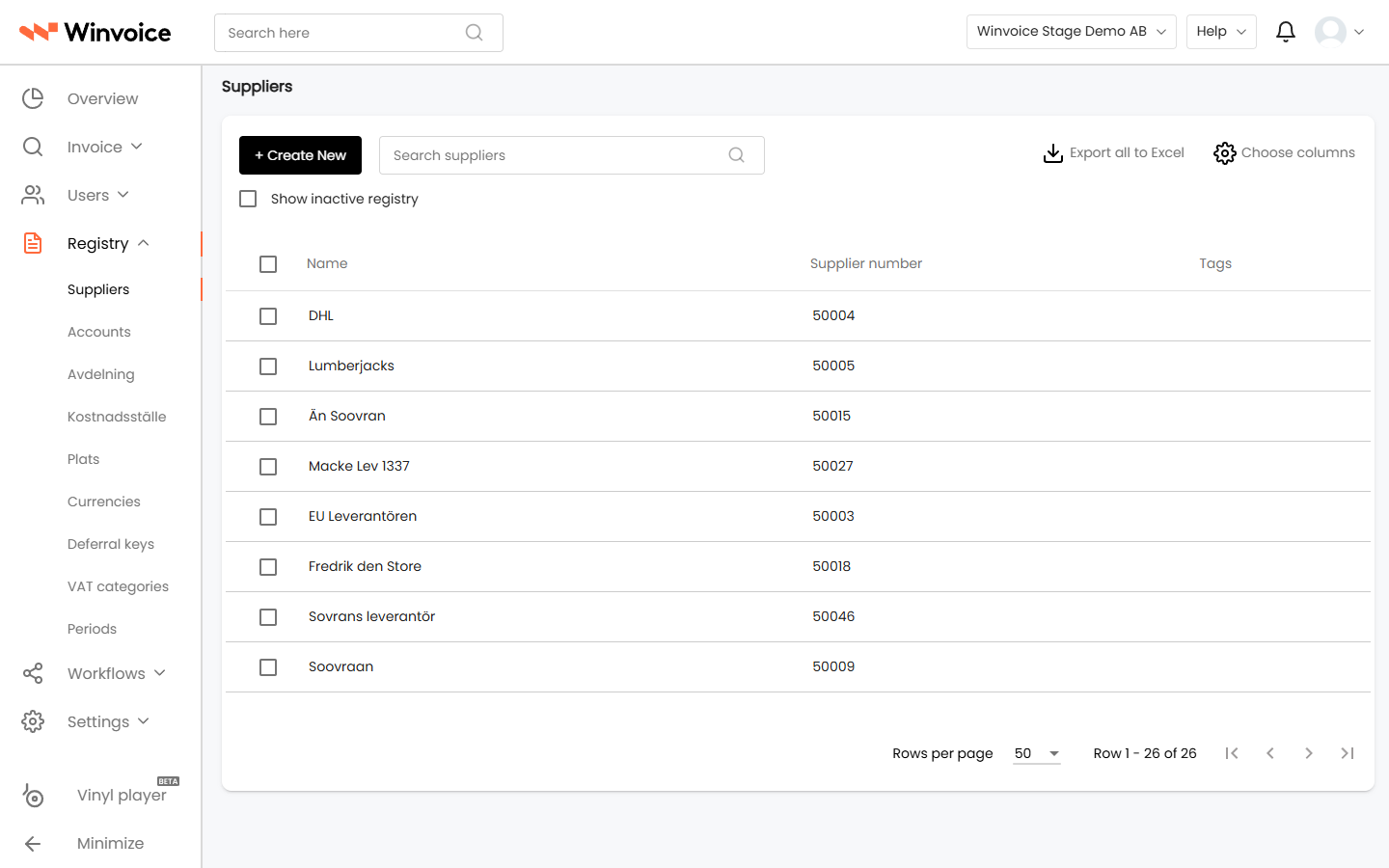
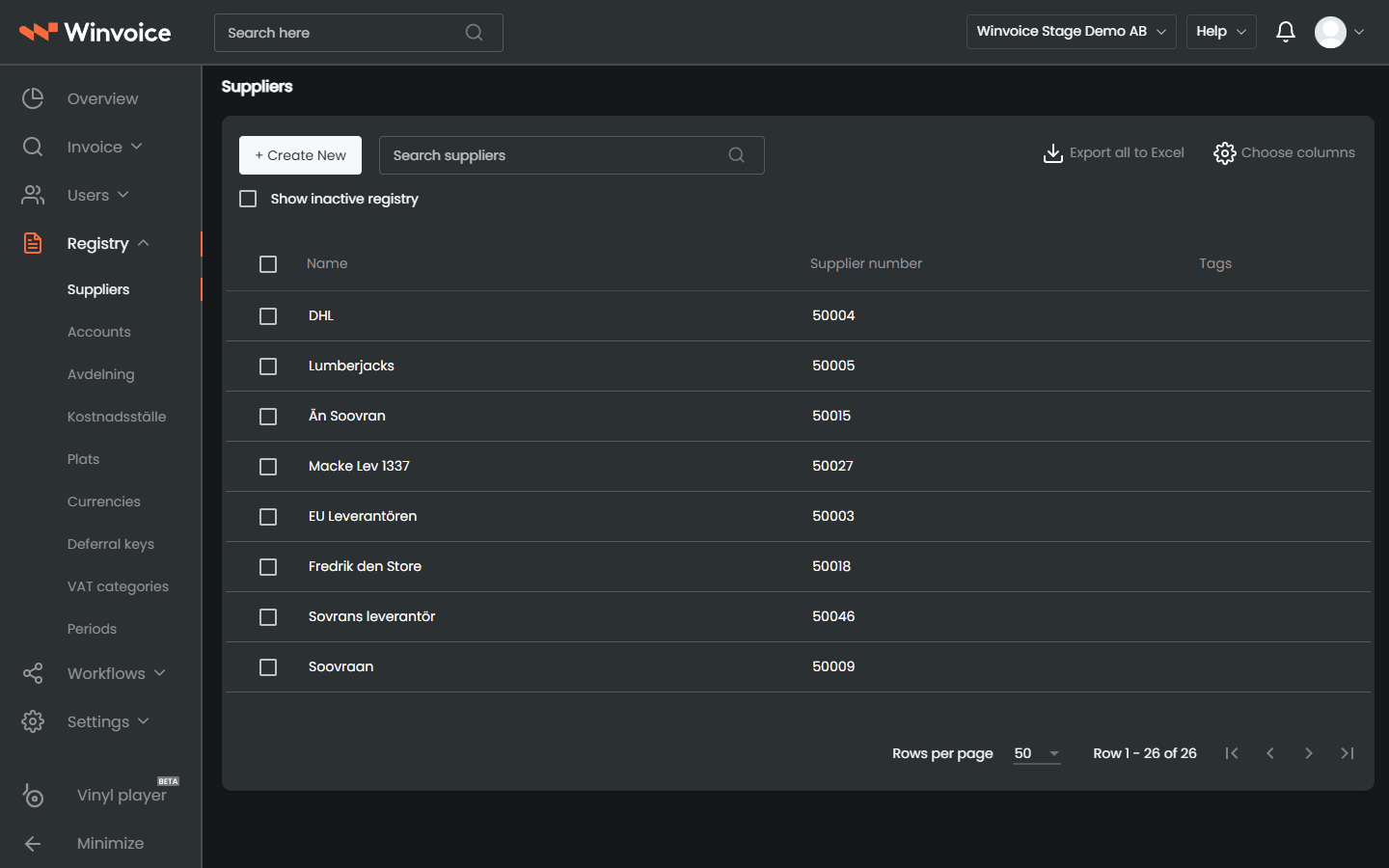
Under Registry > Suppliers, all approved vendors are managed:
- Create Supplier Manually: Click New Supplier, provide corporate ID, company name, payment details (Bankgiro, IBAN, SWIFT), default expense account, and payment terms.
- Create Supplier Directly from Capture: When an invoice from a new supplier arrives and is parsed by OCR, a quick-action button allows creating the supplier directly from the invoice view. Captured details are saved and exported to the ERP in real time.
- Bidirectional Sync: Supplier updates synchronize bidirectionally with ERPs such as Visma.net, Fortnox, Visma Spiris, and Unimicro.
Dimensions, Cost Centers & Subaccounts
Under Registry > Dimensions, manage organizational accounting dimensions:
- Cost Centers & Departments: Create and configure dimensions linked to user groups, workflows, and lines.
- Visma.net Segmented Subaccounts: Winvoice imports all defined subaccount segments. New segment combinations can be allowed via direct entry or created manually in Winvoice.
Accounting Periods
Under Registry > Accounting Periods, monitor open and closed accounting months:
- Real-Time Validation: Winvoice validates that an invoice's accounting date falls within an open period upon sending for approval and upon final posting.
- Automatic Date Suggestion: If an invoice arrives for a closed period, Winvoice can automatically suggest the first date of the nearest open period.
VAT Codes & Tax Rates
Under Registry > VAT Codes:
- Standard VAT: 25%, 12%, and 6% (Sweden); 25%, 15%, and 12% (Norway).
- Reverse Charge VAT: Construction sector reverse charge where buyer is tax liable.
- VAT-Exempt & EU Acquisitions: Codes for zero-rated goods and intra-community EU services.
Currencies & Exchange Rates
Under Registry > Currencies:
- Base Currency: The company's primary accounting currency (SEK, NOK, EUR).
- Automated Rates: Daily exchange rate updates retrieved from the ERP or central banks.
- Foreign currency invoice amounts are converted to base currency for internal controls and approval thresholds.
Purchase Orders & Receipts
- Registry > Purchase Orders: Ingested open orders from the ERP.
- Registry > Purchase Receipts: Received inventory shipments.
- See our detailed guide on Purchase Orders and Matching.