User Groups – Grouping, First-to-Approve, and Approval Order
Complete guide to user groups in Winvoice: first-to-approve routing, sequential queue ordering, workflow integration, and restrictions.
Overview: Flexible Team Collaboration and Group Approvals
User groups allow you to organize multiple colleagues under a unified team identity (e.g. IT Procurement, Site Managers West, Executive Committee, or Finance Team). These groups can then be utilized across the entire platform to share approval responsibilities, construct automated workflows, and establish shared accounting restrictions.
Managing users via groups provides two major operational advantages:
- Reduced Individual Bottlenecks: Invoices do not stall if a specific employee is absent, ill, or on vacation.
- Simplified Administration: When personnel changes occur, you only update group memberships in a single location—all workflows, rules, and restrictions continue operating seamlessly.
User groups are located under Users → User Groups in the main navigation menu.
1. Creating and Configuring a User Group
Navigate to Users → User Groups and click Create New (or select an existing group from the list to edit it).
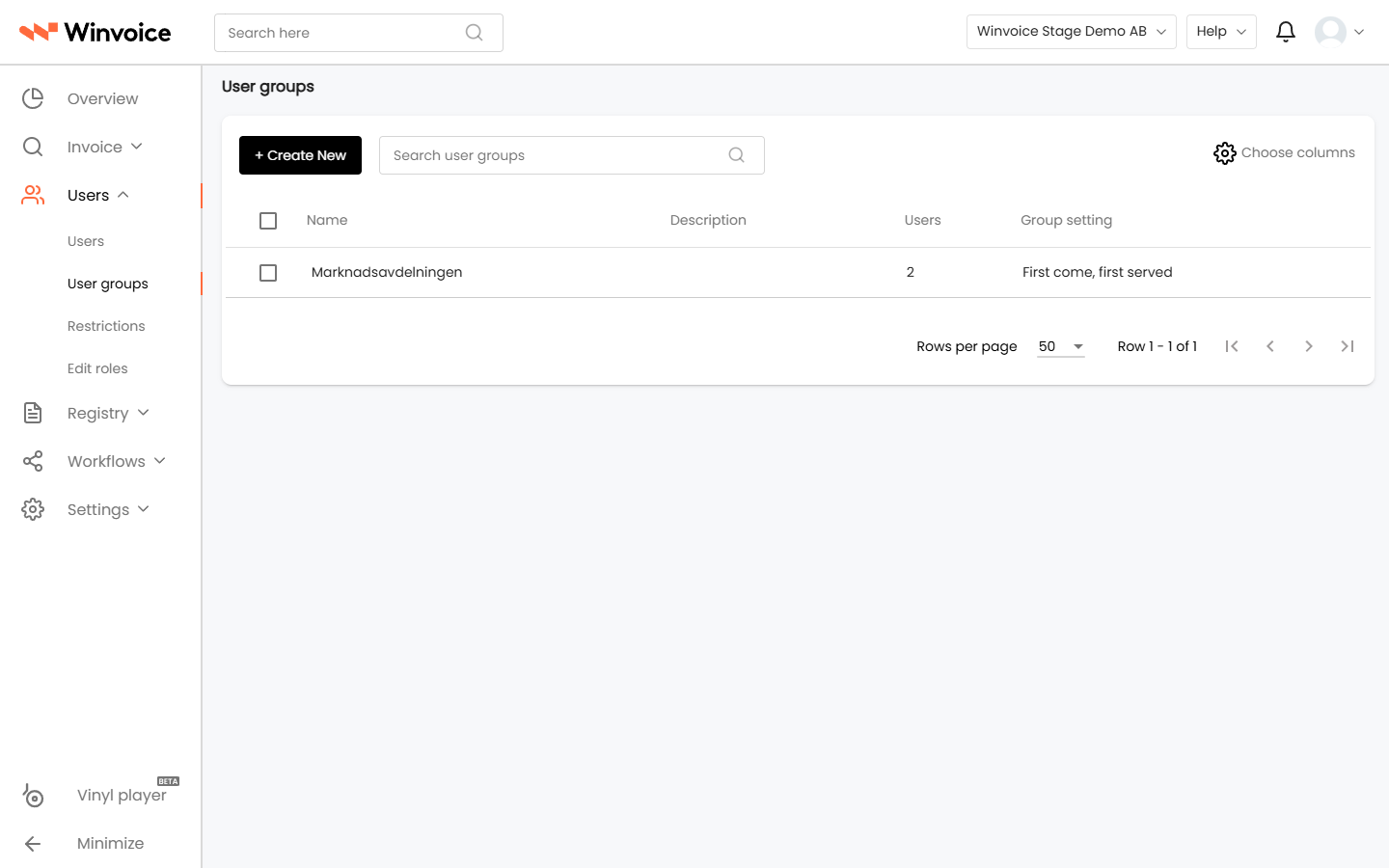
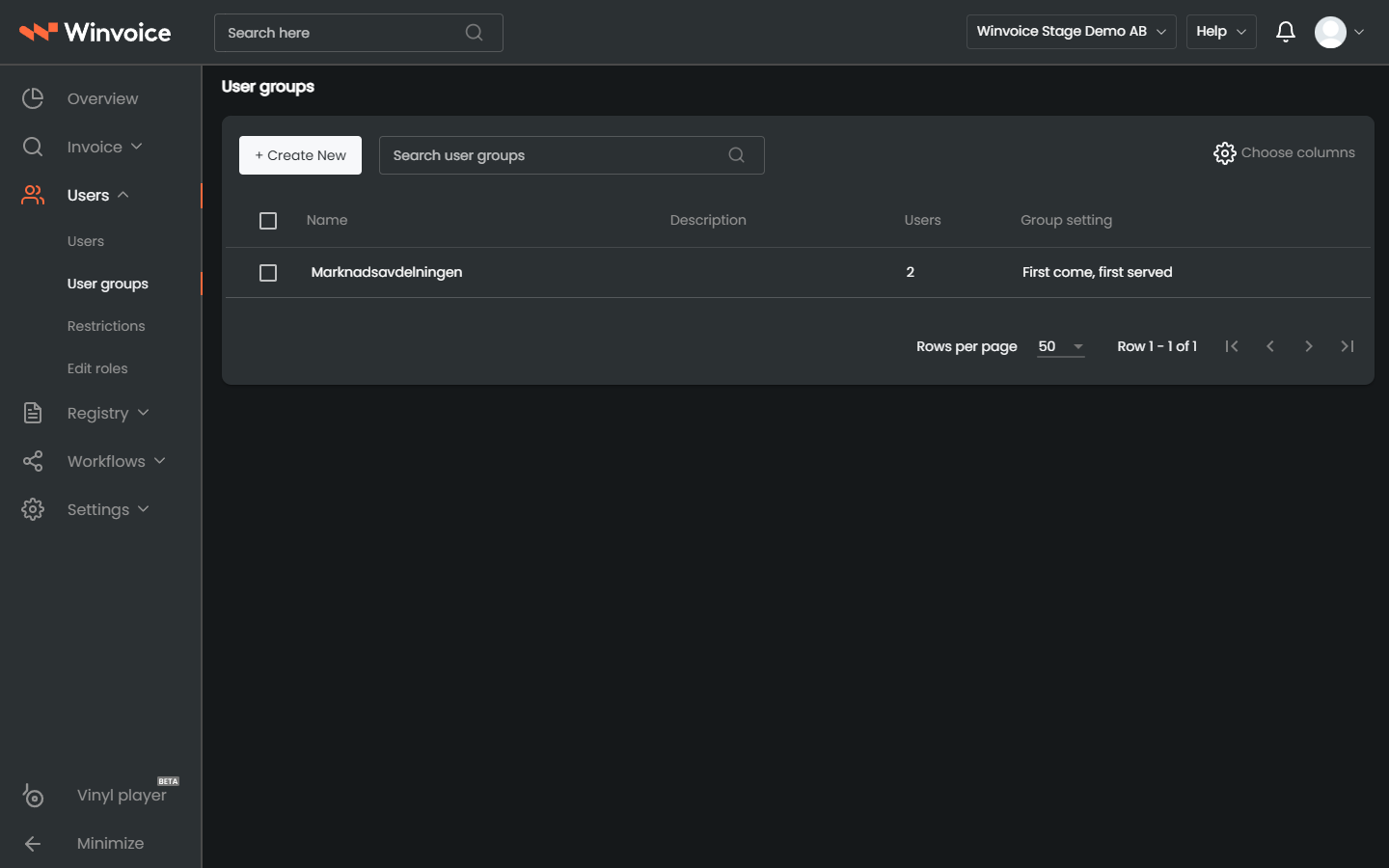
Fill in the baseline group details:
- Name: A clear and functional title (e.g. Project Managers South or Marketing Department).
- Description: Optional notes explaining the team's operational scope.
- Members: Search for users in the autocomplete field and click + to add more members to the group.
- Click the trash icon next to any user row to remove them from the group.
2. Approval Models within the Group
Winvoice supports two flexible approval models when assigning an invoice to a user group:
A. First-to-Approve (Default)
In the default configuration, the invoice is dispatched simultaneously to every member of the group. It appears in each member's personal review queue:
- As soon as any single member signs off on the line, it is marked as approved and advances immediately to the next stage in the organization.
- Ideal for procurement teams, shared services, or managerial groups where sign-off by any authorized individual suffices.
B. Sequential Approval Order (1, 2, 3...)
When ordering is enabled, each member receives a specific priority number:
- You can reorder members easily by grabbing the drag handle and moving users up or down in the list.
- The invoice routes first to User 1. Once approved, it advances automatically to User 2, and so forth.
- In the split invoice viewer, users can hover over approvers to inspect current queue progression and active substitutes in real time.
Click Save at the bottom right to commit the group.
3. Applying User Groups Across the System
User groups can be deployed across several core features in Winvoice:
Manual Invoice Assignment
When inspecting an invoice in the split view, an approver or administrator can assign an entire user group directly in the Approver field on any accounting line.
Automated Workflow Routing
- Incoming Workflows: Automatically assign a user group as the initial approver upon import (e.g. route all telecom bills directly to IT Support).
- Approval Workflows: Forward invoices to an executive team whenever expenditure thresholds or specific general ledger accounts match.
- Review Workflows: Assign the Finance Team group to conduct final reviews prior to ERP ledger synchronization.
Restrictions and Accounting Templates
- Restrictions: Constrain all members of a group to only code expenses against authorized projects or cost centers.
- Accounting Templates & Rules: Bind default templates or routing criteria directly to designated groups.
4. Managing Existing User Groups
- Step-Through Navigation (Record Stepper): When viewing an open group, use the arrow controls in the header (
< Previous | Next >) to inspect and update groups sequentially without returning to the list view. - Changelog: Accessible via the tools menu, the changelog provides a detailed audit log recording exactly who added or removed members and when.