Invoice Search & Advanced Search Features
In Winvoice, you can search and locate all incoming invoices regardless of their current status or who processed them. With over 20 combinable search parameters, interval ranges, full-text search across interpreted invoice images, and customizable list views, you can quickly find the exact documentation you need.
Access this feature from the main navigation under Invoice → Invoice Search.
1. Select Organization
If you have access to multiple companies or organizations, use the Organizations dropdown to choose which entities the search covers:
- Single Organization: Search strictly within the currently active company.
- Multiple Organizations: Select and combine multiple companies to perform a group-wide search in a single unified view.
2. Search Parameters
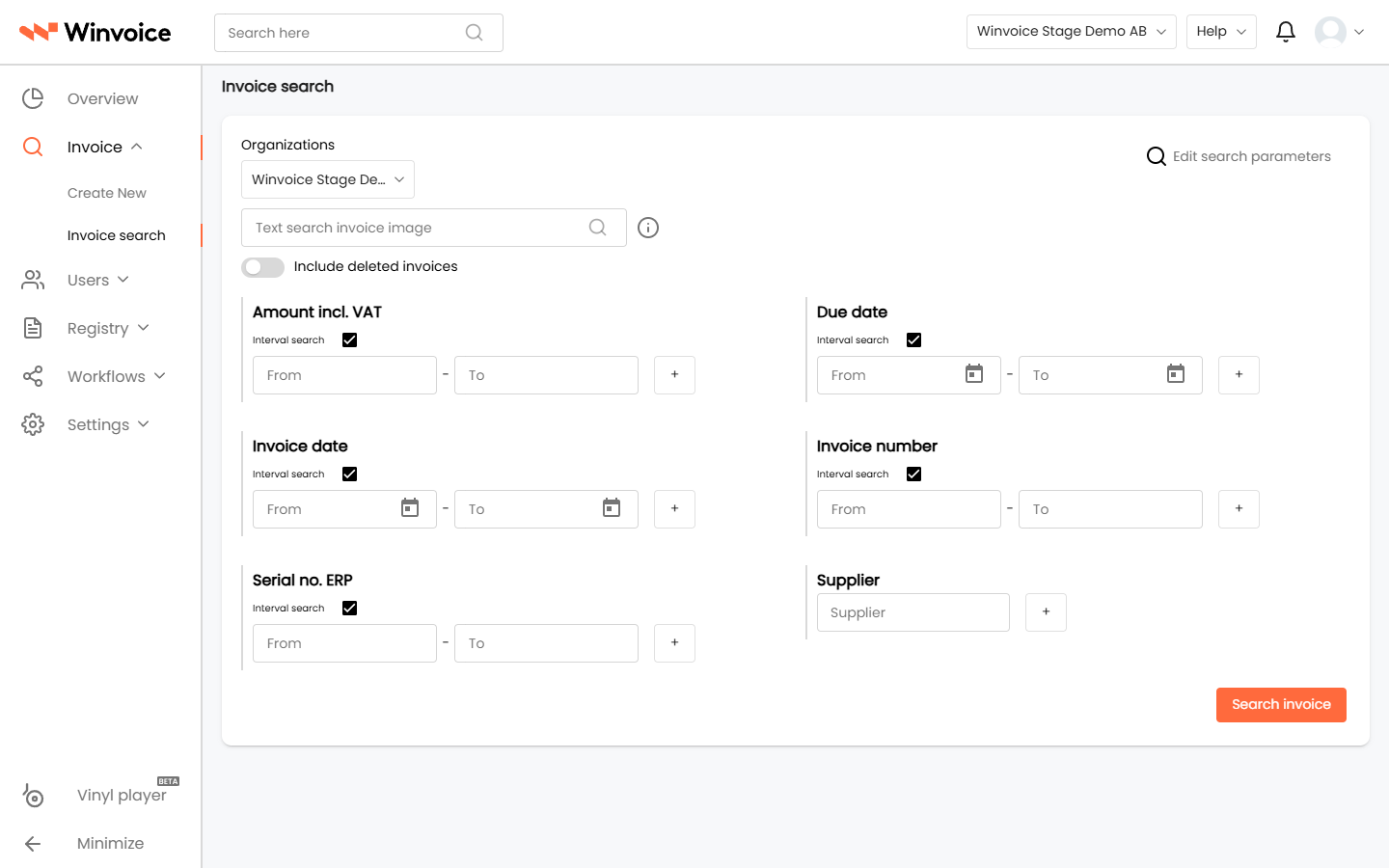
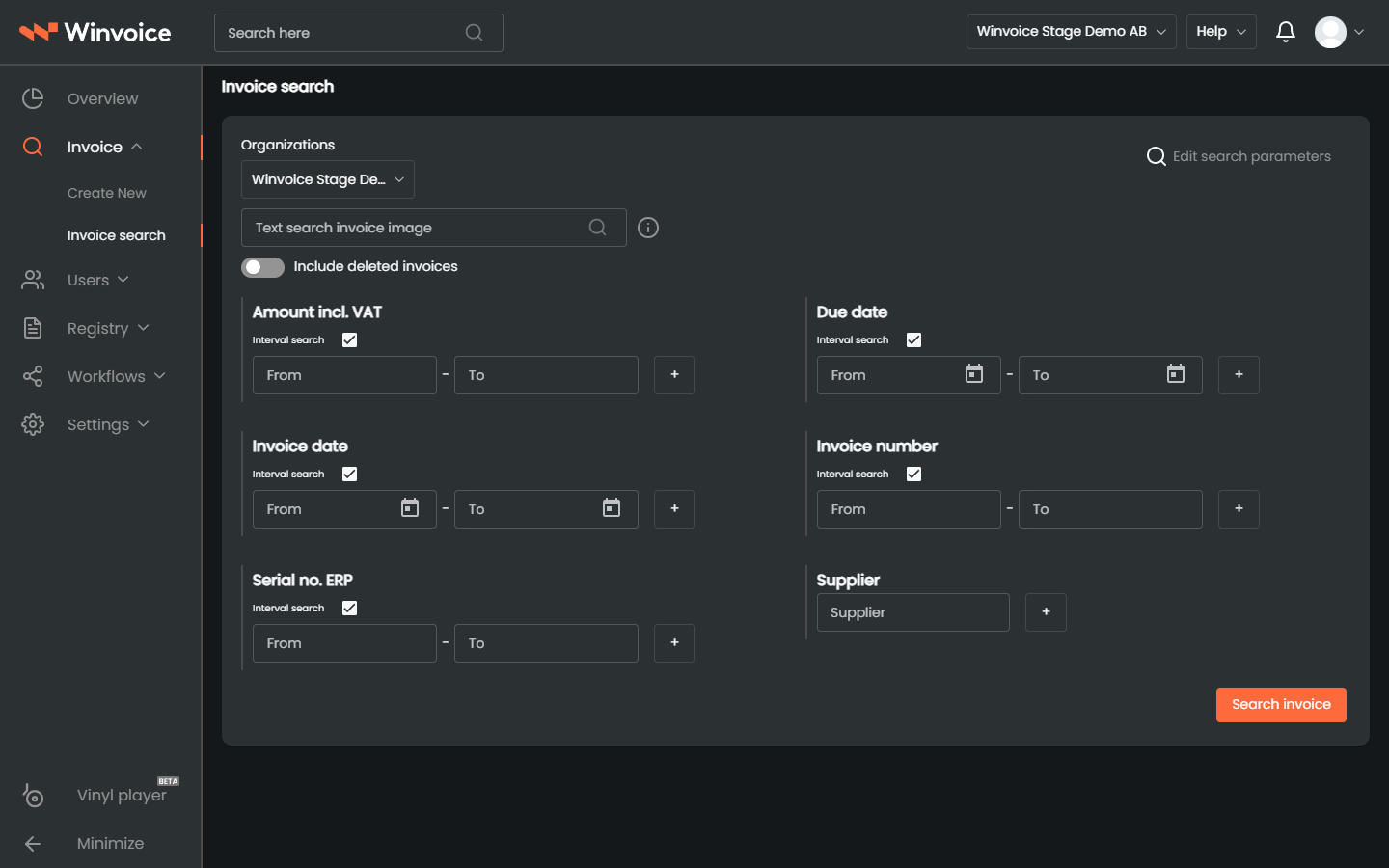
By default, the most common search fields are displayed:
- Amount including VAT
- Invoice number
- Internal sequence number
You can search using a single parameter or combine multiple fields to narrow down results with precision.
Customize Search Parameters
Click the Customize search parameters button to select which fields appear on your search form. This layout preference is saved to your individual user profile.
Available parameters (over 20 fields) include:
- Dates & Times: Invoice date, Due date, Arrival date, Preliminary booking date, Booking date, ERP booking date, Paid date, and Registration timestamp (Creation time).
- Financials & Amounts: Amount excluding VAT, VAT amount, Currency, and Payment reference/OCR.
- Registers & Dimensions: Supplier, Period, Account, Line description, Cost centers, and Projects.
- Workflow & Ownership: Approver, Specific status, Status category, and Auto-approved invoices.
- Tags & Origin: Tags (including confidential invoice filters for authorized users), Ingestion format (Creation format, e.g., PDF, E-invoice, Peppol), and Ingestion type.
3. Advanced Search Methods
Interval Search
For numeric fields, monetary amounts, and dates, you can enable Interval search:
- Check the interval box or toggle to interval mode on the target parameter.
- Specify the start and end values (e.g., invoice date 2026-01-01 to 2026-03-31, or amount 10,000 to 50,000).
- Click + to add additional intervals if you need to query non-contiguous ranges simultaneously (e.g., sequence numbers 100–200 and 500–600).
Full-Text Search in Invoice Images
The Full-text search in invoice image field searches directly across the text extracted and interpreted from invoice attachments:
- Search for article numbers, contact names, delivery addresses, or custom notes that do not reside in standard header fields.
- Combine freely with other filters and date ranges.
Invoices and attachments exceeding 10 MB are not automatically processed by the OCR interpretation engine (they are uploaded as plain files without interpretation). Text content within files larger than 10 MB is therefore not indexed for full-text search.
Include Deleted Invoices
Cancelled and deleted invoices are excluded by default. Enable the Include deleted invoices toggle to search through removed or rejected documents.
4. Search Results & List Customization
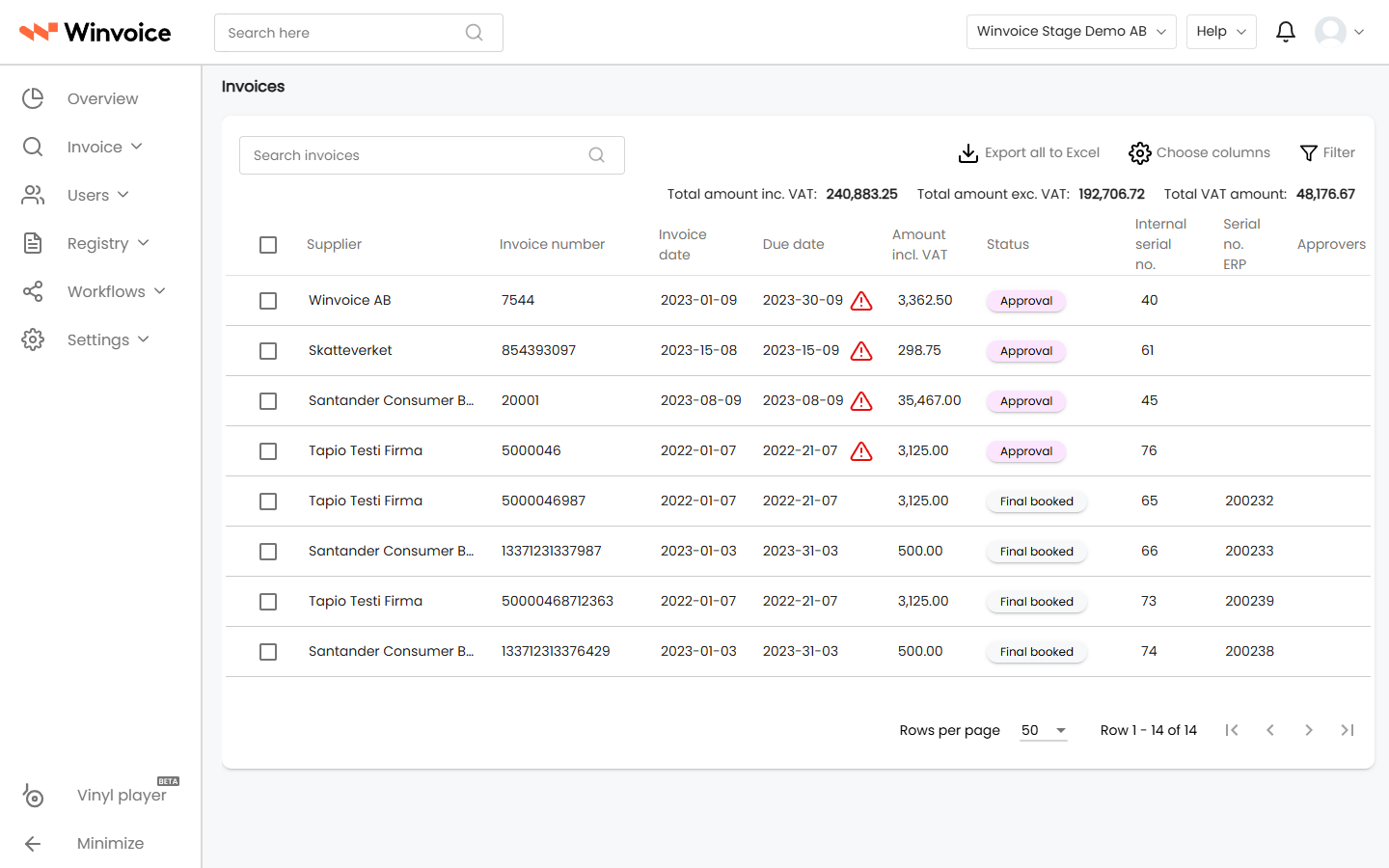
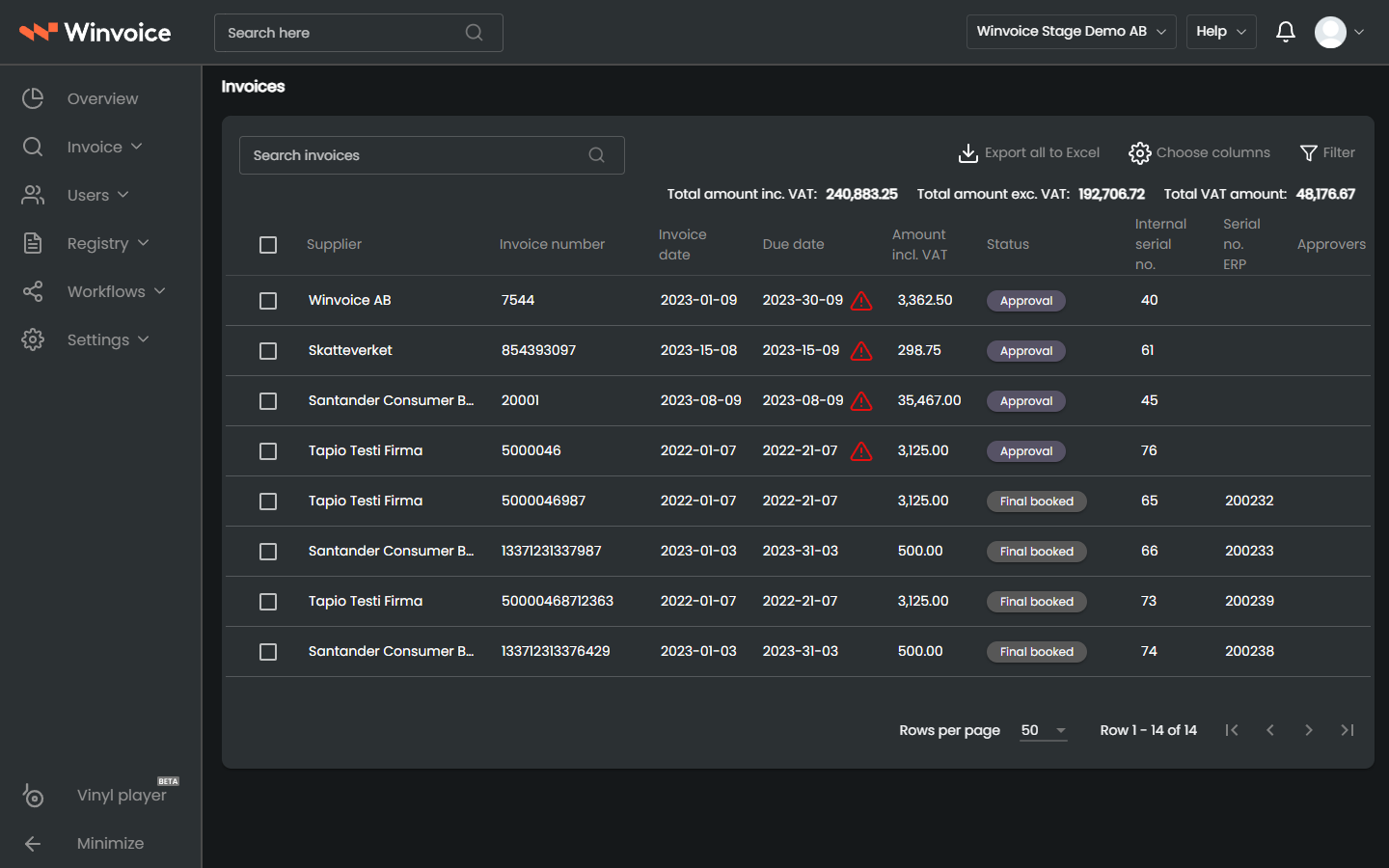
When you click Search, matching invoices appear in a structured data table:
- Choose Columns: Click the column picker to customize which fields are shown. Column configurations are saved to your user profile.
- Column Sorting: Click any column header to toggle ascending or descending sorting.
- Pagination: Choose between displaying 10, 20, or 50 invoices per page.
- Total Summary: A summary displaying the total monetary amount of matching invoices appears at the bottom of the list.
5. Bulk Actions & Managing Selected Invoices
Select individual invoices using the row checkboxes, or select all items on the current page via the master checkbox in the table header.
From the table's bulk actions menu, you can perform the following operations:
- Export to Excel: Exports search results directly to a spreadsheet. The export automatically preserves your active filters and current table column sort order.
- Merge PDFs: Downloads a combined PDF containing the invoice documents for all selected records.
- Send Approval Reminder: Sends an automated email reminder to the current assigned approvers for the selected invoices.
- Apply Tags: Bulk apply or remove tags across selected invoices.
- Delete: Permanently removes selected invoices (requires administrator permissions).
6. Review Invoice & Attachment Viewer
Clicking an invoice row in the search results opens the invoice details and the integrated PDF preview viewer:
- Zoom & Pan: Adjust zoom levels, fit to page width, or activate the Hand Tool (shortcut H) to pan across the document.
- Multi-Page Documents: Navigate effortlessly between pages using arrow keys or page thumbnails.
- Activity Log: Review the complete audit trail—approver actions, accounting adjustments, and timestamped events.