Accounting Rules – Automated Conditional Coding Rules
Complete guide to accounting rules in Winvoice: conditional auto-population, mandatory dimensions, trigger phases (before/during/after approval), and ERP-synchronized rules.
Overview: Automated Governance and Pre-Population of Accounting Lines
Accounting rules allow administrators to automate and control coding by establishing rules that automatically populate or restrict general ledger accounts, cost centers, and projects based on invoice data.
By linking specific conditions with predefined outcomes, manual input is minimized and invalid combinations are prevented:
- Mandatory Field Assignment: When a specific vendor is selected, designated cost centers and accounts are locked and assigned automatically.
- Restricted Selections: Ensure designated accounts can only be combined with approved project codes.
- ERP Synchronization: Accounting rules synchronized directly from your ERP (e.g. Fortnox or Visma) are marked with a distinct lock icon and labeled as ERP Rule.
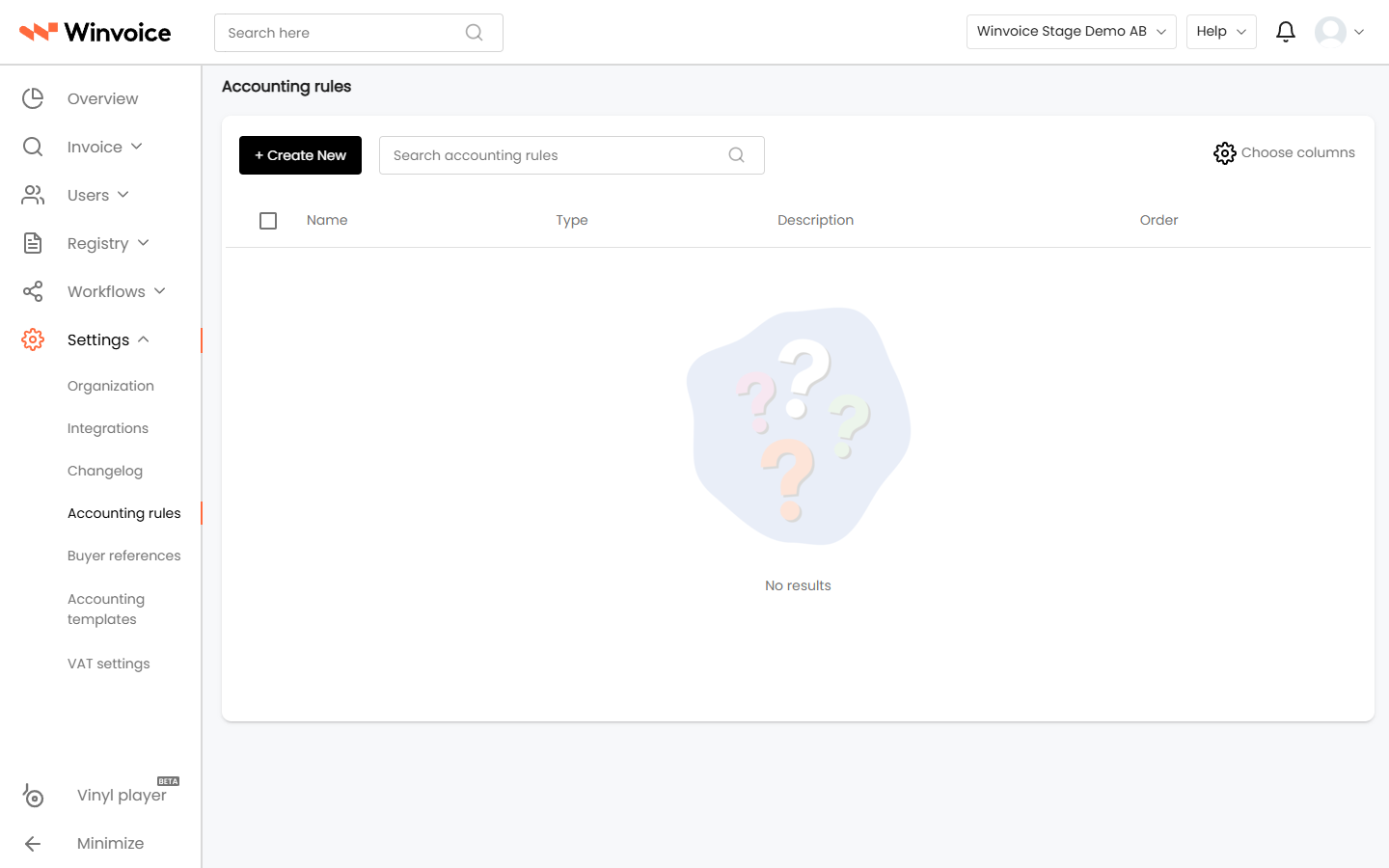
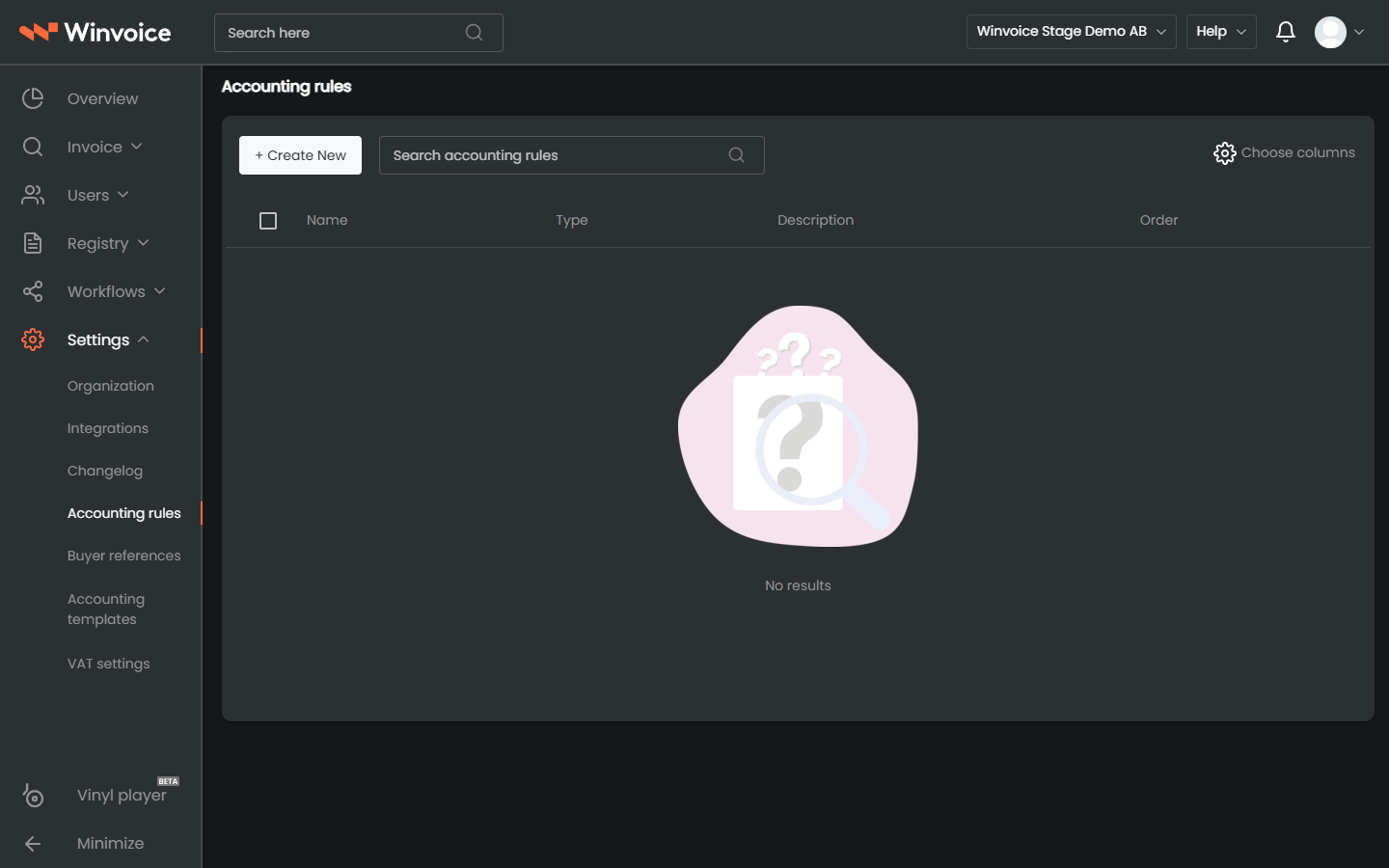
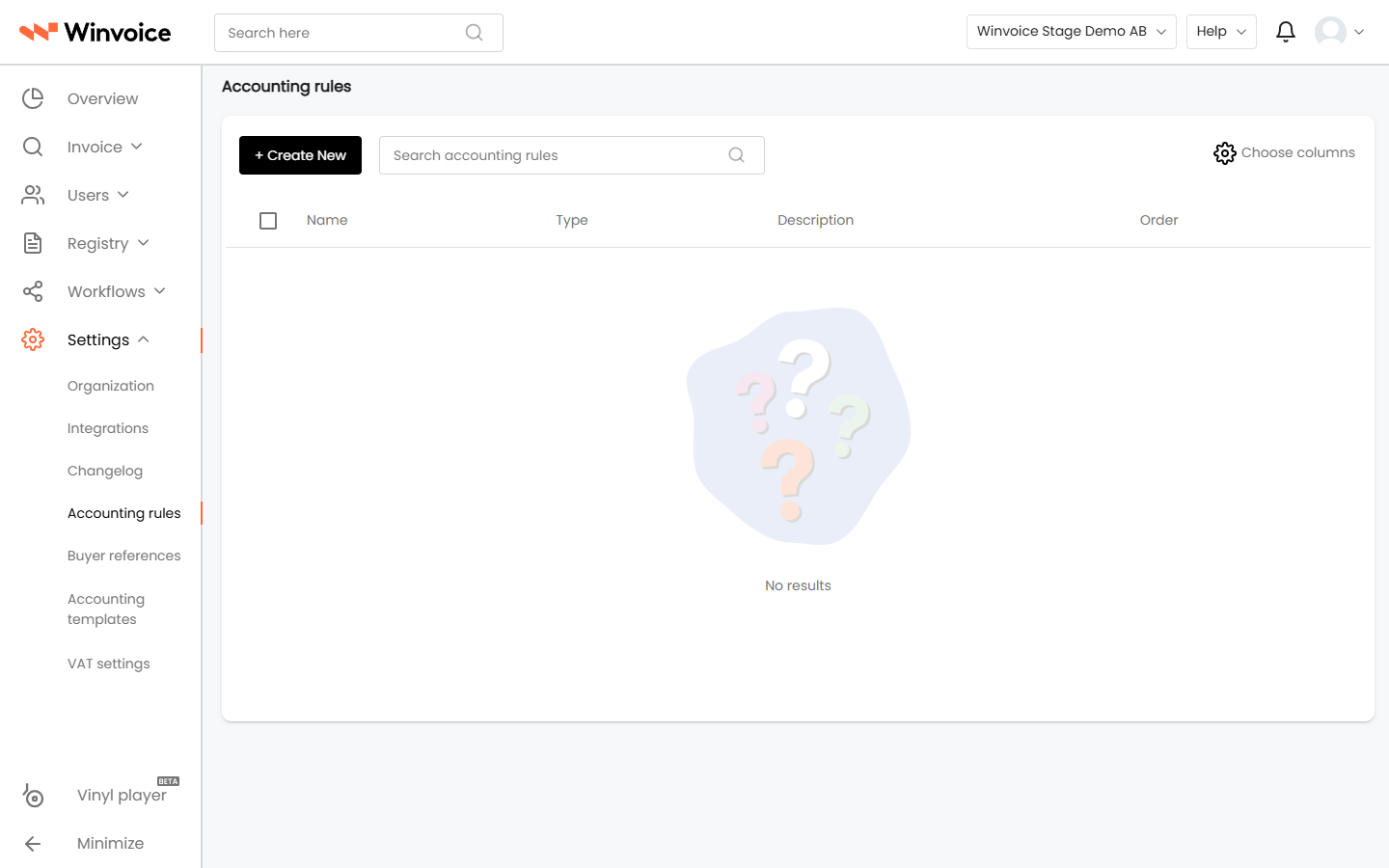
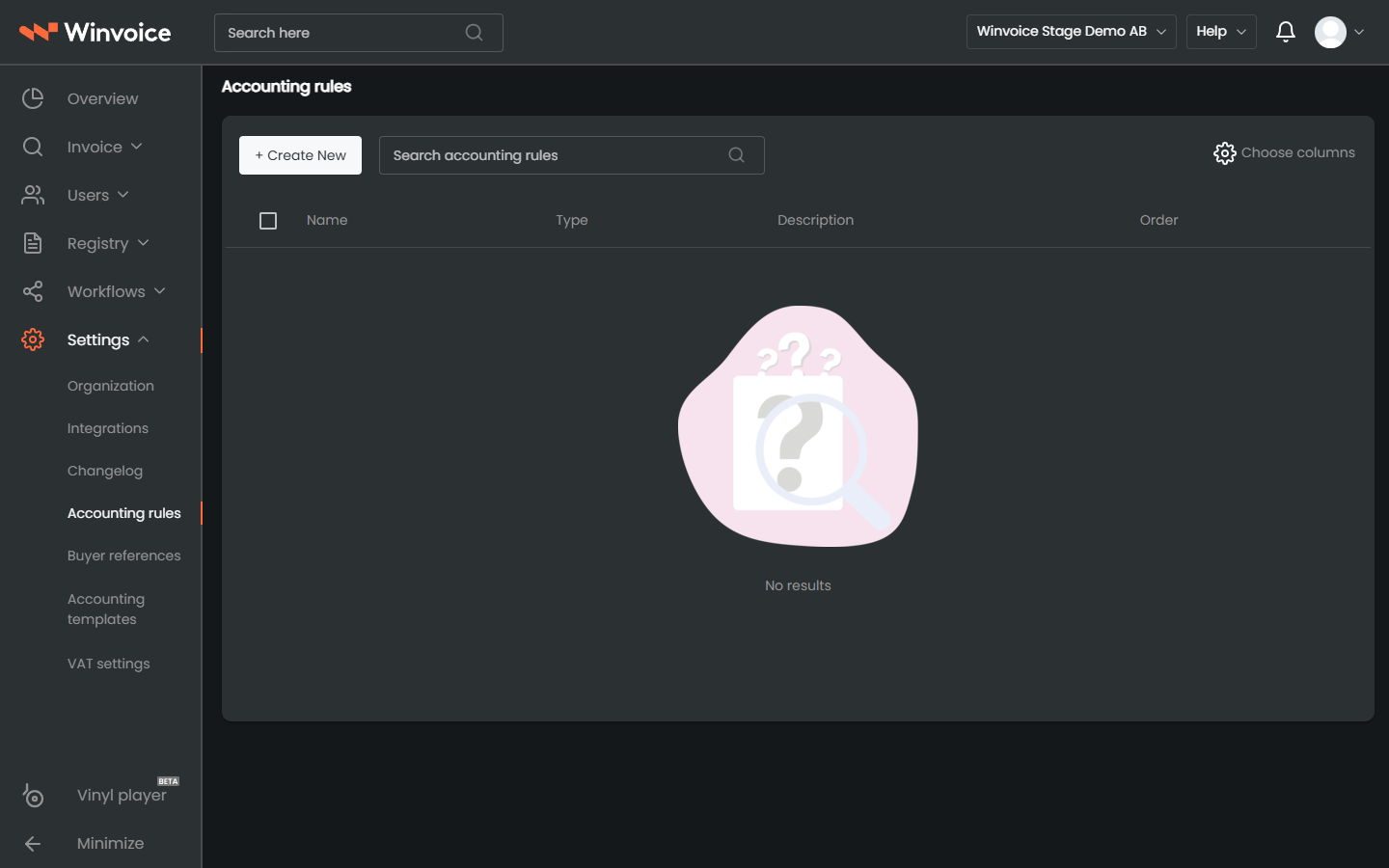
Accounting rules are managed under Settings → Accounting Rules in the main navigation menu.
1. Creating and Configuring an Accounting Rule
Navigate to Settings → Accounting Rules and click Create New (or select an existing rule from the list to edit it).
Fill in the foundational rule properties:
- Name: A descriptive title (e.g. Santander – Cost Center Stockholm & Authorized Projects or Tele2 – Auto-Populate Telecom Account).
- Description: Optional internal notes explaining the rule's operational scope.
- Active Rule: Toggle the rule on or off without deleting its configuration.
- Override Values (Override):
- When enabled, the rule overwrites existing values parsed by OCR or entered manually.
- When disabled, the rule only populates empty fields.
2. Trigger Phases – "When should the rule run?"
At the top of the rule editor, specify during which lifecycle phases the rule executes:
- Before Approval: Executes automatically upon invoice ingestion and OCR parsing before the first reviewer opens it.
- During Approval: Activates dynamically in the split invoice view as reviewers edit and approve accounting lines.
- After Approval: Evaluates during final review prior to ERP ledger synchronization.
You can enable one, two, or all three trigger phases depending on the rule's objective.
3. Conditions and Actions
Conditions – "When should this happen?"
Define which invoices or lines trigger the rule:
- Always Trigger: Executes unconditionally across all invoices.
- Custom Conditions: Match against specific registry entries (e.g. When Supplier = Santander Consumer Bank or When Buyer Reference = IT Department). Click + to add multiple conditions combined via AND-logic.
Screenshot demonstrating conditions and mandatory field assignments combined with restricted project choices.
Actions – "What should happen?"
Specify the coding behavior applied to the line:
- Mandatory Value (Set to): Automatically locks and sets a specific value (e.g. set Cost Center = 1 Stockholm).
- Restricted Options (Restricted to / Any of): Constrains dropdown options to an approved subset (e.g. allow only Project 1 or Project 2).
- Click + And to govern multiple dimensions and accounts within the same rule.
Click Save when finished.
4. ERP Rules and Allowed Combinations
- Locked ERP Rules: Rules synchronized directly from the ERP chart of accounts carry a lock icon and an ERP Rule tag. These reflect external accounting validations and cannot be overridden by standard rules.
- Allowed Combinations: When the ERP mandates that specific accounts must always include an associated project or cost center, Winvoice displays the Allowed Accounting Combination badge.
5. Managing Existing Accounting Rules
- Step-Through Navigation (Record Stepper): Use the header navigation controls (
< Previous | Next >) to iterate sequentially through accounting rules without returning to the list view. - Tools Menu (Wrench Icon):
- Copy Rule: Creates an exact duplicate as a new draft—convenient for quickly creating similar rules for other suppliers.
- Changelog: Provides a complete audit trail showing who modified the rule and when.
- Delete: Permanently removes the rule.