Accounting Templates – Recurring and Percentage-Based Coding
Complete guide to accounting templates in Winvoice: percentage distributions, fixed amounts, manual application, and workflow automation.
Overview: Efficient Coding for Recurring Expenditures
Accounting templates save substantial time and ensure rigorous consistency when coding recurring or complex supplier invoices. Rather than manually keying in general ledger accounts, projects, and dimensions line by line every billing cycle, you can apply a predefined template with a single click—or automate the entire process upon ingestion.
Common use cases include:
- Percentage-Based Cost Splitting: Distribute rental leases, utility bills, or shared IT software across multiple departments or legal entities.
- Complex Multi-Line Coding: Predefine mandatory offsetting accounts (e.g. reverse charge VAT or equipment leasing).
- Recurring Subscriptions: Predictable monthly invoices with pre-assigned line approvers.
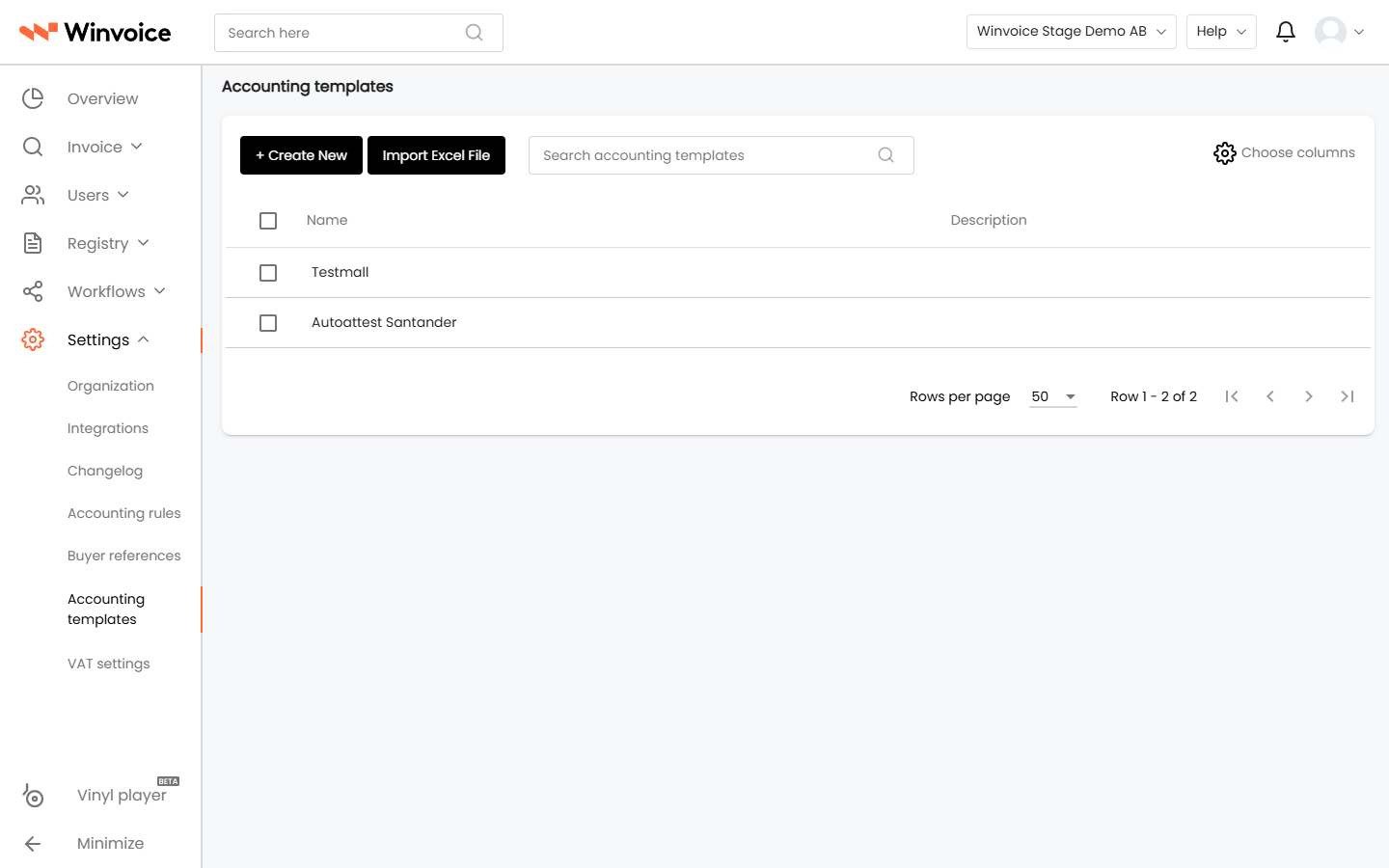
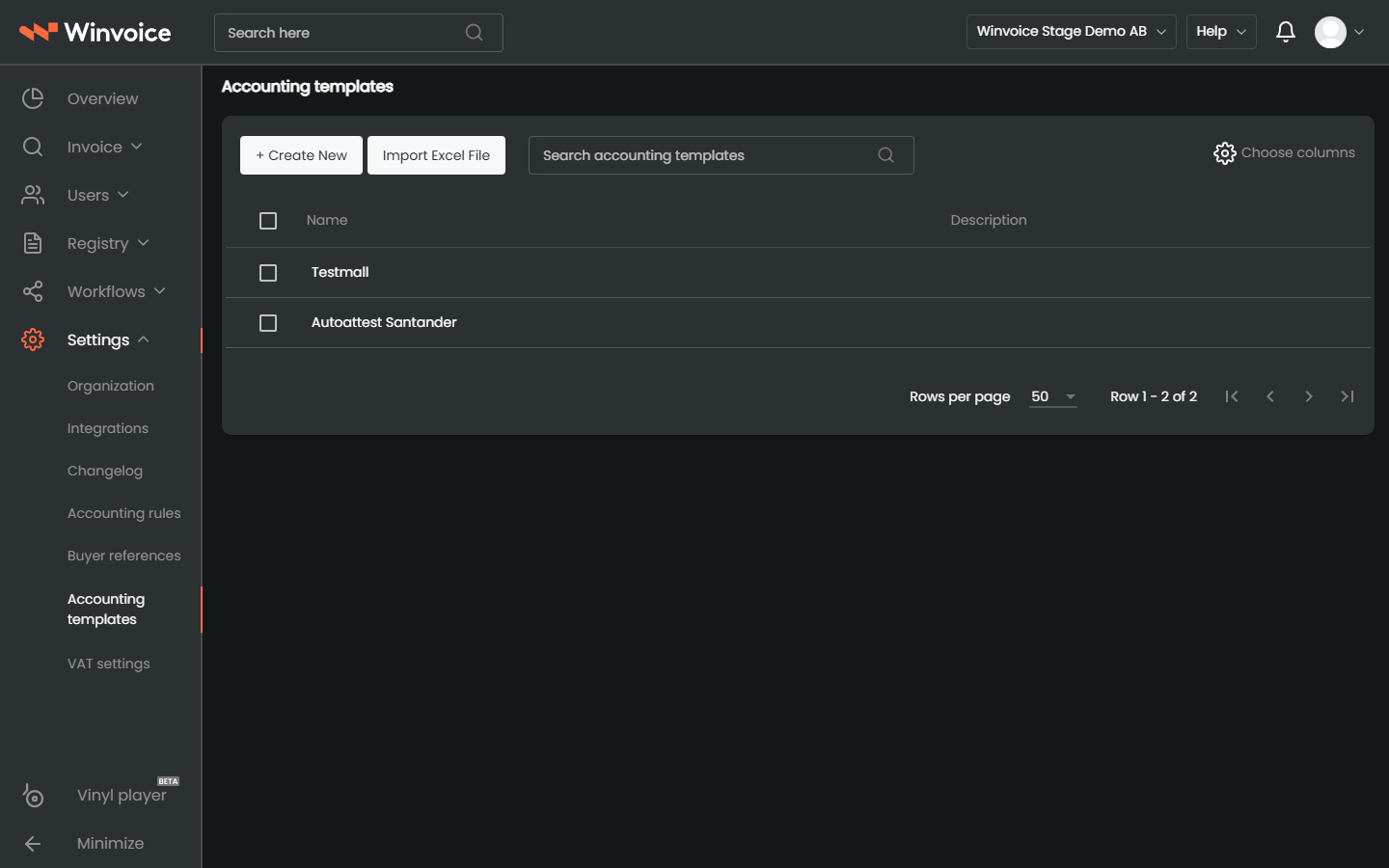
Accounting templates are managed under Settings → Accounting Templates in the main navigation menu.
1. Creating an Accounting Template
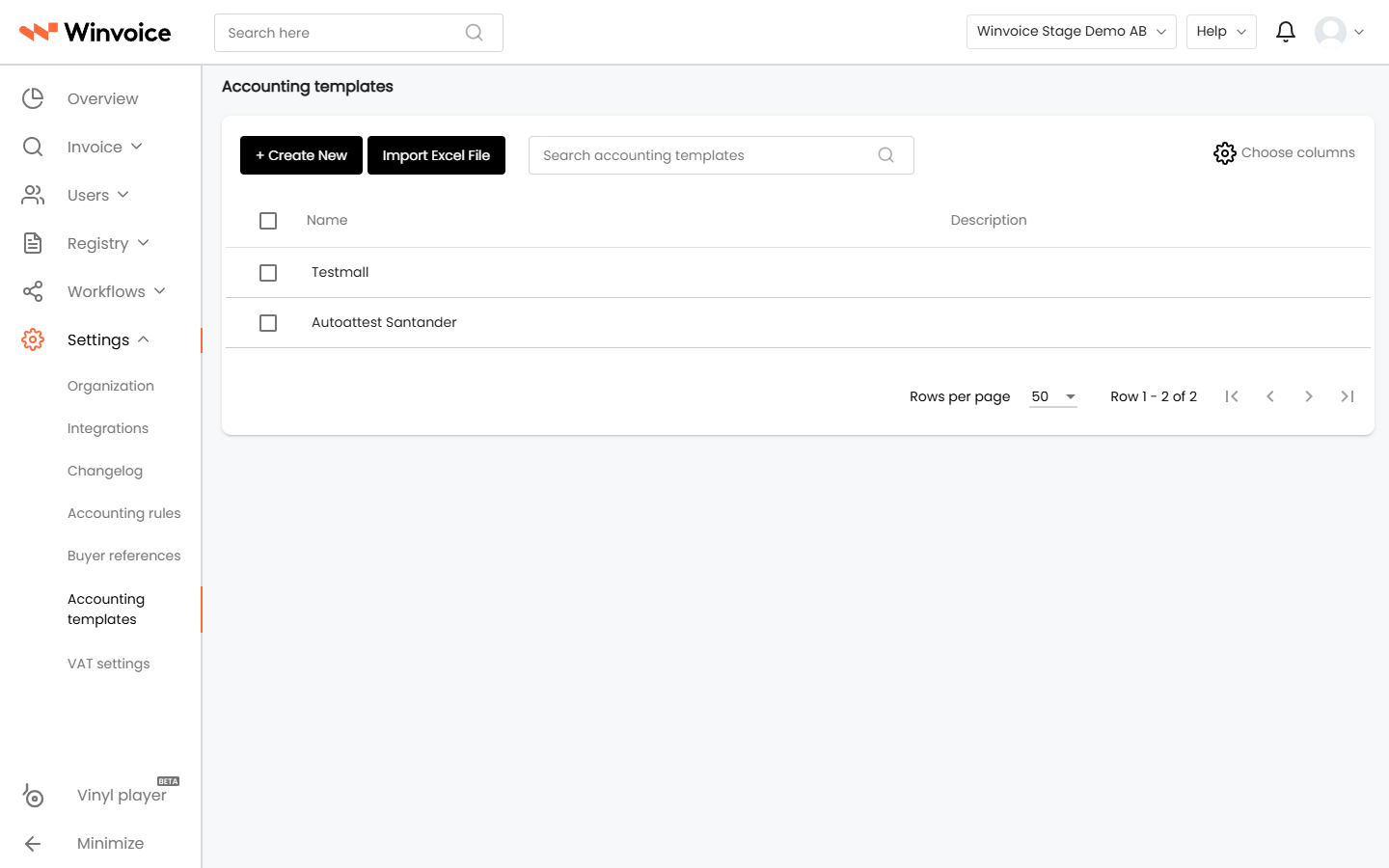
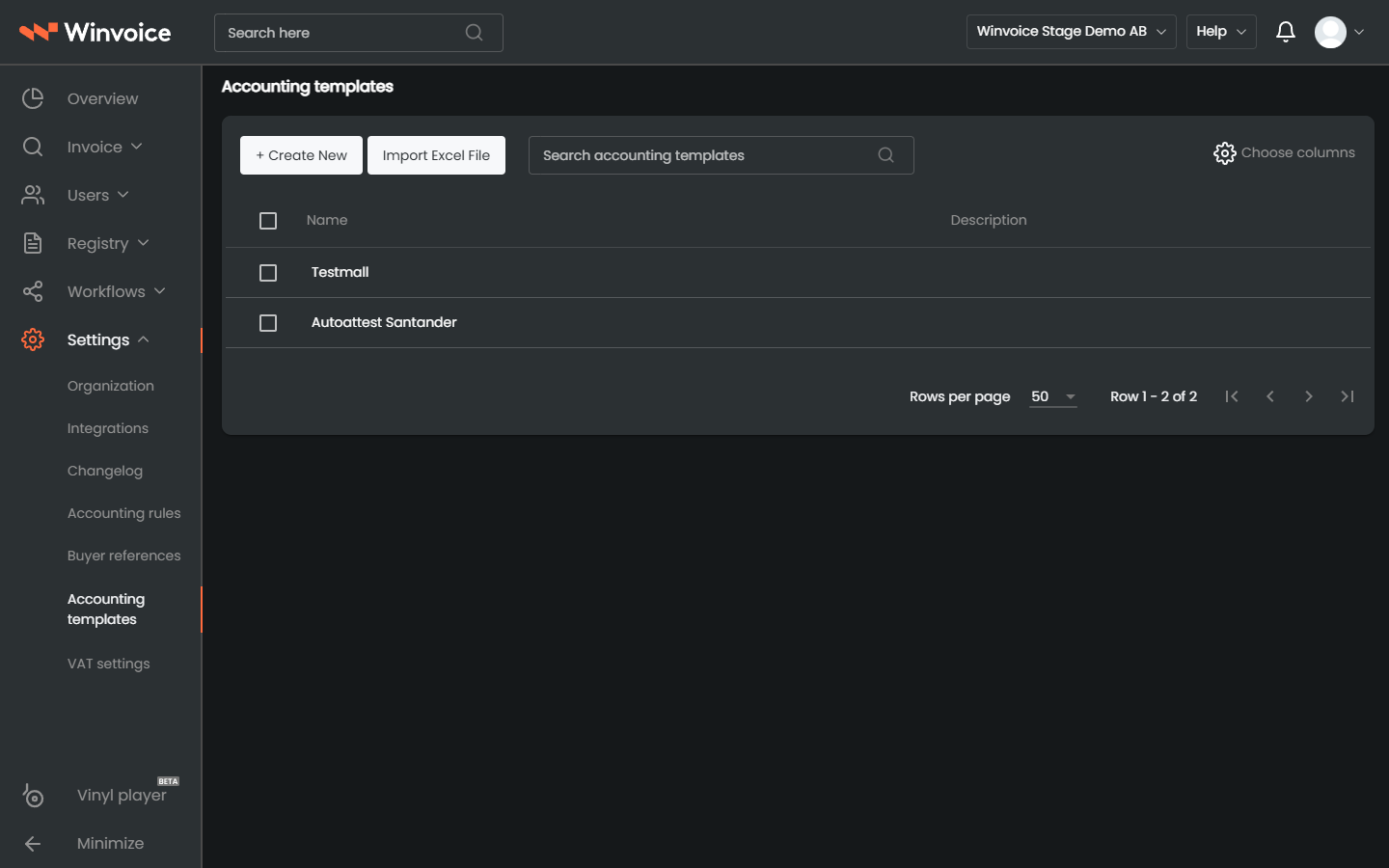
Navigate to Settings → Accounting Templates and click Create New (or select an existing template from the list to edit it).
Fill in the foundational template settings:
- Name: A descriptive title (e.g. Office Rent – 60/40 Cost Allocation or Telephony – Sales Department).
- Description: Optional internal notes explaining allocation logic.
- Template Lines: Click Add Line to define accounting rows:
- Account: General ledger account from your synchronized chart of accounts.
- Dimensions: Cost center, project, department, or custom ERP dimension codes.
- Approver: Pre-assign a specific user or user group responsible for approving that line item.
- Amount Type (Percentage vs. Absolute Value):
- Percentage (Default): Debit and credit amounts represent percentages of the invoice net amount (e.g. 60% on line 1 and 40% on line 2). Winvoice calculates the exact monetary sums dynamically when applied to an active invoice.
- Absolute Value: Fixed monetary amounts (e.g. a standard fixed fee of 1,500 SEK).
Click Save when finished.
2. Applying Accounting Templates
You can apply templates either manually during invoice review or automatically via workflow rules.
A. Manual Application in the Split Invoice View
When reviewing an invoice:
- Click the template icon located directly above the accounting lines table.
- Select Apply Accounting Template.
- Choose how the template should interact with current lines:
- Overwrite All Lines: Erases current lines and replaces them entirely with the template's lines and calculated amounts.
- Append (Add): Retains existing lines and appends the template lines as additional rows.
- Select your desired template and click Apply.
Screenshot of the Apply Accounting Template dialog showing the Overwrite All Lines versus Append choices.
B. Automatic Ingestion via Incoming Workflows
By combining an accounting template with an Incoming Workflow, you achieve hands-free touchless processing:
- Create an incoming workflow under Workflows → Incoming (e.g. When Supplier = Landlord Corp).
- Add the action Apply Accounting Template and choose your template.
- Whenever an invoice from that vendor arrives, Winvoice automatically codes lines according to the template and dispatches them directly to approvers without manual intervention.
3. Managing Existing Templates
- Step-Through Navigation (Record Stepper): Use the header navigation controls (
< Previous | Next >) to iterate sequentially through templates without returning to the list view. - Tools Menu (Wrench Icon):
- Copy Template: Duplicates the template as a new draft—convenient for quickly creating similar allocation rules across various departments.
- Changelog: Provides a detailed audit log showing who modified the template and when.
- Delete: Permanently removes the template from the organization.