Approval Workflows – Rule-Based Approval Chains and Routing
Complete guide to approval workflows in Winvoice: line-level approvals, condition groups, approval chains, supplier approvers, and priority order.
Overview: Line-Level Approval Workflows
Approval workflows in Winvoice are triggered automatically as soon as an accounting line on an invoice receives its initial sign-off from the first approver. Their primary purpose is to automate subsequent approval routing across the organization, ensuring the correct stakeholders review and sign off on expenses before an invoice reaches final verification or payment.
Unlike Incoming Workflows and Final Review (which evaluate and govern the entire invoice as a single entity), approval workflows operate per individual accounting line.
If an invoice is split across three distinct lines (e.g. distributed across different departments or projects), each line can be routed through its own dedicated approval workflow independently of the other lines.
Approval workflows are configured under Workflows → Approval.
1. Creating and Configuring an Approval Workflow
Navigate to Workflows → Approval in the main navigation menu and click Create New (or click an existing workflow in the list to edit it).
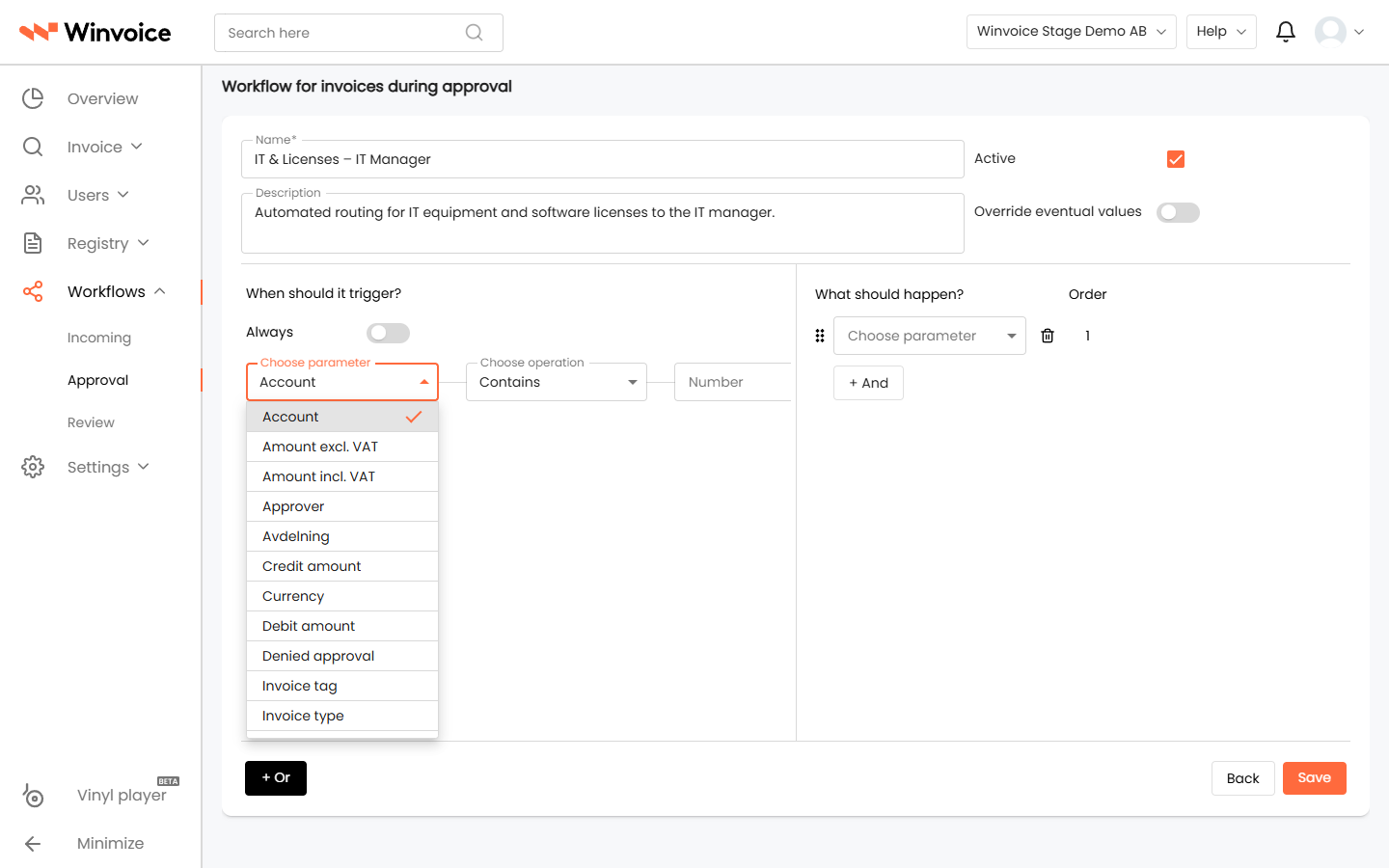
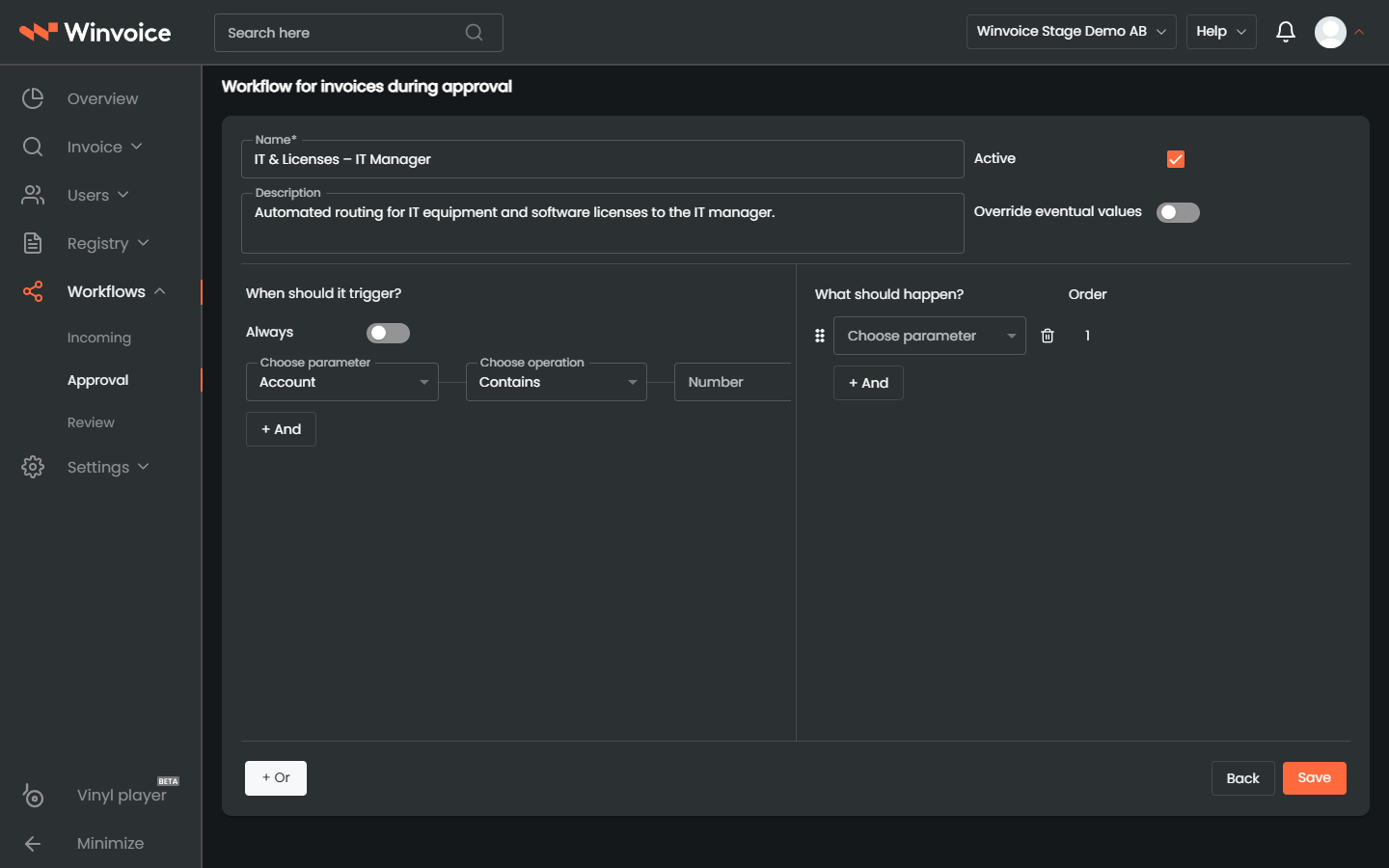
Configure the high-level workflow settings in the header form:
- Name: A distinct, descriptive title for the workflow (e.g. IT Expenses above 50,000 SEK or Project Costs – Site Manager).
- Description: Optional internal notes explaining the workflow's rationale and scope for fellow administrators.
- Active Workflow: Toggle the workflow on or off. Inactive workflows remain stored in the system but are bypassed during invoice processing.
- Override Values (Override):
- When enabled, the workflow's actions are authorized to overwrite previously assigned approvers or values on the accounting line.
- When disabled, newly assigned approvers are appended without clearing existing line assignments.
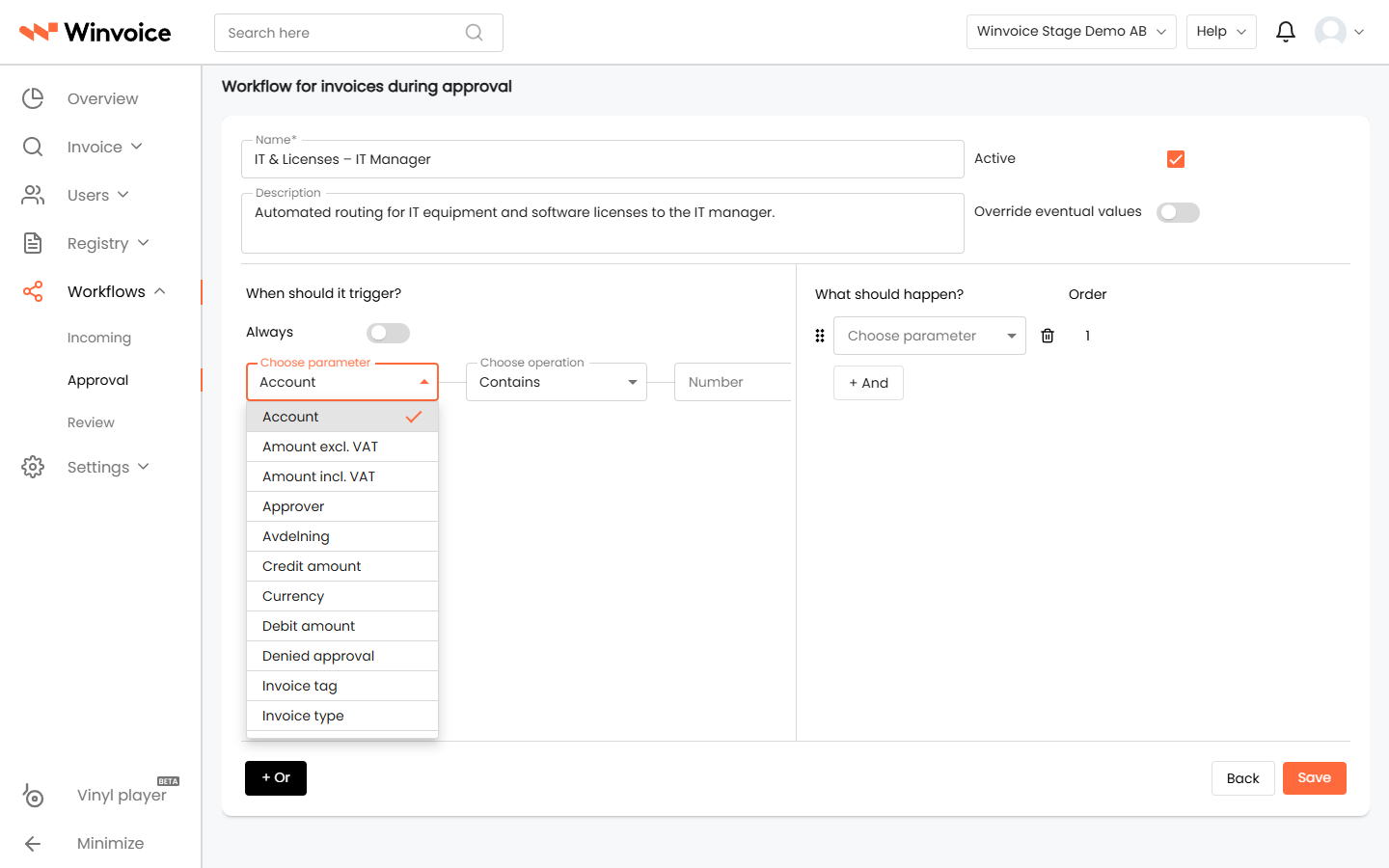
2. Conditions – "When should this happen?"
Under the conditions panel, define the rules and criteria determining which accounting lines trigger the workflow.
Always vs. Custom Parameters
- Always: Enable this toggle if the workflow should execute unconditionally for every approved accounting line, regardless of amounts, accounts, or vendors.
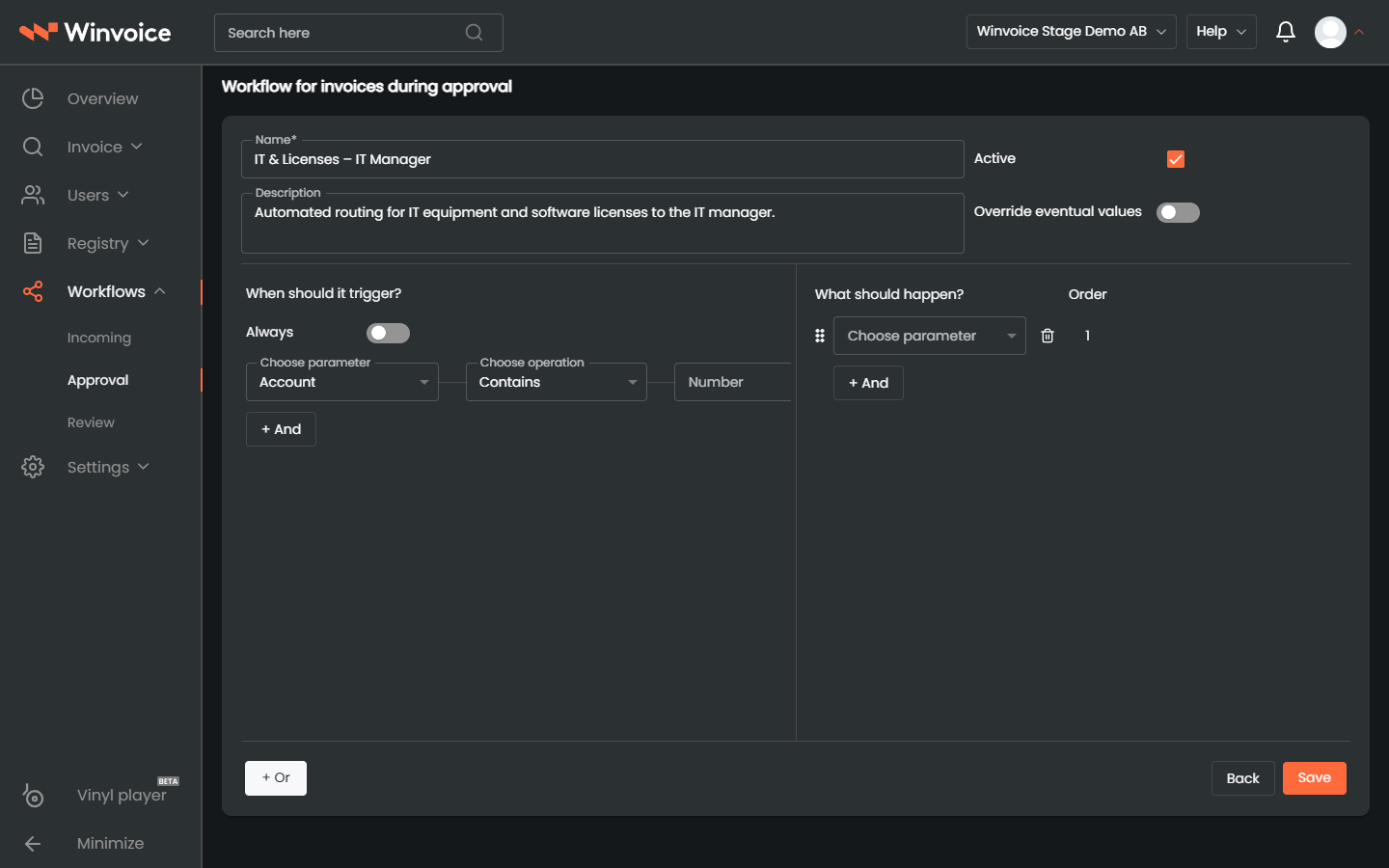
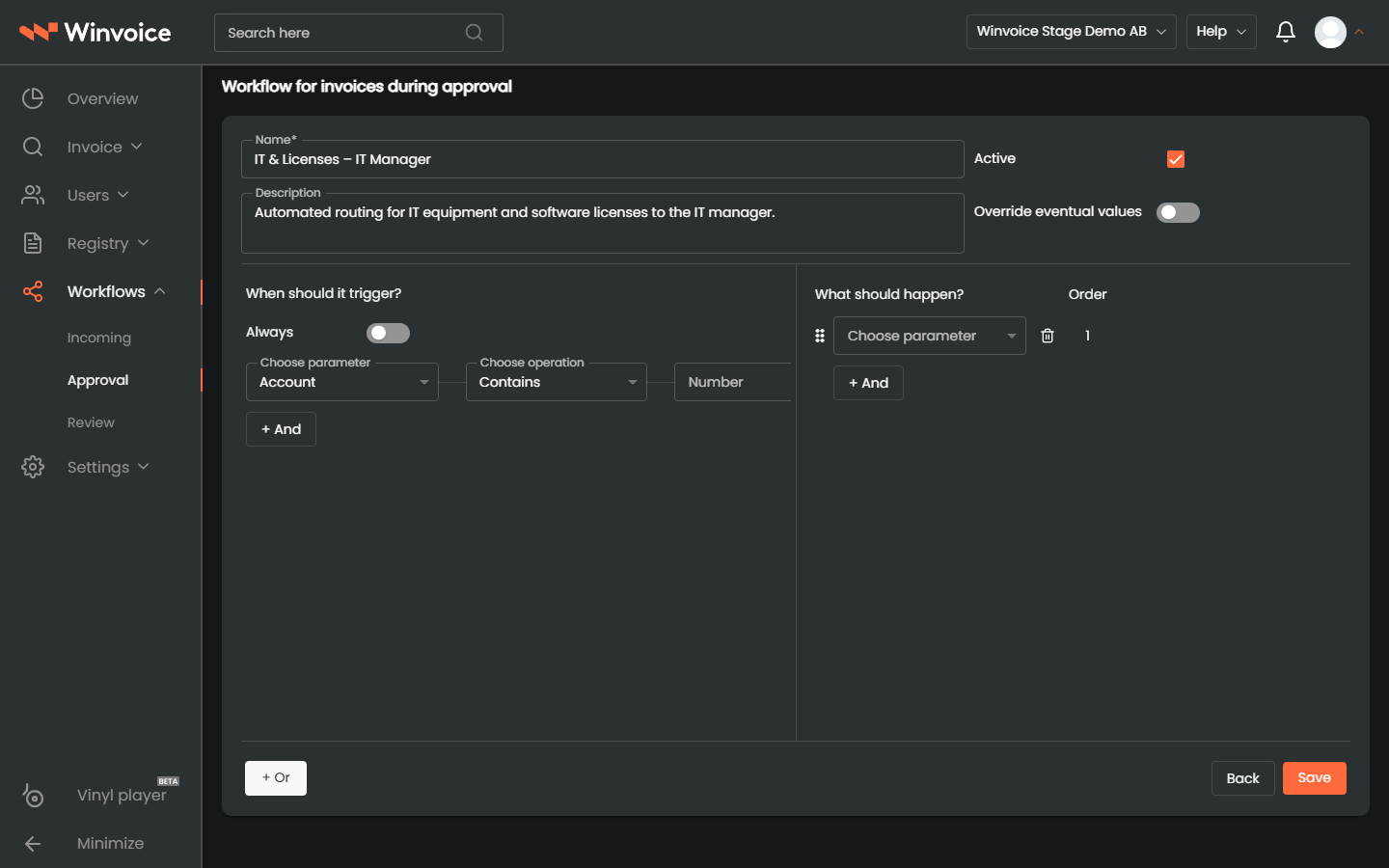
- Specific Condition Groups: When the toggle is off, construct precise logic using the rule builder:
- + And (within group): Adds another condition to the same group. All conditions in that group must evaluate to true simultaneously (logical AND).
- Add Group / Or (between groups): Creates a new, distinct condition group. The workflow triggers if either Group 1 or Group 2 is satisfied (logical OR).
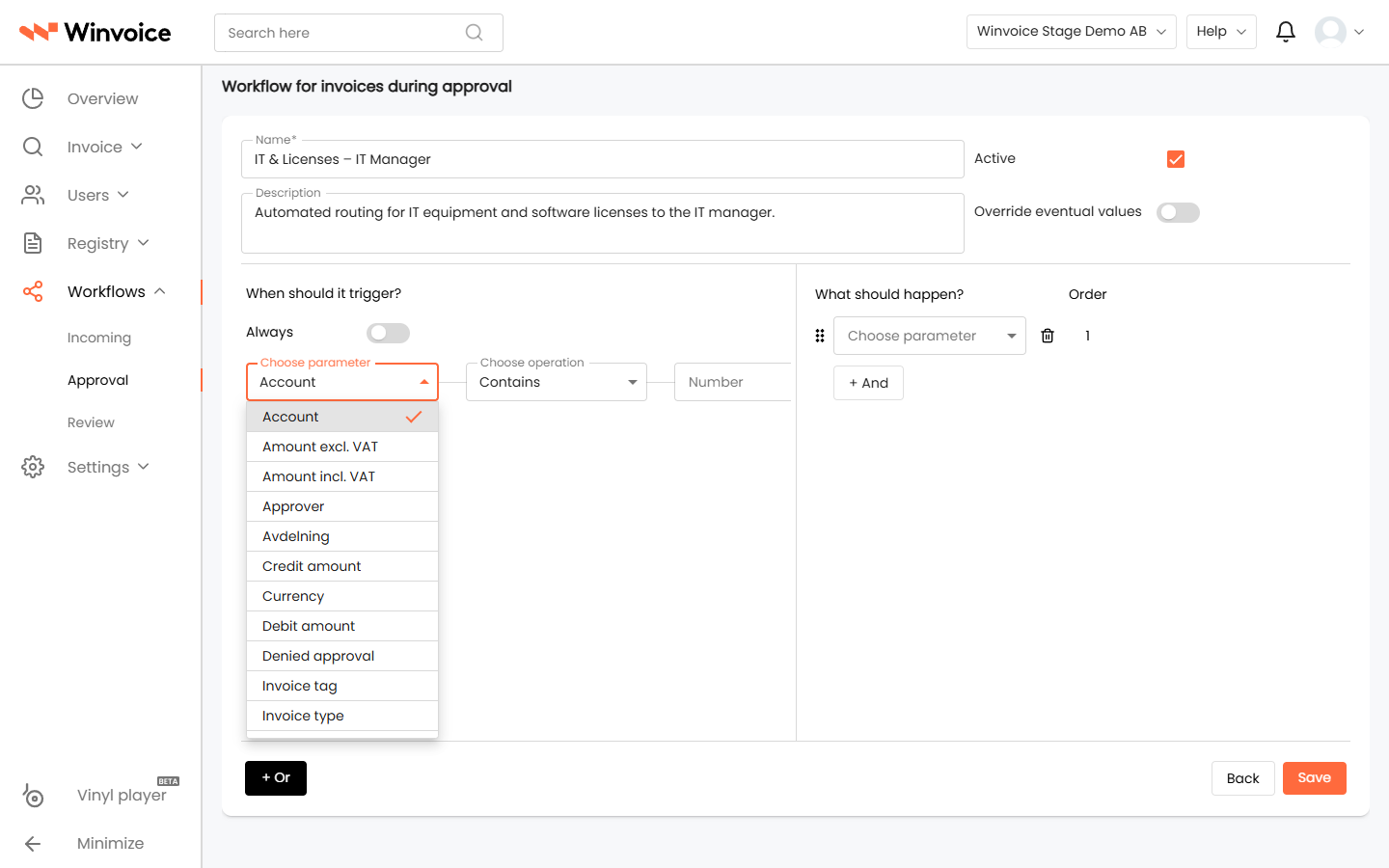
Available Conditions and Parameters
You can combine any of the following parameters in your approval workflows:
- Approver (
Approver): The specific user who just approved the line (e.g. Approver = John Doe). - Supplier Approver: Matches against the default approver assigned to the vendor in the supplier registry.
- Debit and Credit Amounts: Line-level numerical thresholds (
=,!=,>,<,>=,<=), e.g. Debit Amount >= 25,000. - Invoice Total & VAT: Invoice-level thresholds for total amount including VAT, excluding VAT, or VAT amount.
- Account: Match against a specific general ledger account or range from the synchronized chart of accounts (e.g. Account = 5010 Premises Rent).
- Dimensions (Cost Center, Project, etc.): Filter by projects, cost centers, departments, or custom dimensions synchronized from your ERP.
- Inventory / Stock: Match against specific inventory items or stock codes (labeled Inventory in the selector).
- Supplier: Filter by specific vendor, vendors carrying a particular tag, or text matching on vendor name (starts with, contains).
- Invoice Type: Distinguish between Debit Invoice and Credit Invoice.
- Currency: Filter by invoice currency (e.g. Currency = EUR or USD).
- VAT Code: Evaluate the VAT code assigned to the line item.
- Line Description / Transaction Text: Match keywords in the line description (equals, contains, exists, does not exist).
- Denied Approval (
Denied approval): Trigger specialized exception handling workflows whenever an approver rejects a line. - Final Review Status (
No Final Review / NO_FINAL_REVIEW): Condition rules specifically for invoices exempted from the organization's final review stage. - Tags: Target invoices carrying or missing specific internal tags.
3. Actions – "What should happen?"
In the right-hand column ("What should happen"), specify the actions to take when conditions match.
Available Action Types
- Add Approver to Line: Assign the next designated individual responsible for approving the accounting line.
- Add Project Manager to Line: Automatically retrieve and assign the designated project manager linked to the line's project dimension.
- Add Tags: Assign one or more internal tags to the invoice (e.g. CEO Approval Required, High Value).
- Remove Tags: Clear specific tags once an invoice reaches a designated approval stage.
- Send Notification: Deliver an instant in-app notification in Winvoice with custom text to designated users.
- Send Email: Dispatch an email notification containing custom instructions to designated roles or individuals.
Multiple Approvers and Approval Chains
When an accounting line must undergo sequential sign-offs across multiple stakeholders (an approval chain, e.g. Supervisor → Project Manager → Managing Director), organize them sequentially:
- Add the required approvers and arrange their sequence using the drag handle on each action row.
- Verify that the sequence in the Order column reflects the intended progression of sign-offs.
Click Save at the bottom right to commit the workflow.
4. Managing and Prioritizing Workflows
When an organization maintains multiple approval workflows, proper priority and administrative management ensure predictable execution.
Priority Ordering (Execution Order)
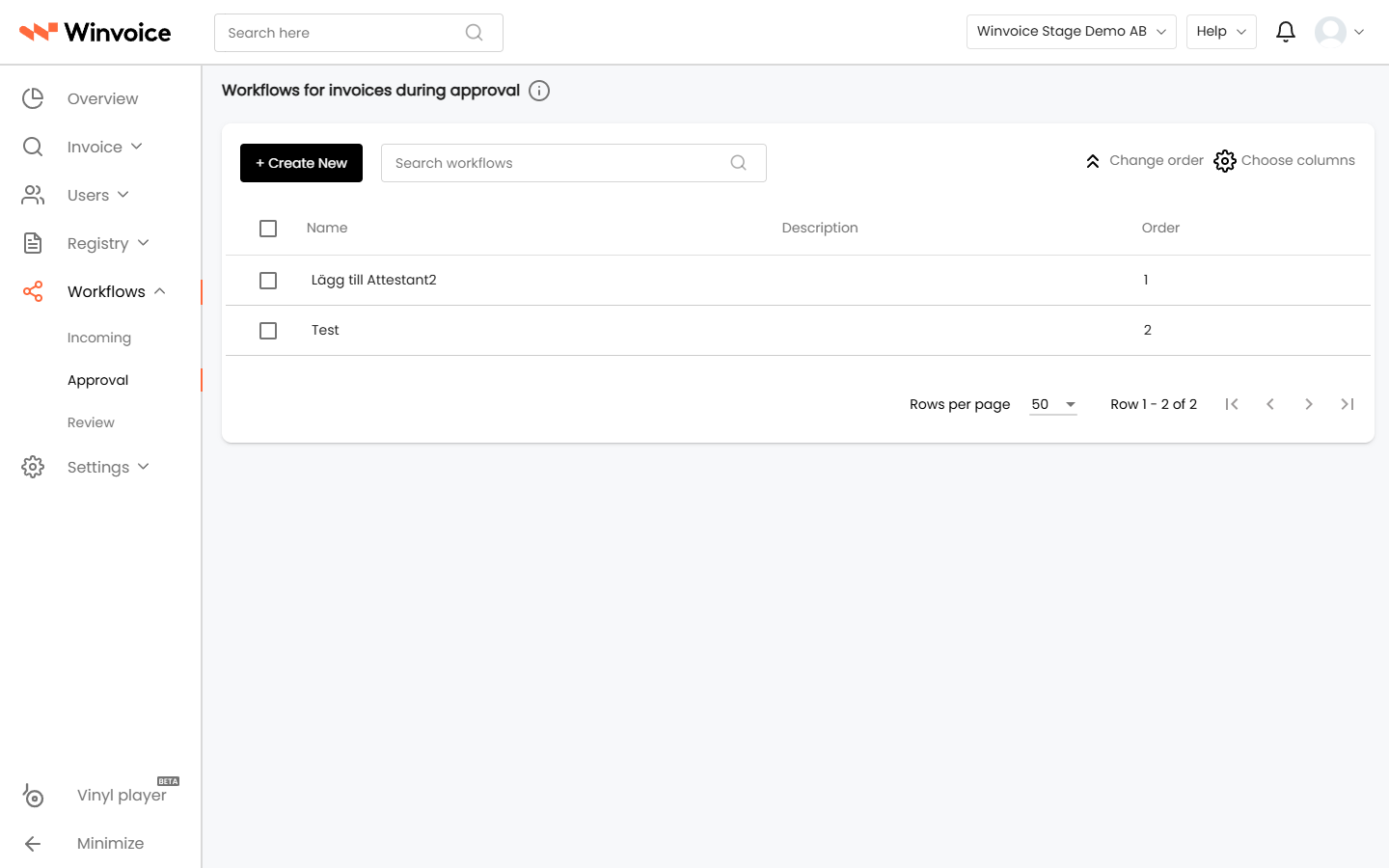
If an accounting line satisfies the criteria of multiple approval workflows, the list sequence dictates priority.
- Lower numbers denote higher priority: A workflow assigned Order 1 evaluates and executes before a workflow assigned Order 5.
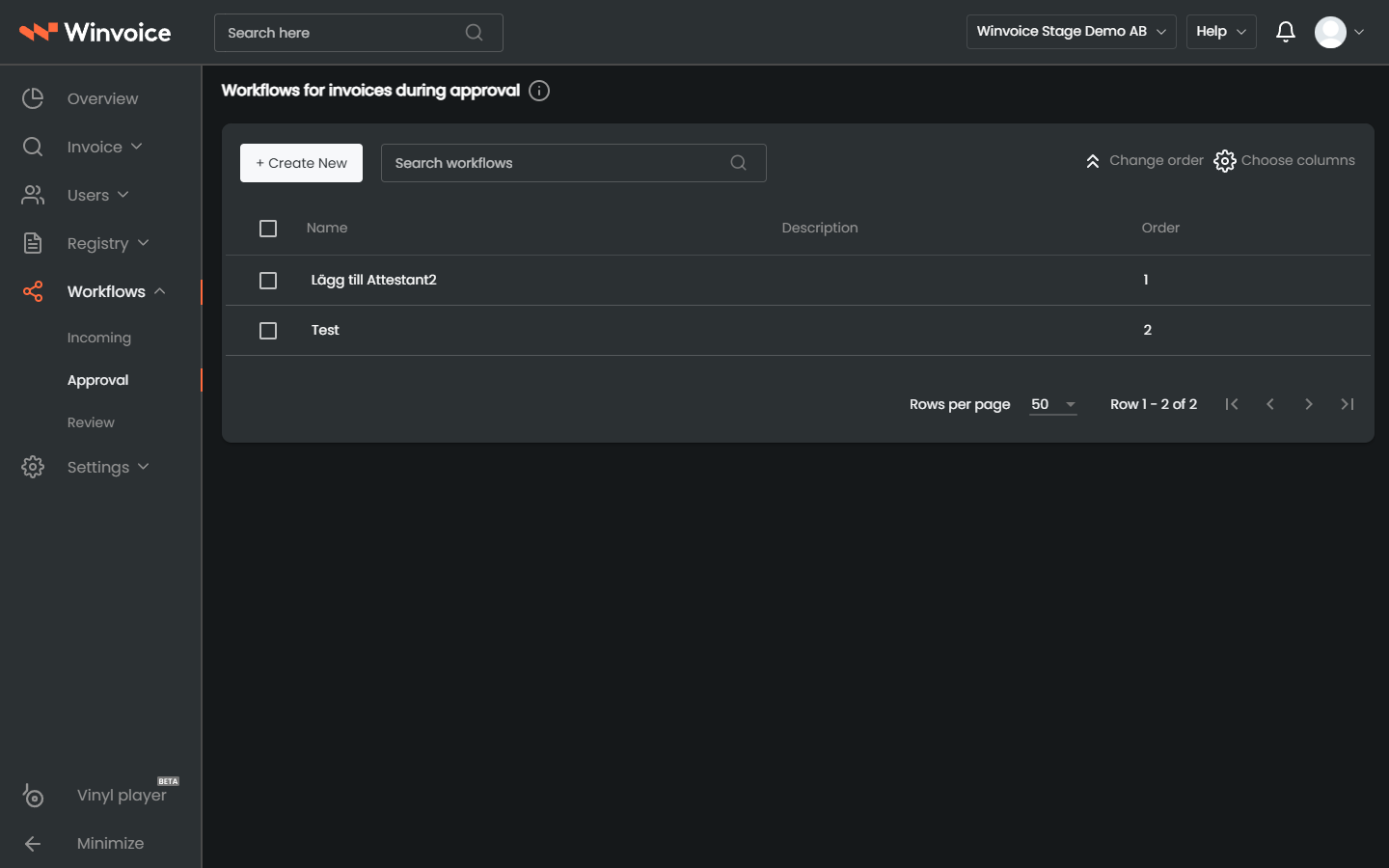
- Reordering Workflows: In the overview list under Workflows → Approval, drag workflow rows up or down, or click the direction arrows to adjust sequence. Click Save to apply changes.
Multi-Select and Step-Through Navigation (Record Stepper)
The workflow list includes productivity tools for efficient administrative maintenance:
- Multi-Select: Select multiple workflows using list checkboxes to activate, deactivate, or delete several rules simultaneously.
- Step-Through Navigation (Record Stepper): When viewing an open workflow, use the record stepper in the top header (
< Previous | Next >) to iterate sequentially through your workflows without repeatedly returning to the list.
Tools Menu (Wrench Icon)
Located at the bottom right of the workflow editor, the wrench icon provides quick administrative utilities:
- Copy Workflow: Creates an exact duplicate of the workflow as a new draft—ideal for replicating rules across similar cost centers or departments.
- Changelog: Opens an audit dialog displaying historical modifications, detailing who modified the workflow and when.
- Delete: Permanently removes the workflow upon confirmation.