Visma.net Financials Integration
Winvoice offers a deep, certified real-time integration with Visma.net Financials via modern cloud REST APIs. The integration automates the entire vendor invoice process from capture and workflow approval to final posting, payment reconciliation, and reporting, featuring complete bidirectional master data synchronization (2-way sync), multi-branch support with ledger verification, landed cost allocations, purchase order matching, and built-in preliminary booking.
Overview & Key Features
- Bidirectional Master Data Sync (Two-Way Sync): Create and edit GL accounts, suppliers, and dimensions/subaccounts directly inside Winvoice under the Registry menu. Changes export to Visma.net via API in real time.
- Multi-Branch Support & Ledger Validation: Support for organizations operating with multiple branches in Visma.net, with automatic validation ensuring the selected branch has an active General Ledger.
- Asynchronous Invoice Export via Background Tasks: Resilient export leveraging Visma.net's background processor (
erp-api-background) with automated status polling and 24-hour timeout protection. - Flexible Accounting Models: Choose between Final Posting (invoices post to Visma.net once fully approved) and Preliminary Booking (Ankomstregistrering) (built-in preliminary posting where interim vouchers are created upon receipt, then automatically replaced with final vouchers upon approval).
- Line-Level Purchase Order Matching: Automatic ingestion of open Purchase Orders (PO) and Goods Receipts (PR) from Visma.net with line-item matching, remaining quantity tracking, and tolerance thresholds.
- Landed Costs: Management of customs, freight, and ancillary charges on goods receipts allocated proportionally by quantity or cost.
- Advanced Subaccounts: Automatic validation of allowed segmented combinations (Subaccounts) on both invoice lines and goods receipt lines (
actualSub). - Projects & Severa Integration: Automatic project module activation during onboarding with support for project accounting and Severa project transactions.
- Exchange Rates & Deferrals: Automatic sync of monthly deferral codes and daily currency exchange rates.
Setting Up and Connecting a Company
Before connecting the company in Winvoice, enable and configure the integration in Visma.net and Visma Connect.
Follow the official step-by-step guide for permissions and setup in the Visma.net App Store:
Step-by-Step Connection in Winvoice:
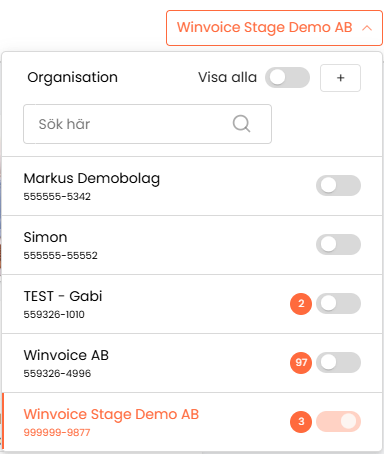
- In Winvoice, click the organization selector in the top-right corner and click + (Create new organization).
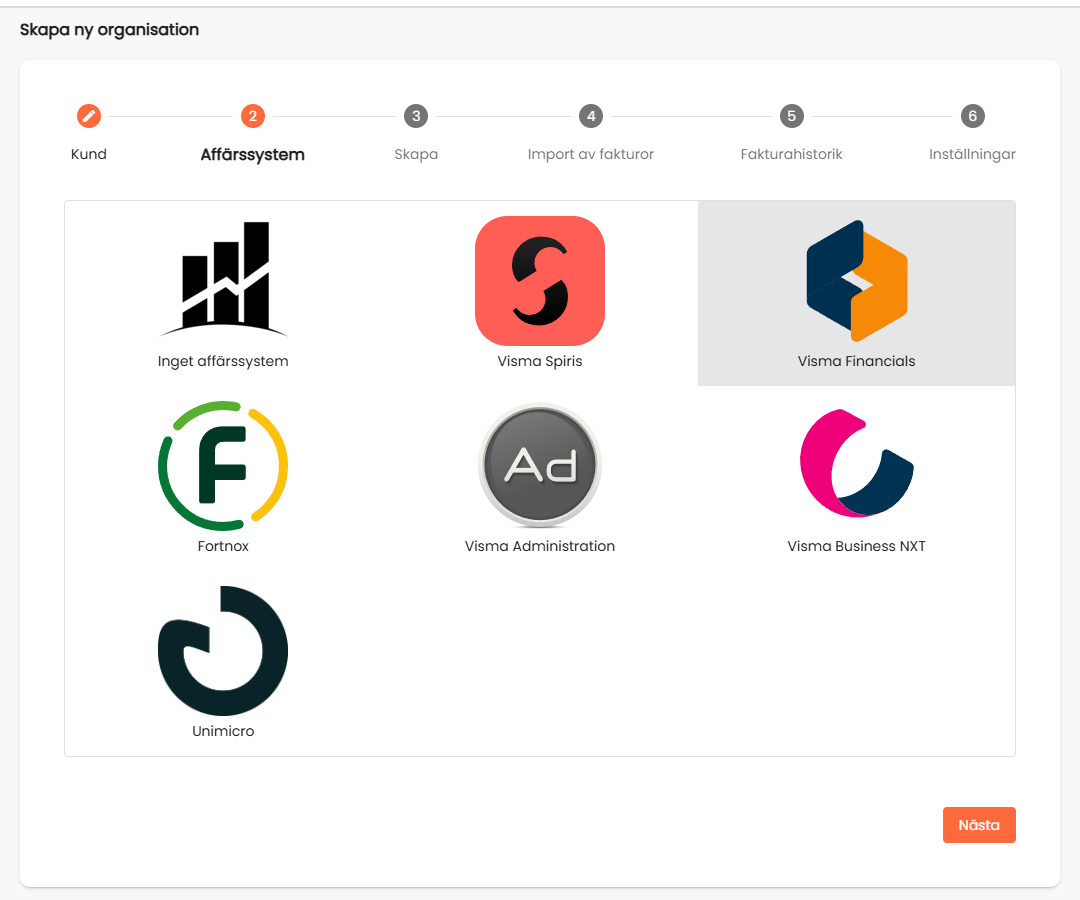
- Select Visma Financials as ERP and click Next.
- Configure the connection in the Connect to Visma Financials dialog:
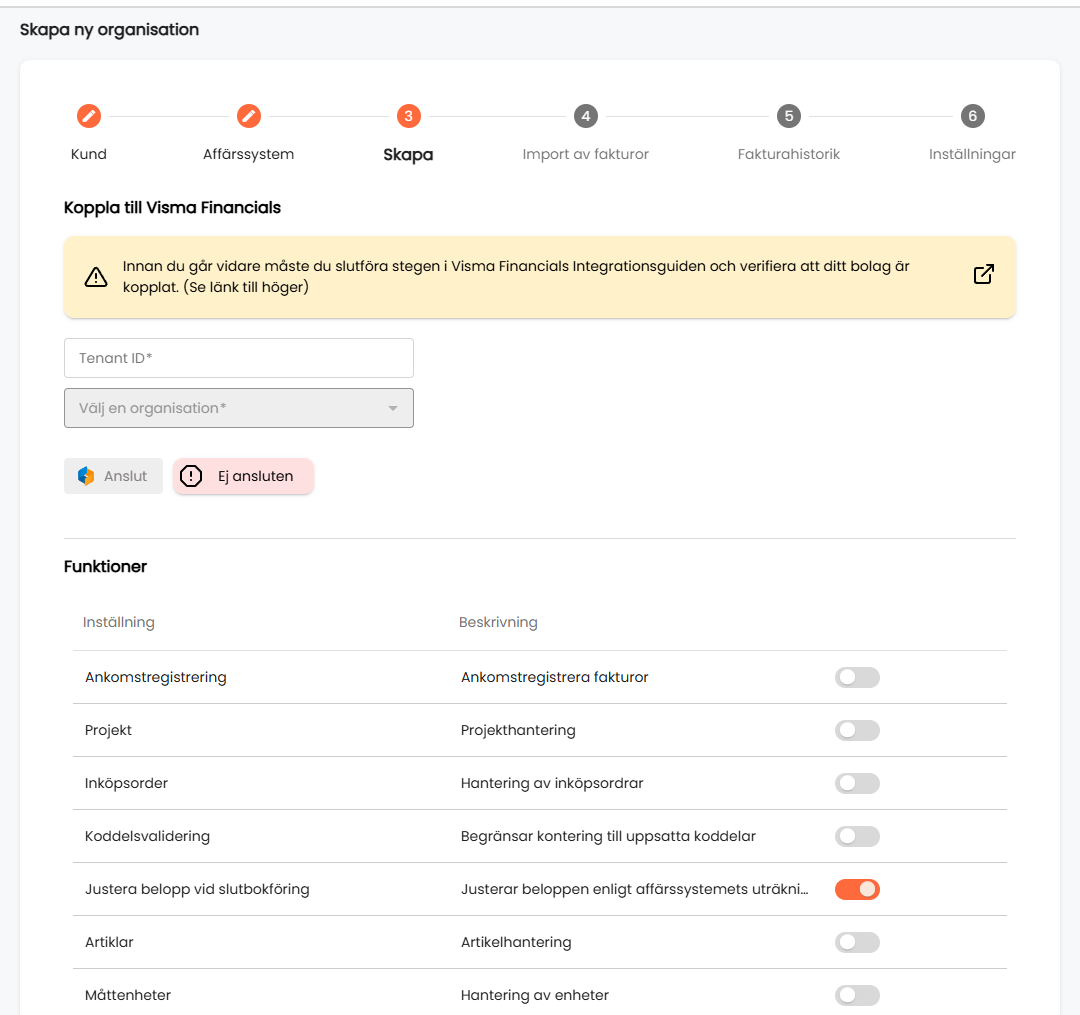
- Enter Tenant ID: Paste your unique Tenant ID from Visma.net. The field requires a strict UUID format (e.g.
12345678-abcd-1234-abcd-1234567890ab). - Choose Organization: Once the Tenant ID is validated, Winvoice automatically contacts Visma.net and lists all organizations accessible with your credentials. Select your company from the Choose an organization dropdown.
- Select Branch: If your company has multiple branches in Visma.net, a branch selection dropdown will appear:
- Select the branch that should own the invoices.
- Important: Winvoice automatically verifies whether the branch has its own General Ledger (ledger). If the branch lacks a ledger, a warning alert is displayed: "The selected branch lacks an active ledger and cannot be booked against".
- Features: Enable desired modules and toggles (e.g. Preliminary booking / Arrival registration, Projects, Purchase orders, Subaccount validation).
- Click Connect:
- Winvoice securely establishes the connection, importing chart of accounts, currencies, and project configuration.
- If projects exist in Visma.net, the project accounting module is enabled automatically.
- Status updates to Connected (Green).
- Complete initial configuration for default currency (e.g. SEK, NOK, EUR), default accounts for accounts payable, VAT, and rounding, then click Save.
Bidirectional Master Data Sync (2-Way Sync)
Winvoice does not merely import static data. Winvoice and Visma.net operate in continuous bidirectional sync:
1. Creating and editing GL accounts directly in Winvoice
Authorized users can create new chart of accounts GL accounts directly in Winvoice under Registry > Accounts:
- Click the New account button in the top right.
- Enter the account number (e.g.
5410), account description, and default VAT code. - Click Save.
- Winvoice saves the account locally and immediately exports it to Visma.net via
POST /controller/api/v1/account. The account becomes available right away for line coding and automated accounting rules.
2. Creating and updating suppliers
New suppliers can be added under Registry > Suppliers via the New Supplier button, or created directly from the invoice view when scanning an invoice from a new vendor:
- Name, corporate registration number, bank details (Bankgiro, IBAN, SWIFT), and default payment terms export directly to Visma.net (
POST /controller/api/v1/supplier). - Updates made in Visma.net synchronize back to Winvoice during the scheduled hourly sync.
3. Dimensions & Segmented Subaccounts
- Cost centers, departments, and Visma.net segmented keys are managed under Registry > Dimensions.
- New dimension values can be registered in Winvoice and synced to Visma.net (
POST /controller/api/v1/dimension).
Data Synchronized Between Systems
| Register / Flow | Direction | Frequency | Description |
|---|---|---|---|
| Chart of Accounts / Accounts | 2-Way (Winvoice ↔ Visma.net) | Real-time on creation / Hourly | Create accounts in Winvoice or Visma.net. VAT codes and active status sync. |
| Suppliers | 2-Way (Winvoice ↔ Visma.net) | Real-time on creation / Hourly | New suppliers created in Winvoice or Visma.net. Payment terms, bank details, and landed cost flags sync. |
| Subaccounts / Dimensions | 2-Way (Winvoice ↔ Visma.net) | Real-time / Hourly | Cost centers, departments, projects, and segmented codes. |
| Landed Costs | Visma.net -> Winvoice | Hourly | Landed cost codes, allocation methods, and accrual accounts. |
| Projects & Project Tasks | Visma.net -> Winvoice | Hourly | Projects and tasks imported for line-item coding. |
| VAT Categories | Visma.net -> Winvoice | Hourly | VAT categories combined with supplier tax zones. |
| Deferral Codes | Visma.net -> Winvoice | Hourly | Deferral schedules for automated monthly recognition in Visma.net. |
| Currencies & Exchange Rates | Visma.net -> Winvoice | Hourly / Daily | Exchange rates for currency conversion to base currency. |
| Accounting Periods | Visma.net -> Winvoice | Hourly | Validation of open/closed fiscal periods for accounting dates. |
| Purchase Orders & Receipts | Visma.net -> Winvoice | Hourly | Open POs and goods receipts for automatic line-item matching. |
| Invoices & Vouchers | Winvoice ↔ Visma.net | Asynchronous real-time | Asynchronous export via Visma.net background processor with automatic voucher capture. |
| Payment Status | Visma.net -> Winvoice | Hourly | When invoices are settled in Visma.net, status updates to Paid in Winvoice. |
Need to refresh master data immediately after large updates in Visma.net? Navigate to Settings -> Integrations -> Visma.net and click Sync now.
Accounting Models & Asynchronous Invoice Processing
Winvoice supports two primary posting workflows:
1. Final Posting (Recommended Standard)
- The invoice arrives in Winvoice, is captured by AI, and routed through approval workflows.
- No preliminary vouchers are created in Visma.net during ongoing approvals.
- Once all approvers and final reviewers have signed off, Winvoice exports the invoice to Visma.net.
- The invoice is created in Visma.net with status Open (or Released) along with full coding and attached PDF voucher.
2. Preliminary Booking (Built-in Ankomstregistrering)
Preliminary booking provides early balance-sheet liability visibility:
- When an invoice is verified and sent for approval, Winvoice creates a preliminary voucher in Visma.net with status Ankomstregistrerad.
- Approvers and reviewers can freely adjust accounting lines in Winvoice during the workflow.
- Upon final sign-off and posting:
- Winvoice automatically cancels the preliminary invoice in Visma.net via
VoidInvoice. - A final invoice with definitive coding and final voucher is created and released with status Open.
- Winvoice automatically cancels the preliminary invoice in Visma.net via
3. Asynchronous Background Processing (erp-api-background)
In Visma.net, invoices are created asynchronously via Visma.net's background processor:
- When an invoice is exported, a background job is initiated in Visma.net and assigned a unique
backgroundId. - In Winvoice, the invoice temporarily displays a status indicating that background processing is underway in Visma.net.
- Winvoice's scheduled polling services (
CheckPreliminaryStatusandCheckDefinitiveStatus) monitor the task until completed. - Once finalized by Visma.net, the voucher number is fetched and associated with the invoice in Winvoice.
- Timeout Safeguard: If Visma.net does not finalize the task within 24 hours, the invoice is flagged for timeout, enabling safe recovery without risking double posting.
Landed Costs
For organizations that import goods and need freight, customs, or insurance capitalized onto inventory value, the integration provides native Landed Costs support:
- Landed Cost Codes: Winvoice imports codes (
LandedCostCode) configured in Visma.net along with accrual accounts and allocation methods:- By Quantity (
ByQuantity): Charges are allocated across receipt lines proportionally to item count. - By Cost (
ByCost): Charges are allocated across receipt lines proportionally to line value.
- By Quantity (
- Supplier Configuration: Suppliers can be designated as landed cost vendors (
landedCostSupplier) in Visma.net and Winvoice. - Receipt Line Association: Invoice lines can be classified as landed costs and linked directly to the corresponding Purchase Receipt number. When exported, formatted Landed Costs are generated in Visma.net, ensuring proper inventory cost adjustments.
Purchase Orders and Goods Receipts (PO Matching)
If your organization handles purchase orders in Visma.net, activate order matching under Settings -> Integrations -> Visma.net:
- Purchase Orders (PO): Open orders sync to Registry > Purchase Orders.
- Goods Receipts (PR): Received inventory receipts sync to Registry > Purchase Receipts. Internal transfer receipts are automatically filtered out so only external supplier receipts are matched.
- Remaining Quantity Tracking: Winvoice dynamically calculates already-invoiced quantities (
quantityInvoicedErp) per line to maintain strict control over partial deliveries and staged billings. - Subaccount Validation (
actualSub): Subaccounts and segmented combinations on goods receipt lines are validated against Visma.net configuration. - Description Limits: Please note that Visma.net enforces a maximum length of 255 characters on receipt line descriptions.
- Touchless Approval: If unit prices and quantities match goods receipts within configured tolerances (e.g. 0.00 currency tolerance and 0% quantity deviation), the invoice can post automatically without manual intervention.
VAT Calculation and Validation
In Visma.net, VAT is calculated using the combination of line VAT Category and supplier Tax Zone:
- VAT Category on Lines: Each line in Winvoice is assigned a Visma.net VAT category (via OCR capture, templates, rules, or manual selection).
- VAT Row: VAT amounts are computed by Visma.net upon export and should not be booked as separate manual cost lines in Winvoice.
- VAT Balance Validation: In Visma.net under Accounts Payable Preferences, validation settings enforce that line VAT totals exactly match the invoice header VAT.
Cancelling and Deleting Invoices
When an invoice is deleted or cancelled in Winvoice, accounting compliance rules govern the outcome:
- Unexported Invoice: Deleted in Winvoice with no records created in Visma.net.
- Preliminary Booked Invoice: The preliminary invoice and voucher are automatically cancelled in Visma.net via
VoidInvoice. - Final Posted Invoice: If an invoice is already posted and released in Visma.net, it cannot be deleted by Winvoice. In accordance with accounting standards, released ledger transactions cannot simply be deleted; any adjustment or cancellation must be registered as a separate credit note in Winvoice or Visma.net.
Common Error Messages and Solutions
Here are the most frequent Visma.net export error messages and how to resolve them:
1. {"AccountID":"The account is inactive"}
- Cause: An accounting account on the invoice line or supplier is marked as inactive in Visma.net. Most commonly, an inactive account remains as the default expense account on the supplier card (GL Accounts tab), on the supplier class, or on a chosen deferral code in Visma.net!
- Resolution:
- Check invoice lines in Winvoice and change any inactive account to an active one under Registry > Accounts.
- Open the supplier in Visma.net and check the GL Accounts tab. Remove or update inactive accounts. Also check the supplier class preferences.
- Winvoice includes proactive validation that prevents saving or exporting invoices containing inactive accounts.
2. There is no financial period corresponding to date DD/MM/YYYY
- Cause: The invoice accounting date falls into a period that is closed in Visma.net (or where the Accounts Payable subledger is closed).
- Resolution:
- Open the financial period in Visma.net and trigger a register sync, or:
- Adjust the invoice accounting date in Winvoice to an open period under Registry > Accounting Periods.
3. The document is out of the balance
- Cause: The sum of line amounts does not match the invoice header net total, or rounding exceeds the allowed threshold in Visma.net.
- Resolution:
- Verify line totals against the net invoice amount.
- Check the rounding limit under General Ledger preferences in Visma.net.
4. 'Subaccount' is not found or Name of segment of Subaccount do not exist
- Cause: A subaccount segmented combination on an invoice or receipt line is not set up in Visma.net, and "Direct Entry Allowed" is disabled.
- Resolution:
- Create the missing dimension value under Registry > Dimensions in Winvoice or in Visma.net.
- Alternatively, enable Direct Entry in Visma.net subaccount preferences.
5. Invoice export to Visma.net timed out and will need to be resent
- Cause: Visma.net's background processor did not finalize invoice creation within 24 hours.
- Resolution:
- Check under Integrations -> Visma.net to see if Visma.net is experiencing API performance delays.
- Check Visma.net to verify whether the invoice was created. If not, re-trigger the export from the invoice view in Winvoice.
6. A document with this supplier ref. already exists for this supplier
- Cause: An invoice with the same vendor and invoice reference number already exists in Visma.net.
- Resolution: Check for duplicates in Visma.net. For legitimate separate invoices sharing numbers, append a suffix (e.g.
-1) in Winvoice.
Summary
The Winvoice and Visma.net Financials integration delivers a complete enterprise cloud workflow:
- Seamless 2-way sync for accounts, suppliers, and dimensions.
- Support for branches with proactive ledger validation.
- High-reliability asynchronous background invoice export with automated voucher retrieval.
- Native Landed Costs and purchase order matching with partial fulfillment tracking.