Purchase Orders, Receipts & AI Order Matching
In Winvoice, you can automatically reconcile supplier invoices against purchase orders and goods receipts (Purchase Orders & Purchase Receipts) synchronized from your ERP system (such as Visma.net). With AI line interpretation and automated 3-way matching, finance teams eliminate manual line-by-line verification.
Activate the module under Settings → Integrations → [Your ERP] by enabling the toggles for Purchase Orders and Goods Receipts.
1. Registry & Overview
Once the order and receipt module is active, synchronized records are accessible from the main navigation:
- Registers → Purchase Orders: Displays all open and completed purchase orders.
- Registers → Goods Receipts: Lists warehouse receiving transactions and received line items.
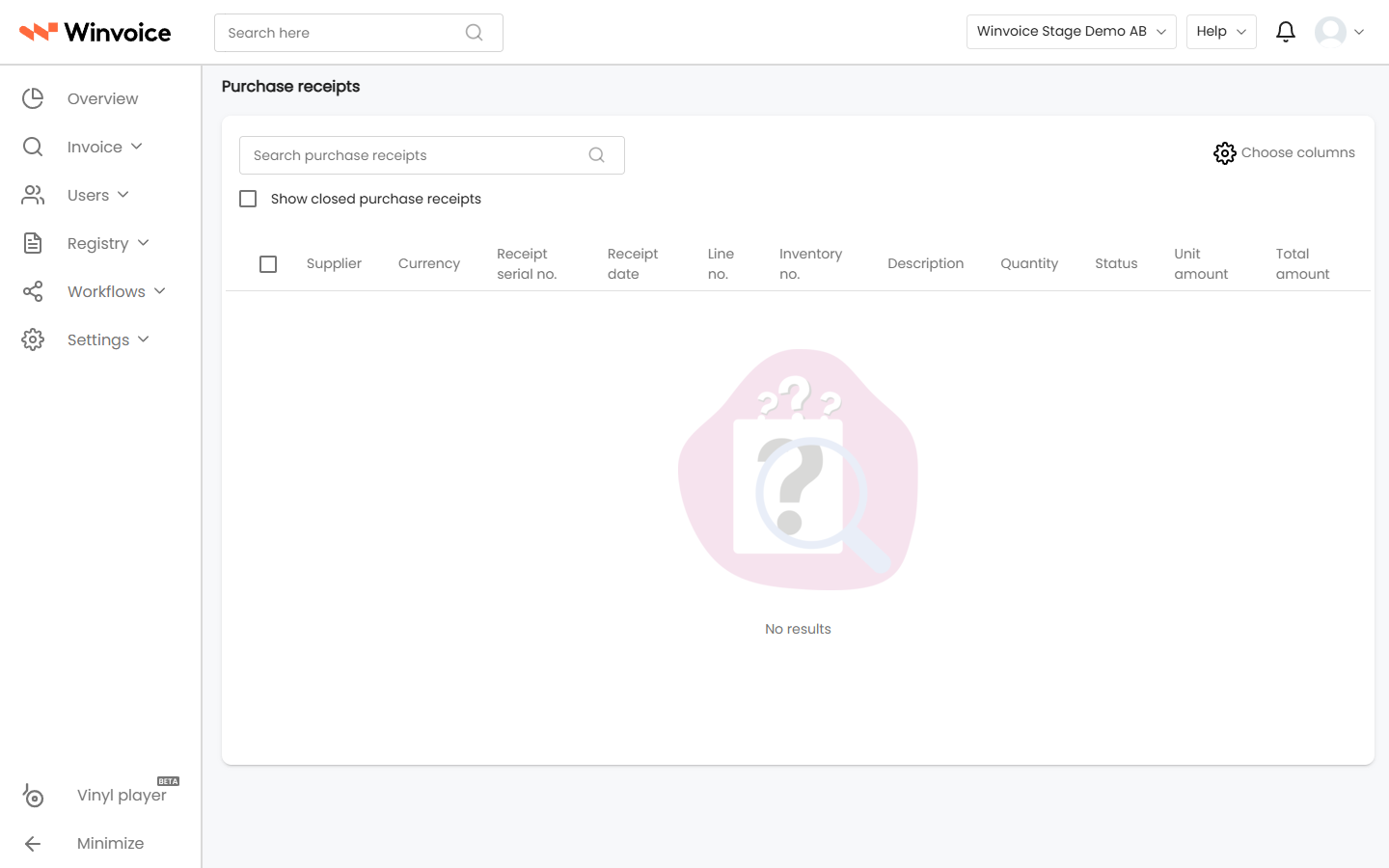
Purchase orders and receipts are originated and maintained in your ERP system and synced continuously to Winvoice.
2. Concurrency with Preliminary Booking
If your organization utilizes preliminary booking (Arrival Registration) alongside purchase orders, note these operational rules:
- Link Prior to Preliminary Booking: To match an invoice against a purchase order, link the order before preliminary booking takes place. In these instances, preliminary booking is bypassed to prevent redundant entries in the ERP.
- Post-Registration Lock: Once an invoice has been preliminarily registered, linking a purchase order retroactively is prohibited.
3. Manual Order Matching on Invoices
When purchase orders are active, two dedicated fields appear in the invoice workspace:
- Purchase Order (in the invoice header): Activates once a vendor with open purchase orders is identified.
- Goods Receipt (on distribution lines): Allows you to link specific lines directly to corresponding receiving receipts.
Linking a Purchase Order in the Header
- Select a vendor with open purchase orders.
- Click the Purchase Order field to open the order lookup dialog.
- Search and select the appropriate purchase order, then click Select.
Matching Goods Receipts on Distribution Lines
To match physically received inventory against invoice lines:
- Click Select in the receipt field on the target distribution line.
- A dialog displays all receipts linked to the chosen order with their match statuses:
- Unmatched: e.g., Ordered 100 units, matched 0 units.
- Partially Matched: Ordered 100 units, matched 1–99 units.
- Fully Matched: All ordered units are reconciled against invoices.
- Review Unit Price, any applied Discount, and Quantity (adjust if handling a partial delivery).
- Choose whether the match creates new distribution lines or overwrites existing lines.
- Click Apply.
4. Automated Order Matching with AI
Winvoice's AI matching engine conducts autonomous 3-way matching (Invoice – Purchase Order – Goods Receipt) in the background via deep line extraction:
How Automated Matching Operates:
- Invoice Arrival: Invoices are read line-by-line using machine learning and line item extraction.
- Background Matching: The system locates matching purchase orders and receipts in the ERP, comparing item codes, quantities, unit prices, and line totals.
- Automatic Approval: If all lines align within defined tolerance limits, matching is confirmed programmatically in the background. The invoice proceeds directly to approval or final posting without manual effort.
5. Line-Level Discrepancy Management
When an invoice deviates from order expectations, only mismatched lines are flagged. Conforming lines remain verified:
- Color-coded status icons indicate discrepancy types:
- 🟢 Green Check: Fully matched against goods receipt.
- 🟠 Orange Warning: Variance in quantity, unit price, or total amount.
Expanded Line Analysis & Variances
Clicking or hovering over a flagged line opens an analytical breakdown comparing the invoice against warehouse records:
- Expected (values extracted from invoice line).
- Actual (values verified at warehouse receiving).
- Variance (unit count discrepancy, monetary delta, and percentage deviation).
Winvoice AI Recommendations
When a discrepancy occurs, the AI engine scans open receipts to suggest the best match:
- The Winvoice AI icon (
 ) indicates a high-confidence match recommendation based on item codes and vendor history.
 - Review suggestions and accept recommendations with a single click.
Resolving Discrepancies
- Accept Price Variance: Approve the delta directly (e.g., agreed price changes or shipping surcharges).
- Adjust Quantity: Modify matched unit counts for partial shipments.
- Forward to Buyer: Route the invoice to the purchasing agent with pre-populated variance details.
6. Comparison: Manual vs AI Order Matching
| Feature | Manual Order Matching | Winvoice AI Order Matching |
|---|---|---|
| Effort | Every invoice and line item must be cross-checked manually | Matched invoices process 100% autonomously in the background |
| Variances | Administrators must manually calculate deltas | Winvoice AI computes variances and recommends the correct receipt |
| Scalability | Labor-intensive as invoice volumes scale | Scales effortlessly with zero added handling overhead |
| Precision | Susceptible to human calculation error | Complete audit trail and precision up to 4 decimal places |