Approver User Manual – Approvals, Workflows & Invoice Views
As an invoice approver in Winvoice, you review, distribute accounting entries, and authorize supplier invoices pertaining to your area of responsibility. This manual guides you through your daily workflow—from notifications and list navigation to the approval process, forwarding, dispute resolution, and audit trails.
1. Finding Your Invoices
When an invoice arrives and is assigned to you, an automated email notification is dispatched. Within the web application, you can access your assigned invoices through several pathways:
The Dashboard
On the landing page under Overview → Invoices to Handle, you see a summary card listing invoices waiting for your review:
- Click any invoice row directly to open it.
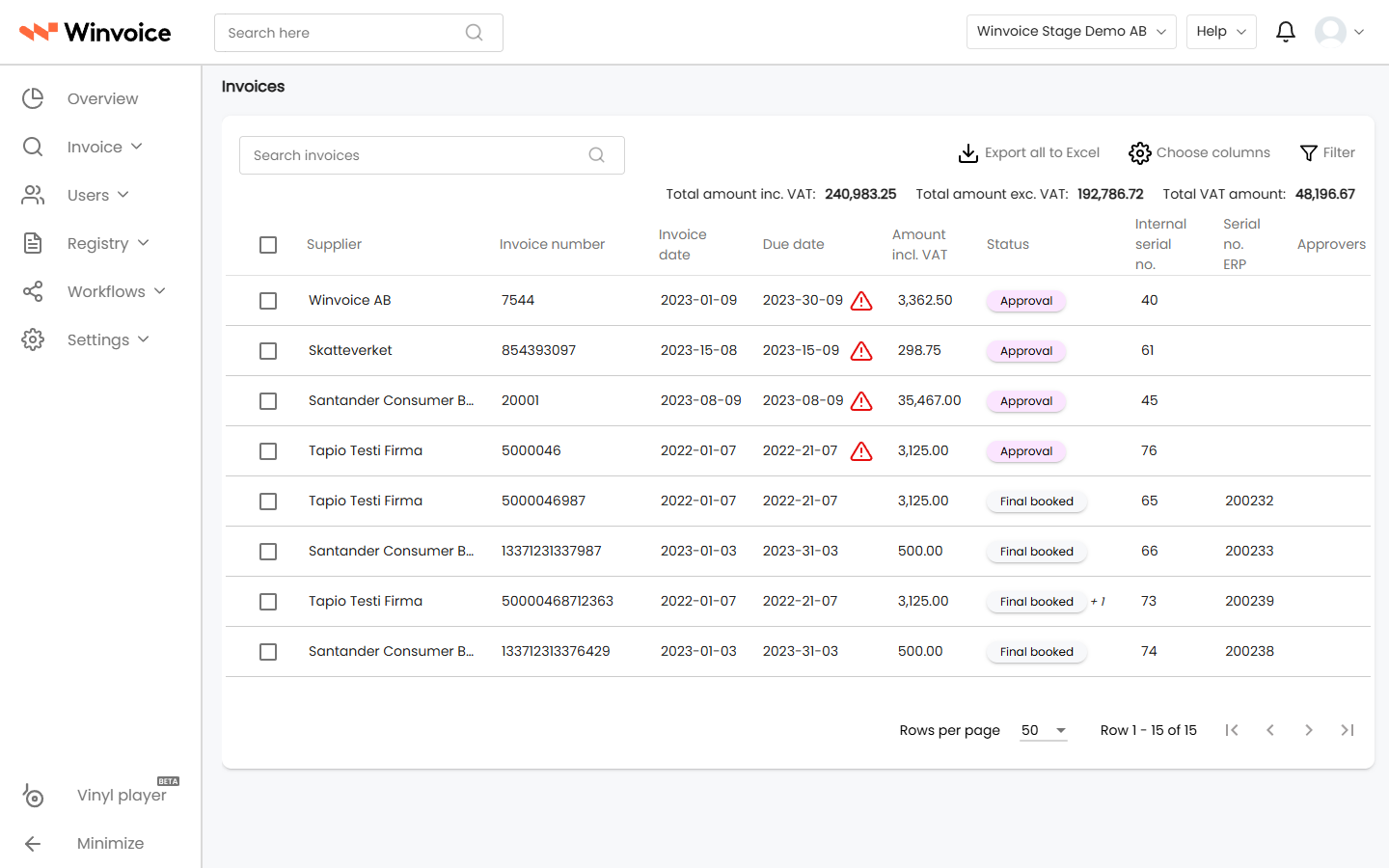
- Click Go to List to open the full list of invoices in an expanded data table.
Multi-Company View (Multi-View)
If you manage invoices across multiple companies within the corporate group, you do not need to log in and out of different accounts:
- Click the active organization name in the top navigation bar.
- Check the organizations you want to include (or click Select All).
- Your inbox aggregates invoices from all selected companies into a single unified view, displaying a clear column indicating the owning entity.
Customizing List Columns
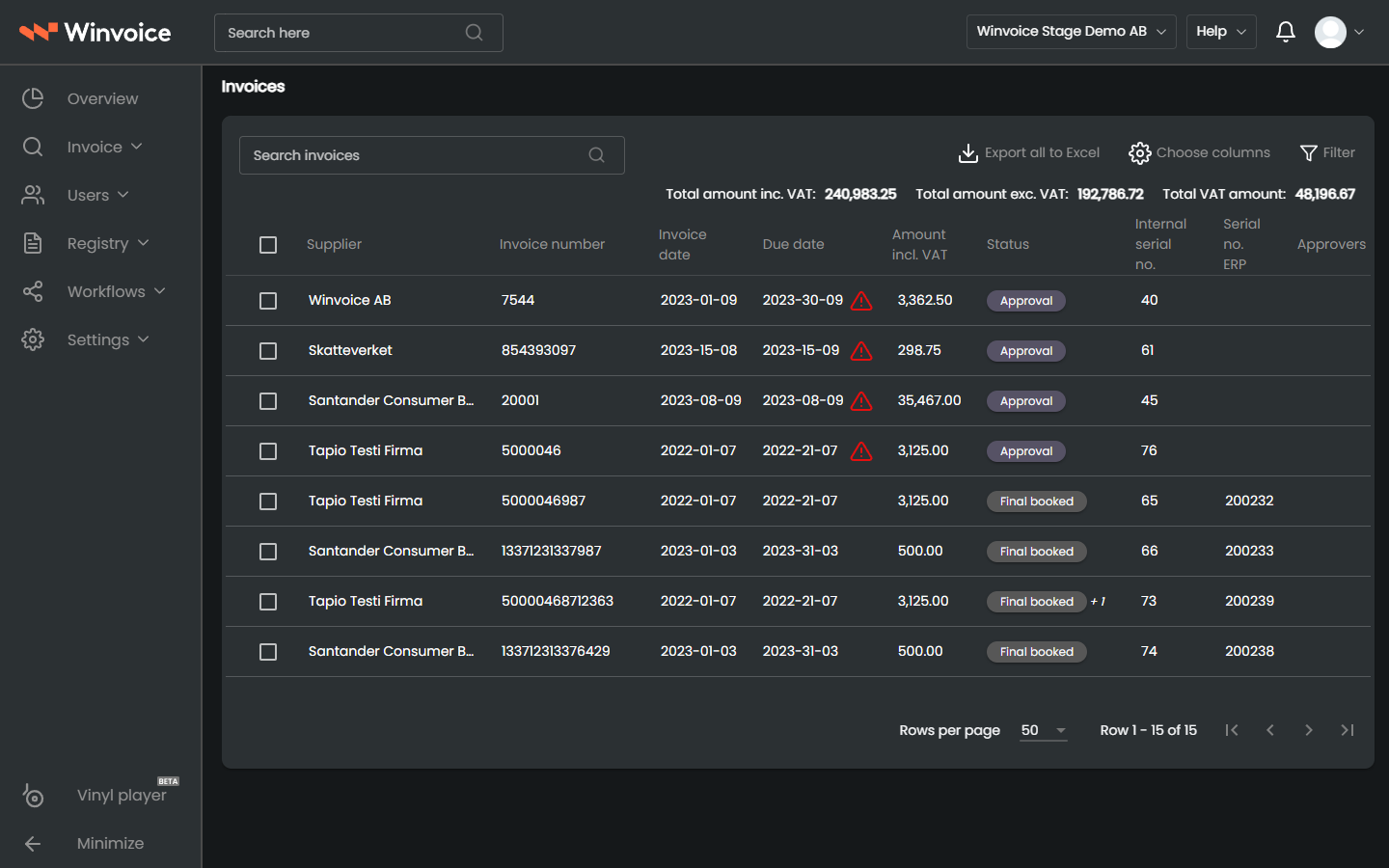
In the invoice list view, click Choose Columns in the top right to configure which properties to display (e.g., supplier, amount, due date, project, or status). Your selections are saved to your personal user profile.
2. Invoice Statuses for Approvers
Invoices in your workflow may exhibit the following statuses:
- Approval: The invoice is in your active queue for regular review and authorization.
- Final Review: You have been appointed to perform final economic verification prior to ERP posting.
- Peer Review: A colleague requested your internal feedback or opinion. Once you complete your review, the invoice returns to the originator.
- Substitute: The invoice appears in your queue in your capacity as an appointed substitute for an absent colleague. Actions are stamped with your name and actual completion date.
3. Reviewing and Approving an Invoice
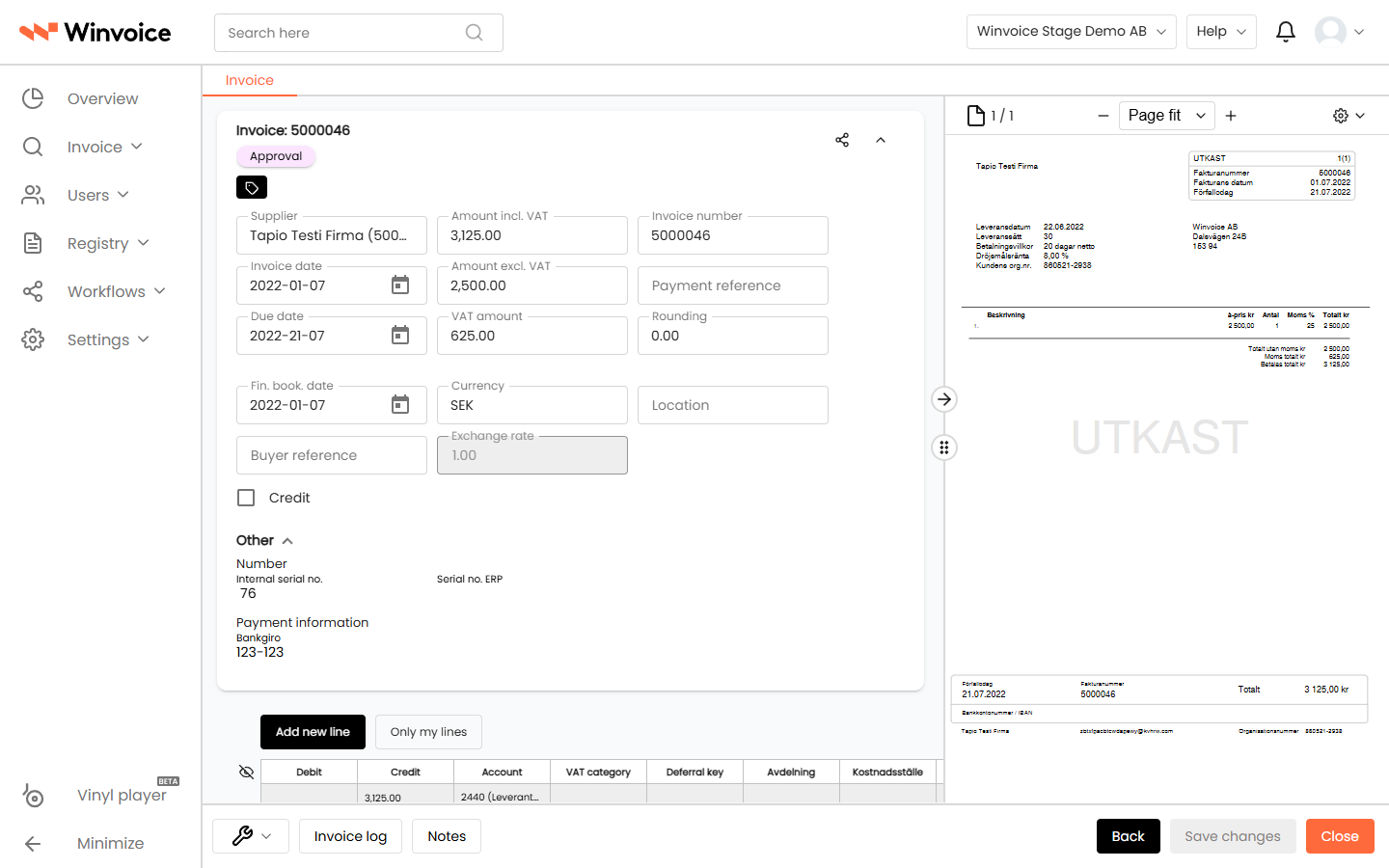
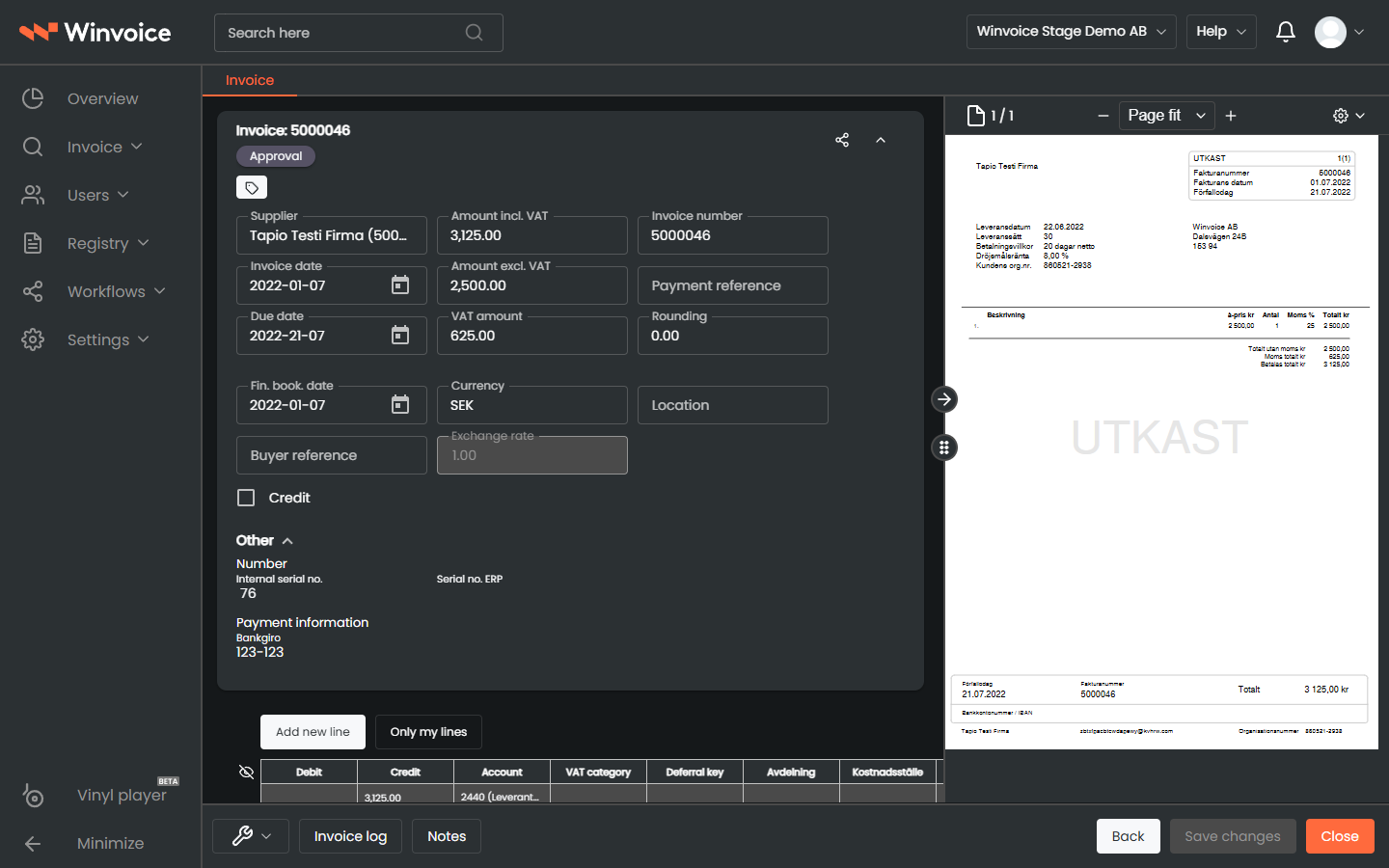
Clicking an invoice opens the detail page displaying invoice data on the left (or top) and the digital invoice image on the right.
Invoice Image & Toolbar
- Zoom & Pan: Adjust zoom levels, fit to page width, or activate the Hand Tool (shortcut H) to navigate the document.
- Multi-Page Invoices: Flip between pages using arrow keys or page thumbnails.
- New Tab / Download: Download the original document or view it in a detached browser window.
Distribution & Authorization
- Locked System Lines: Lines automatically generated for preliminary booking display a lock icon. Click the eye icon (Hide System Lines) to hide them if desired.
- Your Distribution Lines: You are authorized to edit and approve lines where your name appears in the approver field.
- Adjust Distribution: Modify general ledger accounts, cost centers, or projects directly in the table if authorized.
- Line Checkbox: Ensure the approval checkbox is checked on your distribution lines.
- Click Approve: The invoice is signed and advances to the next participant in the workflow or to final review.
4. Additional Actions
Rejecting an Invoice
If an invoice contains billing errors, does not belong to your department, or lacks supporting documentation:
- Check the distribution lines you wish to reject.
- Click Reject in the bottom right corner.
- Provide a mandatory explanation in the dialog prompt (e.g., Incorrect hours billed, awaiting credit note).
- The invoice transitions to Rejected status and is returned to the invoice administrator for handling.
Changing the Approver
If an invoice was misassigned to you but belongs to another known colleague:
- Click the Approver field on the distribution line and select the correct colleague.
- Choose Set as Approver and click Send for Approval. The invoice immediately moves to the new recipient's queue.
Sending for Peer Review (Consultation)
If you need guidance or advice on a specific document:
- Click the approver field and select the desired colleague.
- Select Set as Reviewer.
- The invoice is forwarded under the status Peer Review. Once the colleague approves their review, the invoice automatically returns to your inbox for final approval.
Internal Notes
Click Notes below the accounting lines to conduct internal communication. Notes are permanently timestamped with your name and remain visible to all subsequent approvers and administrators.
5. Invoice Activity Log & Audit Trail
At the bottom of each invoice page is a complete Invoice Log. Here you can review in real time:
- Ingestion timestamp and OCR completion.
- Who viewed or modified accounting distributions (recording both old and new values).
- Who authorized, rejected, or reassigned the invoice.
- Timestamped user comments and ERP integration receipts.
6. Profile, Notifications & Security
Click your avatar in the upper right corner to manage personal settings:
- Language & Date Format: Select your interface language (Swedish, English, Norwegian, or Danish) and preferred date display format.
- Substitutes: Configure temporary out-of-office substitutes during leave.
- Password Management:
- Winvoice Account (Auth0): Change password via the password reset option (requires at least 12 characters including uppercase, lowercase, numbers, and special characters).
- Visma Account (Visma Connect SSO): Passwords are managed centrally via your corporate Visma account.
- Email Reminders: Automated reminders are periodically dispatched with direct invoice links to prevent items from stalling in the approval queue.