The Invoice Administrator's Daily Routine: From Ingestion to Final Posting
As an invoice administrator or accounts payable (AP) specialist, you are the central hub of your organization's invoice processing. This manual walks through your daily workflow — from the moment invoices arrive in the morning until they are fully approved and exported to your ERP general ledger.
1. Daily Inbound Invoices and Parsed Fields
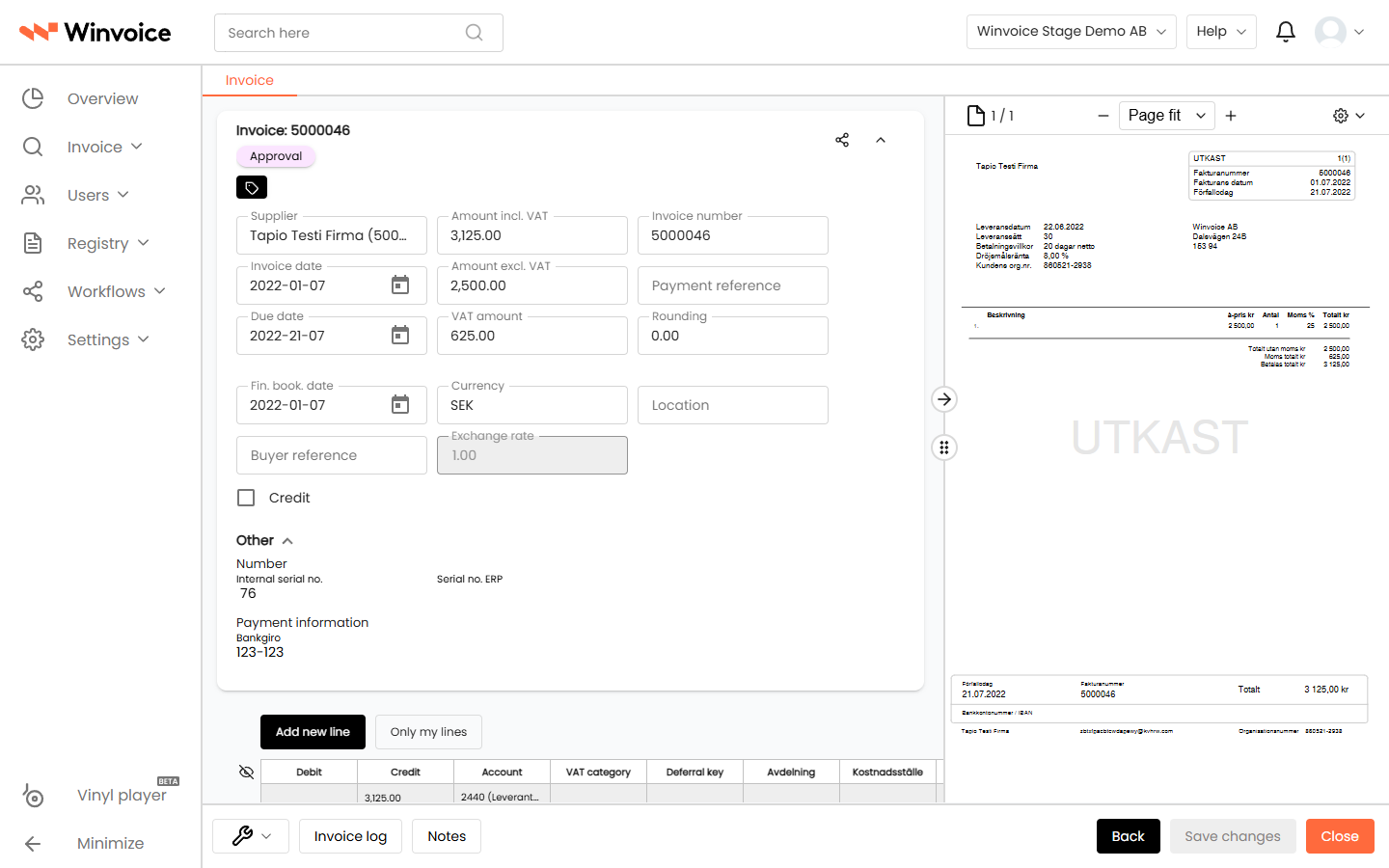
When invoices arrive in Winvoice via email or e-invoicing, they are automatically interpreted by the system's OCR and data extraction engine.
Reviewing Newly Arrived Invoices:
- Navigate to Overview or Invoice Search and filter by status "New" or "Approval".
- Open an invoice to verify that the extraction engine captured:
- Supplier: Automatically matched against the supplier register via corporate identity number, Bankgiro, or supplier name.
- Invoice Date, Due Date, and Invoice Number.
- Amounts: Total amount, VAT amount, and currency.
- OCR / Payment Reference: Automatically validated against your ERP system's format requirements.
- If a field is missing or ambiguous, click the field and enter the correct value. Winvoice's intelligent parsing engine learns your manual corrections for future invoices from the same supplier.
2. Multi-User Protection & Invoice Locking
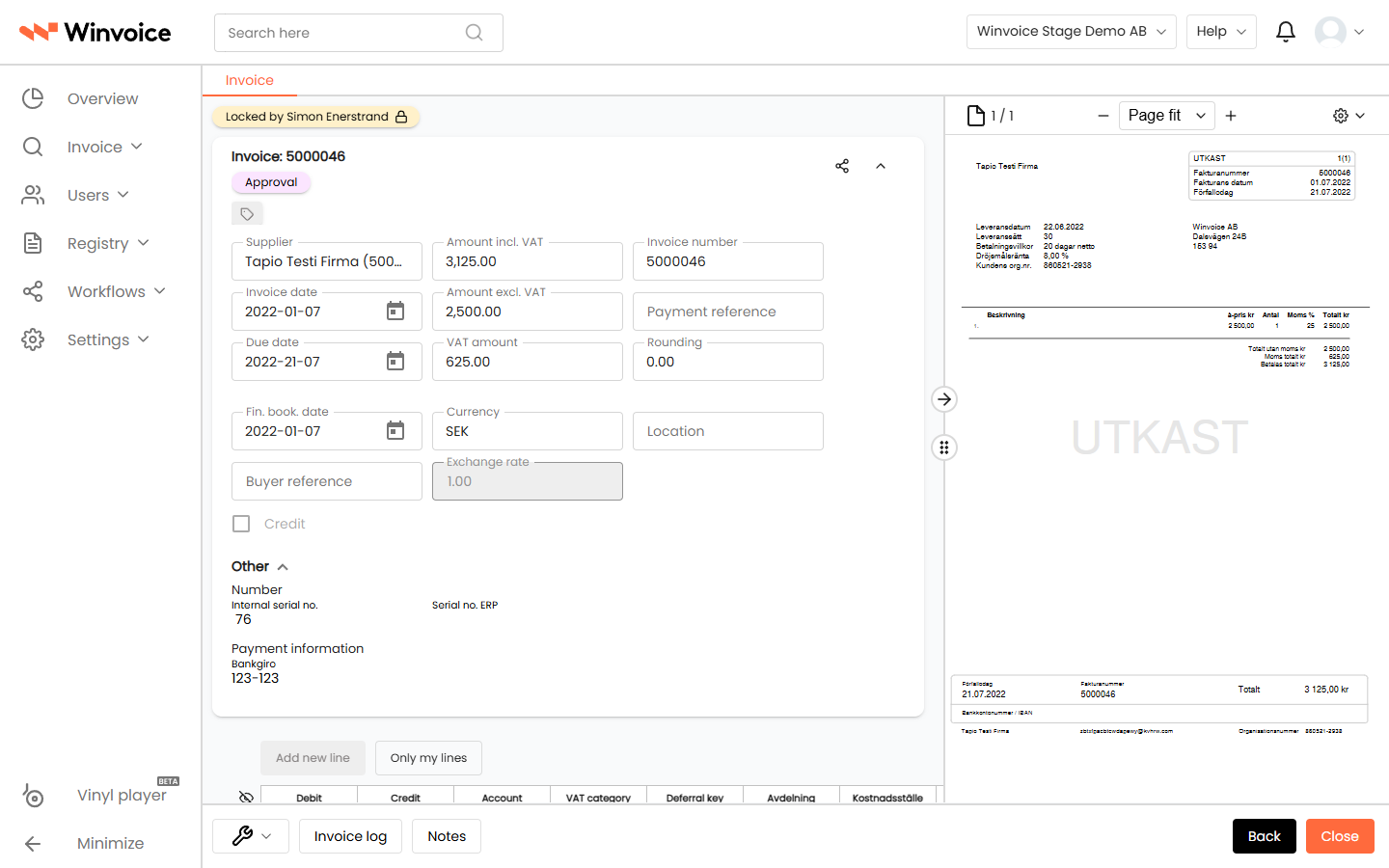
To prevent two colleagues in the finance team from editing the same invoice simultaneously and overwriting each other's changes, Winvoice includes built-in multi-user concurrency protection:
- When a user opens an invoice for editing, it is locked in real-time.
- If another user opens the same invoice, a yellow/red warning banner appears at the top:
This invoice is locked by [Username]
- In locked mode, you can still view the invoice document and read all existing information, but the form input fields are read-only.
- As soon as your colleague saves, closes the invoice, or navigates away, the lock is released automatically.
3. Holding and Pausing Invoices ("On Hold")
If an invoice is incorrect, missing an agreed discount, or if you are awaiting a credit note from the supplier, you can place the invoice on hold:
- Open the invoice and click the Tags button in the invoice header.
- Select the "On Hold" tag (or the custom hold tag configured by your organization).
- Save the change.
- System Impact:
- The Approve and Final Post buttons are automatically disabled for all users.
- Hovering over the disabled button displays the message: "This invoice cannot be processed because it has been placed on hold (On Hold)".
- The invoice is clearly highlighted in lists with its hold tag, making it easy to filter and track all invoices under active dispute or investigation.
- Once the issue with the supplier is resolved, an administrator removes the tag, immediately restoring normal approval and posting actions.
4. Internal Notes and Mentioning Colleagues (@mentions)
Need to consult an approver or colleague regarding an invoice without sending an external email?
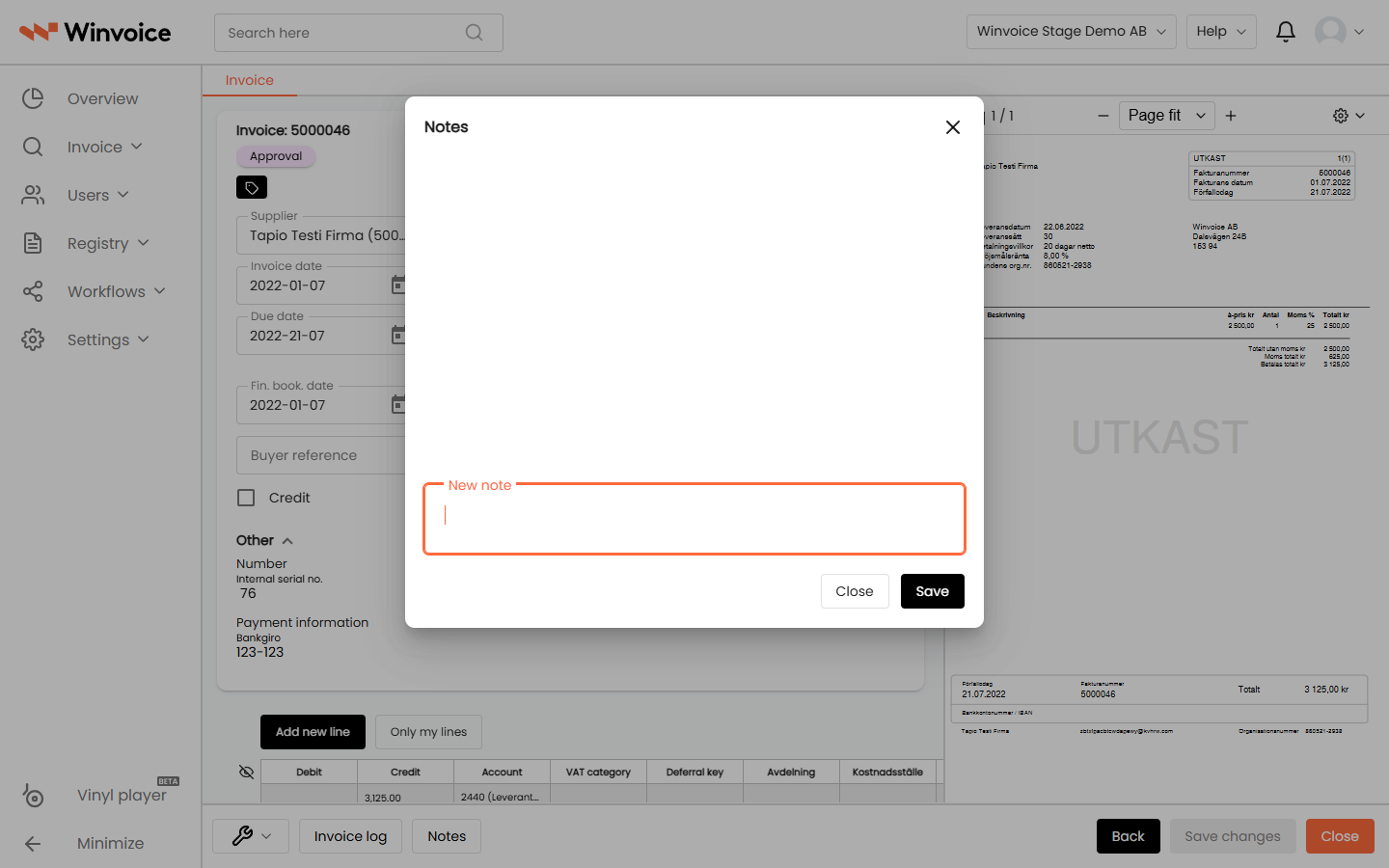
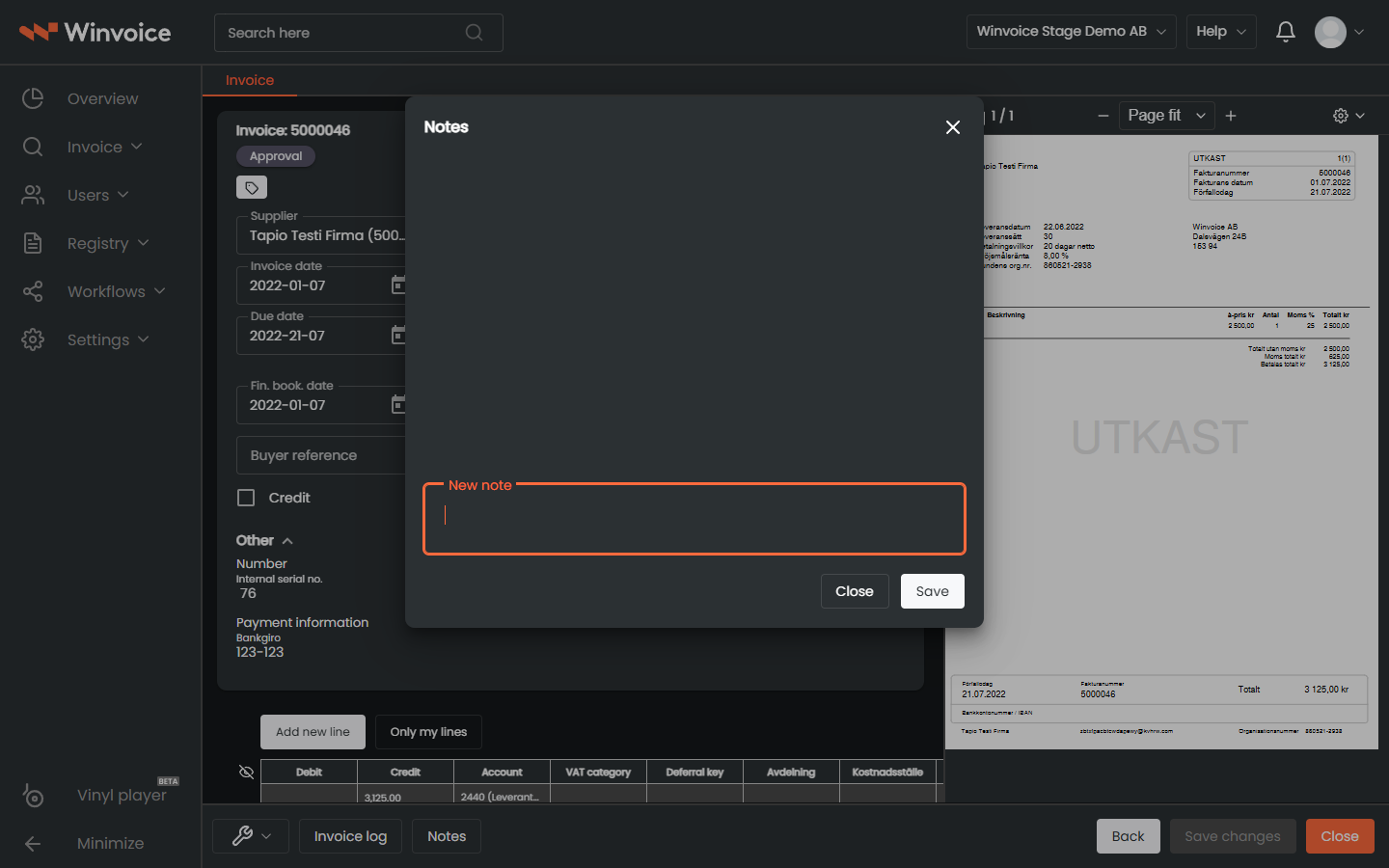
- Click the Notes button at the bottom of the invoice view.
- Type your comment. You can use the at-sign (
@) followed by your colleague's name (e.g.@Anna Andersson). - A popup menu appears displaying matching users. Select the person from the list.
- Click Save.
- Your colleague receives an instant notification containing a direct link to the invoice and can reply directly in the same discussion thread. The entire communication history is preserved for future audit compliance.
5. Inline Creation of Master Data from the Invoice
If an invoice arrives from a brand new supplier, or references a new project that has not yet synchronized:
- Click the "Create New" (
+) tab adjacent to the invoice header or accounting line inputs. - Select what you need to create:
- New Supplier: Enter name, corporate registration number, and Bankgiro/payment account.
- New Account or New Project.
- Click Save. The newly created record is saved and immediately selectable on the current invoice, without interrupting your workflow or requiring you to leave the page!
6. Supplementary Attachments
If an invoice requires supporting documentation (e.g. approved timesheet, contract, receipt, or delivery note):
- To the right of the invoice document preview, click the upload icon in the viewer toolbar.
- Drag and drop or select the file you want to attach (PDF, PNG, JPG).
- The attachment is stored alongside the invoice and is immediately accessible to all subsequent approvers in the chain.
- For Peppol invoices, the "Retrieve AutoInvoice Attachment" button allows you to download any supplementary attachments provided by the supplier over the Peppol network with a single click.
7. Final Review and Final Posting
Once all approvers in the workflow chain have approved their respective lines, the invoice transitions to status "Final Review" or "Ready for Final Posting":
- The accounts payable administrator performs a final reconciliation:
- Do debits and credits balance?
- Are the VAT amount and VAT code verified?
- Are all lines verified with an approved signature badge?
- Click Final Post.
- The invoice is exported to your ERP system (Fortnox, Visma, etc.) with an assigned voucher number, and its status updates to "Final Posted".
- When the invoice is subsequently paid via your bank and the payment is recorded in your ERP, the status in Winvoice automatically updates to "Paid" during the next synchronization cycle.