Review Workflows – Final Review and Financial Verification
Complete guide to review workflows in Winvoice: final review following the approval chain, assigning final reviewers, tags, and priority order.
Overview: Quality Assurance Before Final Posting
Review workflows (also known as Final Review) serve as the organization's financial safeguard and quality audit step. A review workflow triggers automatically as soon as every accounting line on an invoice has been fully approved by its designated approvers in the approval chain.
Its purpose is to enable the finance team, chief accountant, or CFO to perform a final inspection of general ledger coding, VAT distribution, deferrals, and supporting attachments before the invoice is permanently posted and transferred to the ERP accounts payable ledger for payment.
Similar to Incoming Workflows (but unlike line-based Approval Workflows), review workflows evaluate against the entire invoice as a complete entity.
However, conditions can target attributes of individual accounting lines (for instance, if any line is coded to a specific account, project, or cost center).
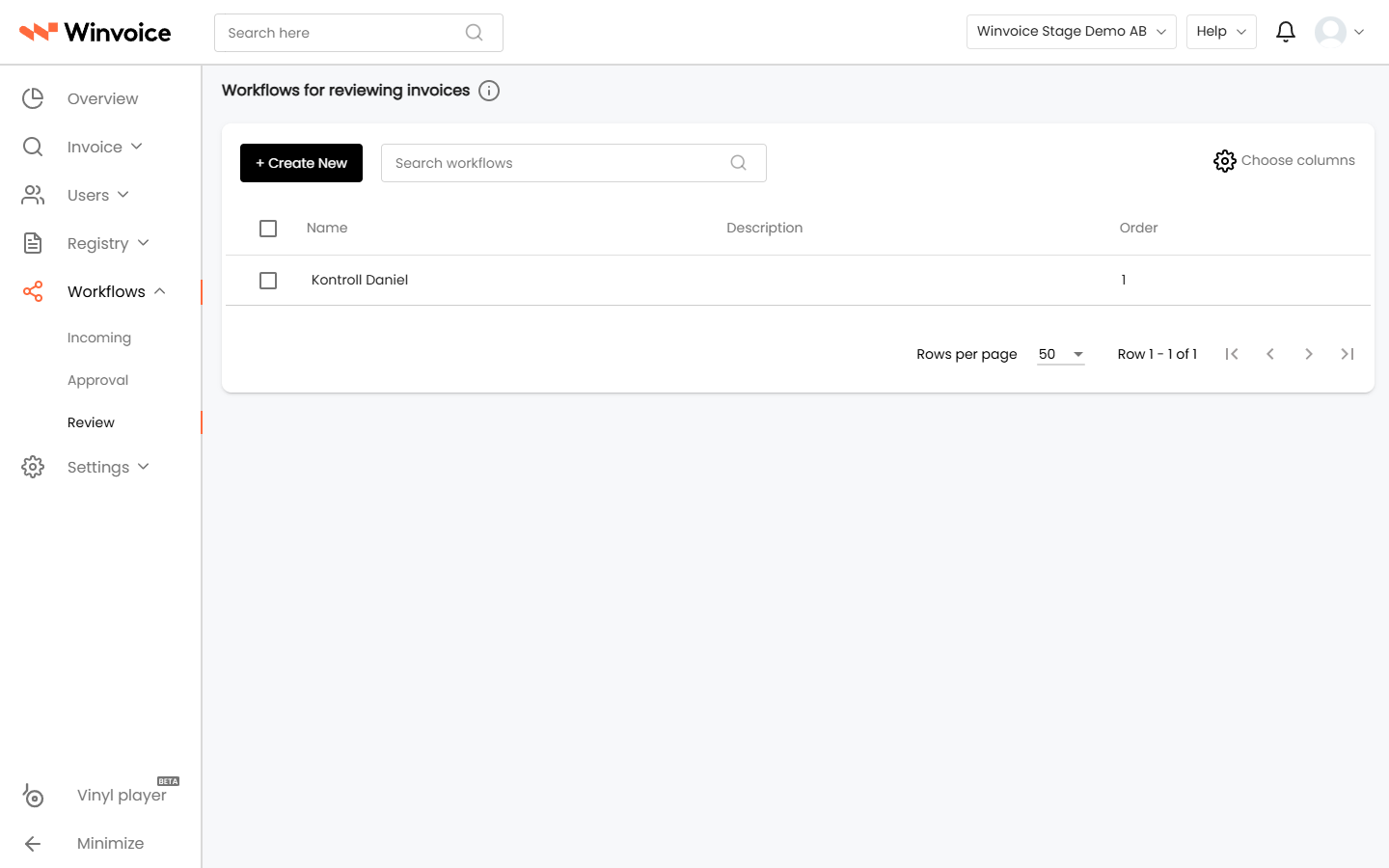
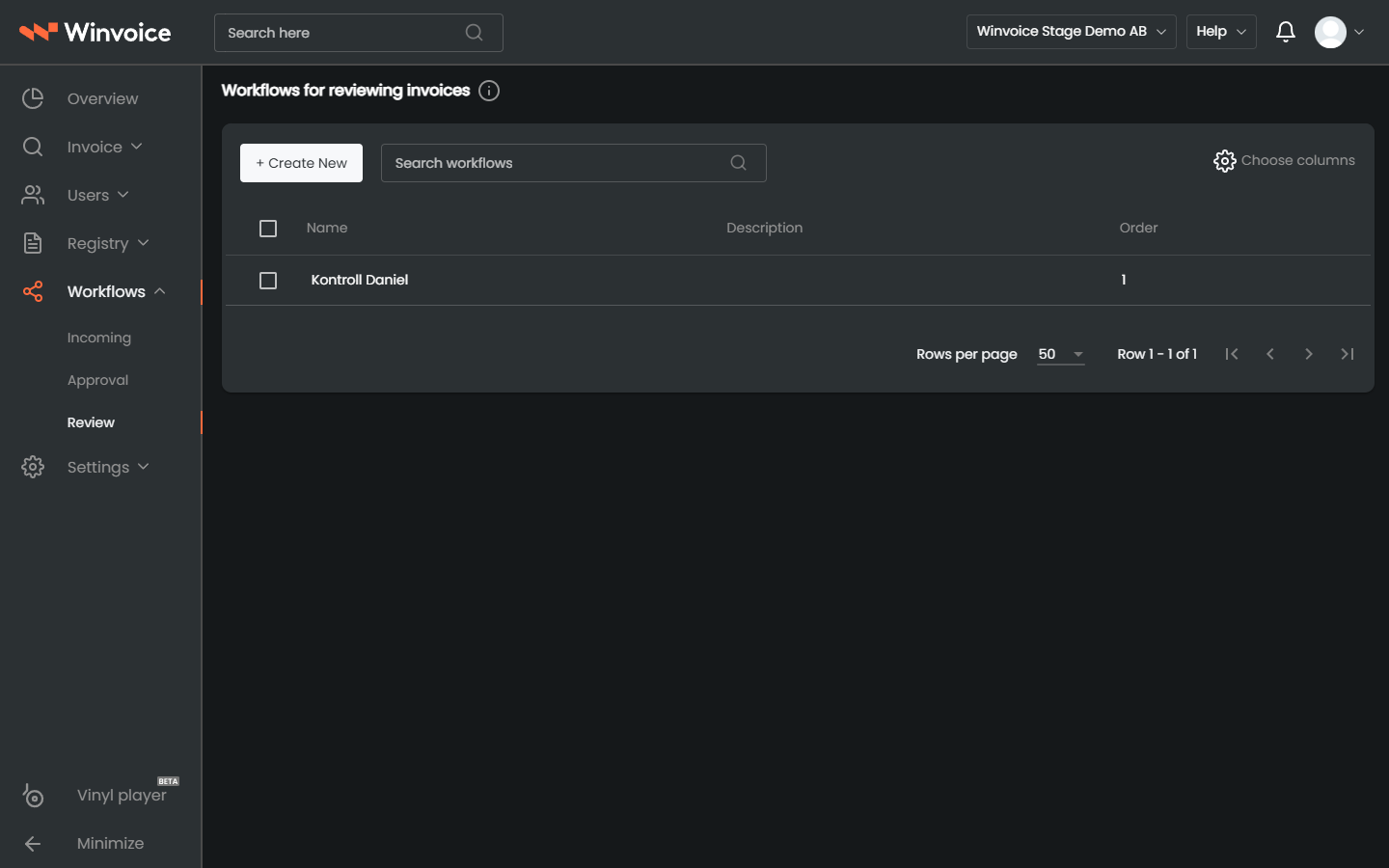
Review workflows are configured under Workflows → Review.
1. Creating and Configuring a Review Workflow
Navigate to Workflows → Review in the main navigation menu and click Create New (or click an existing workflow in the list to edit it).
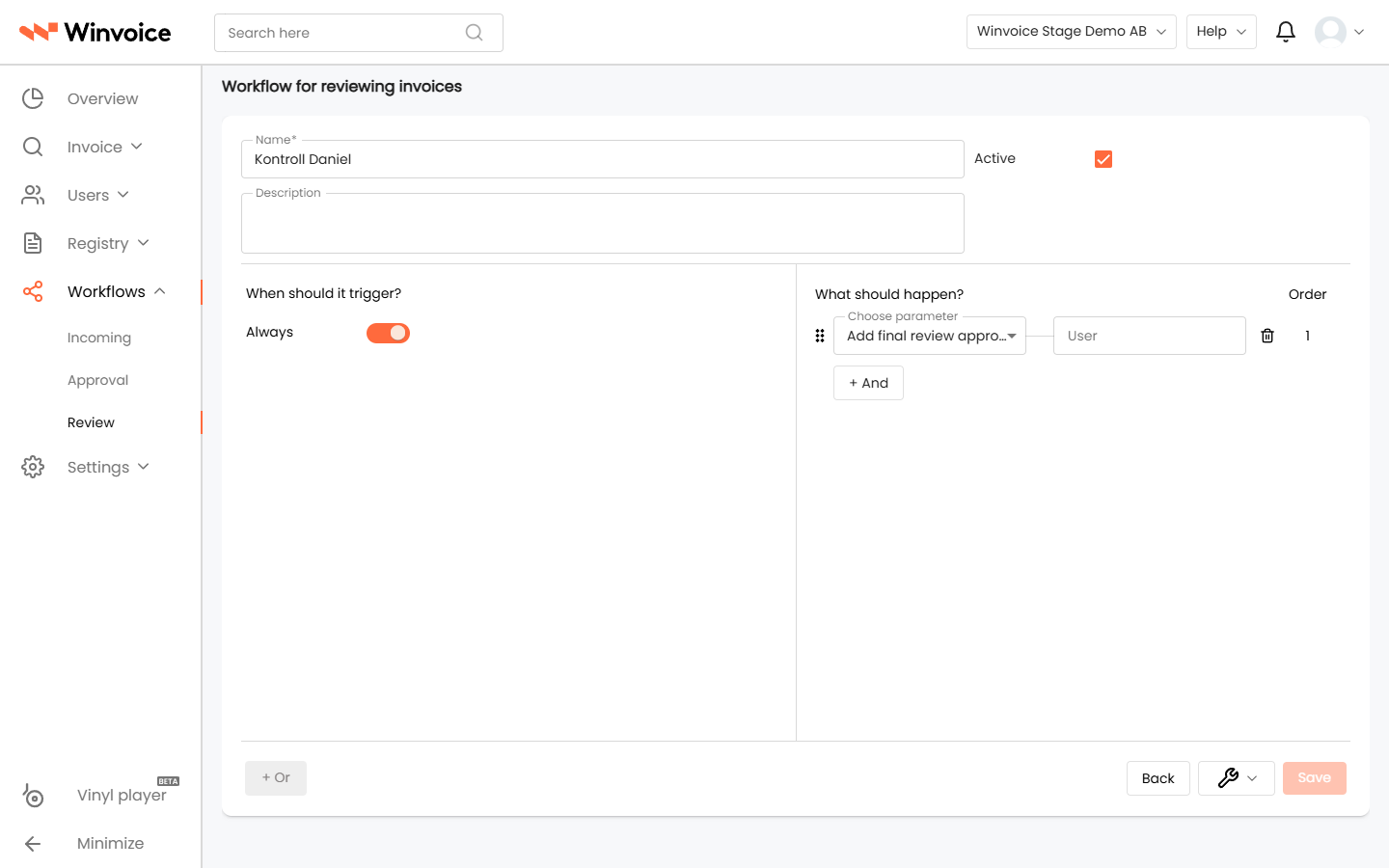
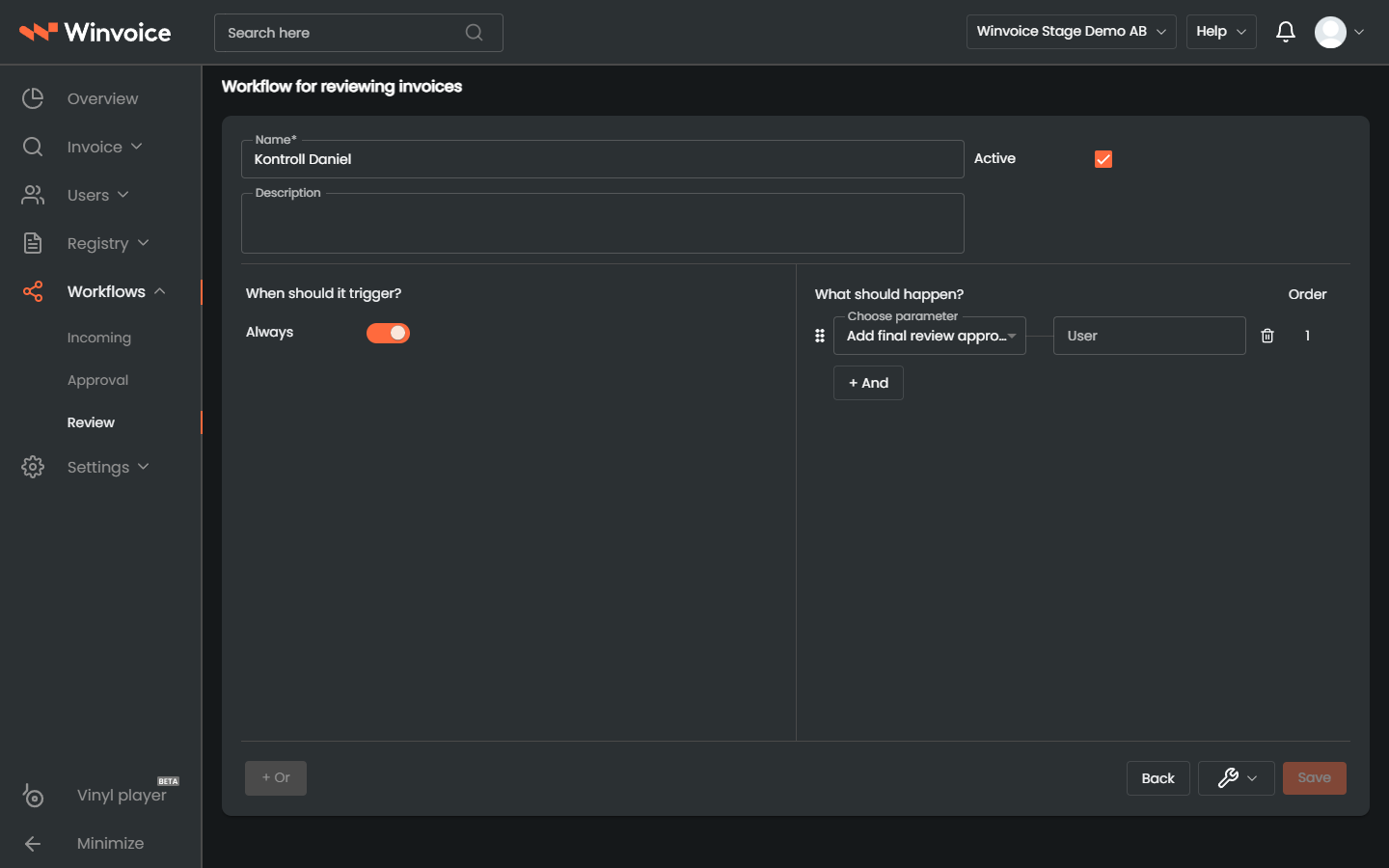
Fill in the baseline workflow information:
- Name: A clear and descriptive title (e.g. Invoices over 100,000 SEK – CFO Verification or Capex Accounts – Final Audit).
- Description: Optional internal notes explaining the control objective for administrators and colleagues.
- Active Workflow: Toggle the workflow on or off. Inactive workflows remain saved in the system but are bypassed during processing.
2. Conditions – "When should this happen?"
Under the conditions panel, define the criteria specifying when fully-approved invoices trigger the final review step.
Always vs. Custom Parameters
- Always: Enable this toggle if every invoice in the organization should pass through the same review stage regardless of amounts or accounts.
- Specific Condition Groups: Construct precise rules using the rule builder:
- + And (within group): Adds another condition to the same group. All conditions in that group must evaluate to true simultaneously (logical AND).
- Add Group / Or (between groups): Creates a new, distinct condition group. The review step triggers if either Group 1 or Group 2 is satisfied (logical OR).
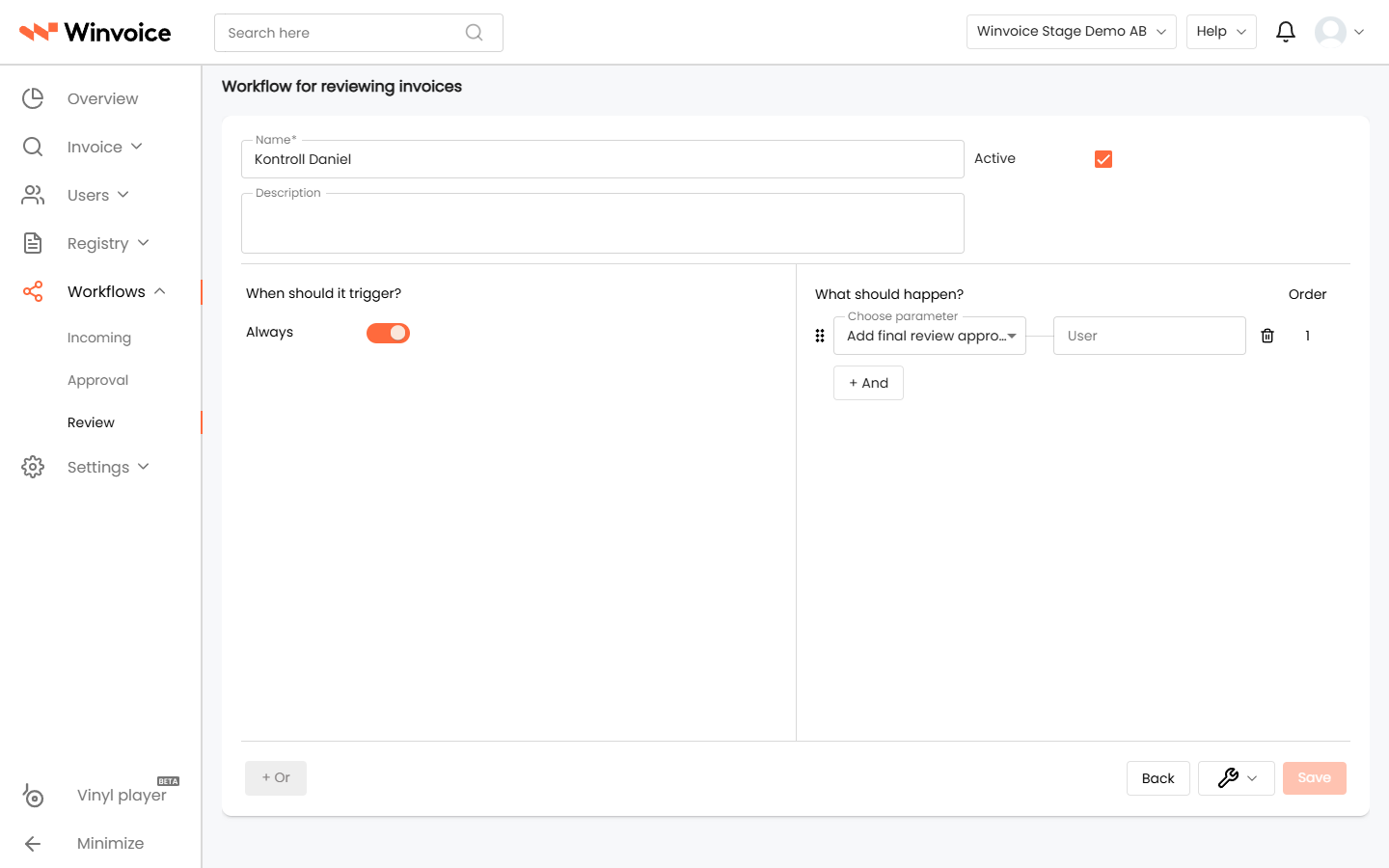
Available Review Parameters
You can evaluate any of the following parameters during the final review phase:
- Invoice Total & VAT:
- Total amount including VAT (
=,!=,>,<,>=,<=), e.g. Total Amount >= 100,000 SEK. - Total amount excluding VAT (net amount).
- VAT amount.
- Total amount including VAT (
- Account on Any Line (
Any line has account): Trigger final review if any accounting line is coded to a specific general ledger account (e.g. entertainment, fixed assets, or consulting expenses). - Approver on Any Line (
Any line has approver): Intercept invoices where a specific individual approved one or more lines. - Dimensions on Any Line: Match against specific projects, cost centers, or departments on any line.
- Line Description on Any Line: Match keywords or phrases across line descriptions.
- Supplier: Specific supplier, suppliers with a particular tag, or text matching on vendor name (starts with, contains).
- Invoice Type: Distinguish between Debit Invoices and Credit Invoices.
- Currency: Filter by invoice currency (e.g. foreign currency invoices in EUR or USD).
- Denied Final Review (
Denied final review): Handle cases where an earlier reviewer rejected the final review and the invoice requires follow-up. - No Final Review Status (
NO_FINAL_REVIEW): Condition rules specifically for invoices that are exempt from the organization's standard final review requirement. - Tags: Target invoices carrying or missing specific internal tags.
3. Actions – "What should happen?"
In the right-hand panel, define the actions to execute once conditions are met following completed line approvals.
Screenshot of the actions list in a review workflow illustrating the assignment of a Final Reviewer and tag actions.
Available Action Types on Final Review
- Assign Final Reviewer: Designate the specific finance user or manager who will receive the invoice for final verification in their personal queue.
- Add Tags: Assign internal Tags to the invoice (e.g. Audit Verification Required, Reviewed by CFO).
- Remove Tags: Clear specific tags once final review commences.
- Send Notification: Deliver an instant in-app alert in Winvoice with custom text to designated users.
- Send Email: Dispatch an email notification containing custom instructions to designated roles.
Click Save at the bottom right to commit the review workflow.
4. Managing and Prioritizing Review Workflows
Priority Ordering (Execution Sequence)
When an invoice satisfies the criteria of multiple review workflows, execution follows the sequence defined under Workflows → Review:
- Workflows at the top possess highest priority (Rule 1 evaluates and executes before Rule 2).
- Reorder workflows by dragging and dropping rows in the list or clicking the arrow buttons. Click Save to commit the sequence.
Multi-Select and Step-Through Navigation (Record Stepper)
- Multi-Select: Select multiple workflows using checkboxes to activate, deactivate, or delete several rules simultaneously.
- Step-Through Navigation (Record Stepper): Iterate sequentially through review workflows using header arrow controls (
< Previous | Next >) without returning to the list view.
Tools Menu (Wrench Icon)
Located at the bottom right of the editor, the wrench icon provides quick administrative utilities:
- Copy Workflow: Creates an exact duplicate as a new draft.
- Changelog: Displays who modified the workflow and provides an audit history of changes.
- Delete: Permanently removes the workflow upon confirmation.