Substitutes & Out of Office
When an approver or administrator is absent due to vacation, illness, or parental leave, you can set up a substitute. With an active substitute arrangement, invoices are automatically routed to the designated colleague without requiring any changes to your permanent approval workflows or rules.
1. How Substitutes Work
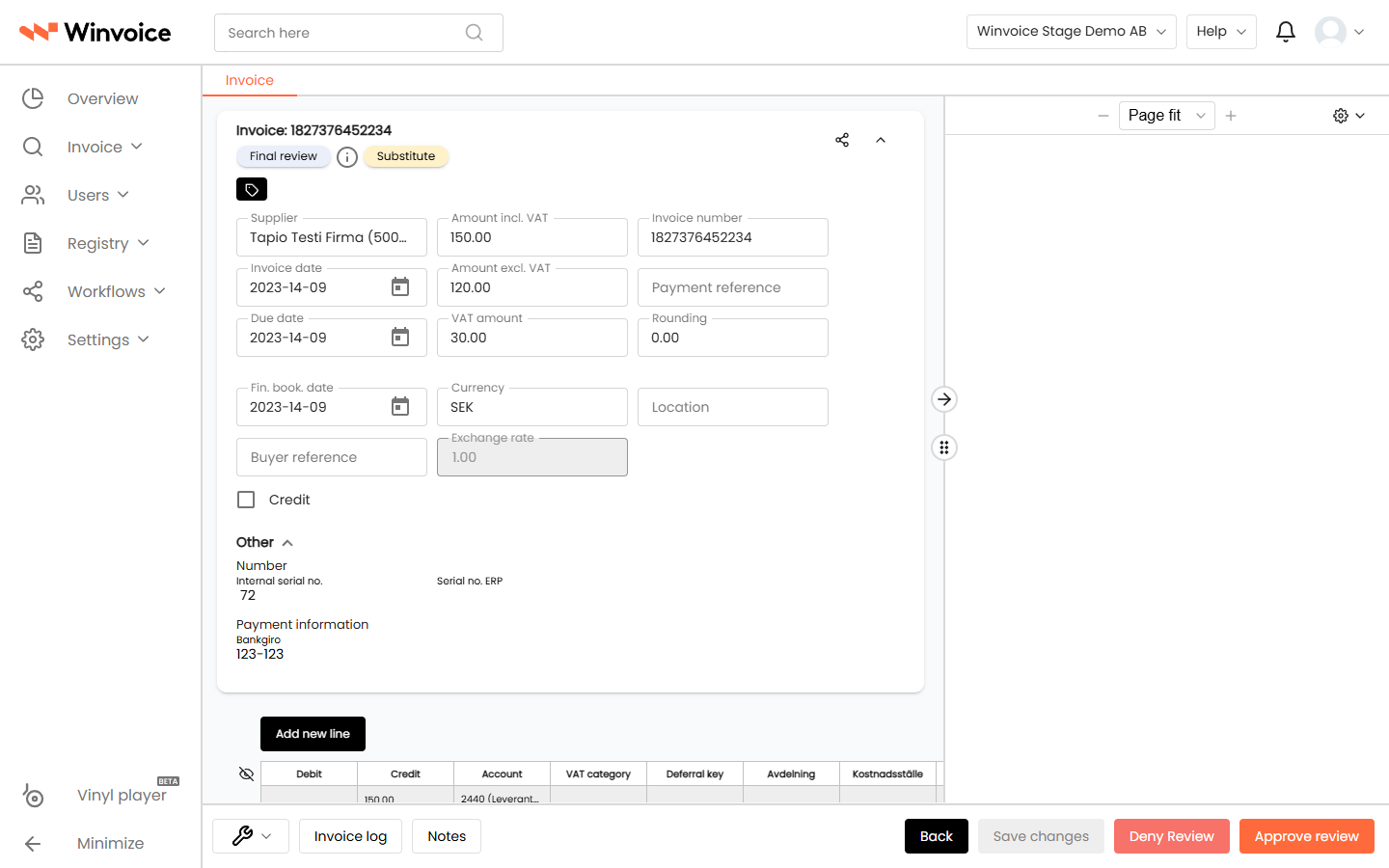
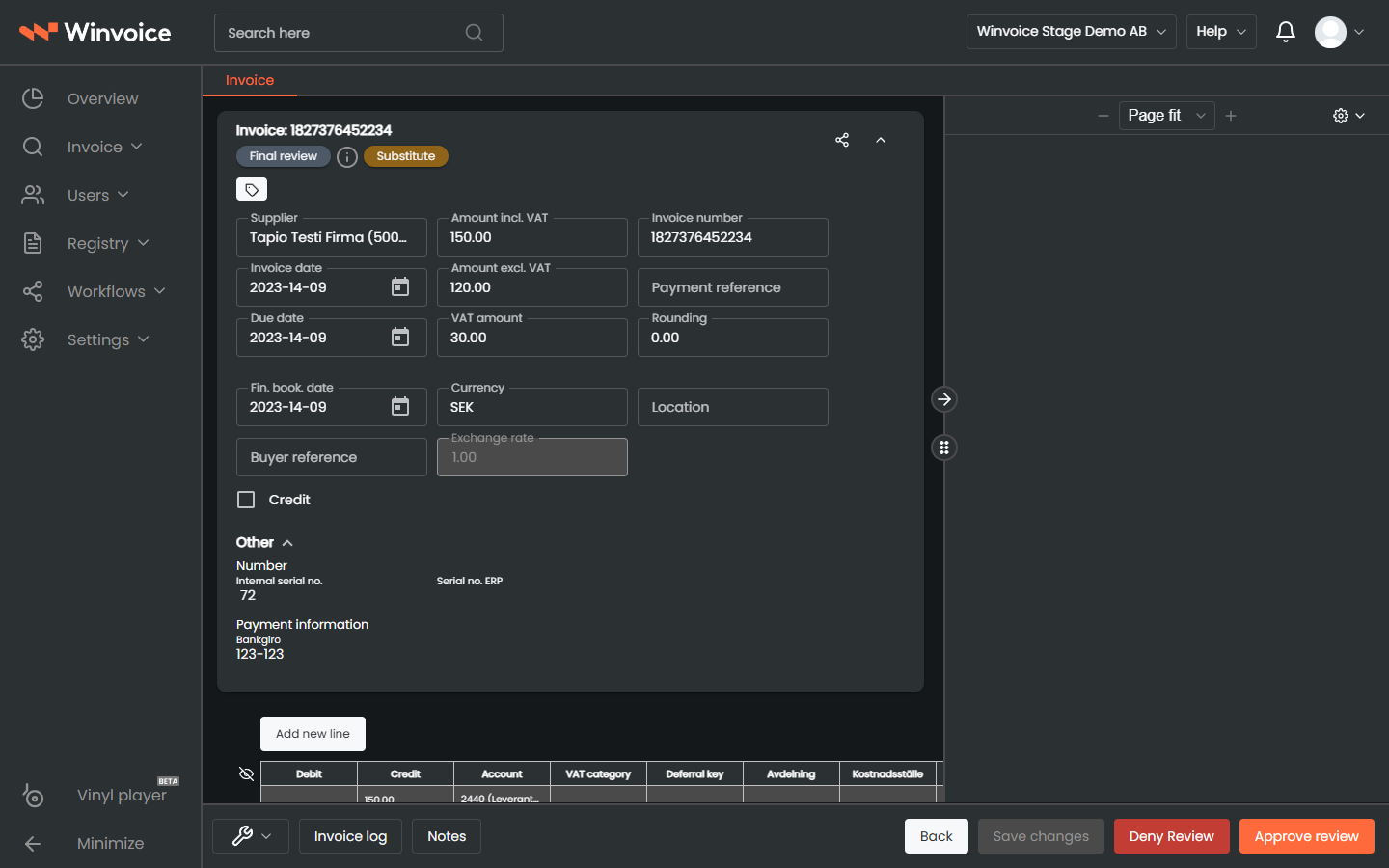
- Automatic Queue Routing: During the active substitute period, the absent user's invoices appear in the substitute's invoice inbox under the status Substitute.
- Preserved Access: The primary approver retains full access and can still review and approve their invoices if needed.
- Full Audit Trail Integrity: When a substitute approves an invoice, the event is permanently recorded in the activity log with the substitute's identity and the actual date and time the action was performed. The log clearly states who approved and on whose behalf.
- Group Approvals & Order: If the primary user belongs to a user group with an ordered approval sequence, the substitute takes that exact slot in the queue (hovering displays the numerical queue position).
2. Setting Up a Substitute
A substitute can be established either by the user themselves or by an invoice administrator.
Setting Up as a User (My Profile)
- Click your profile avatar or name in the top right header and select Edit Profile.
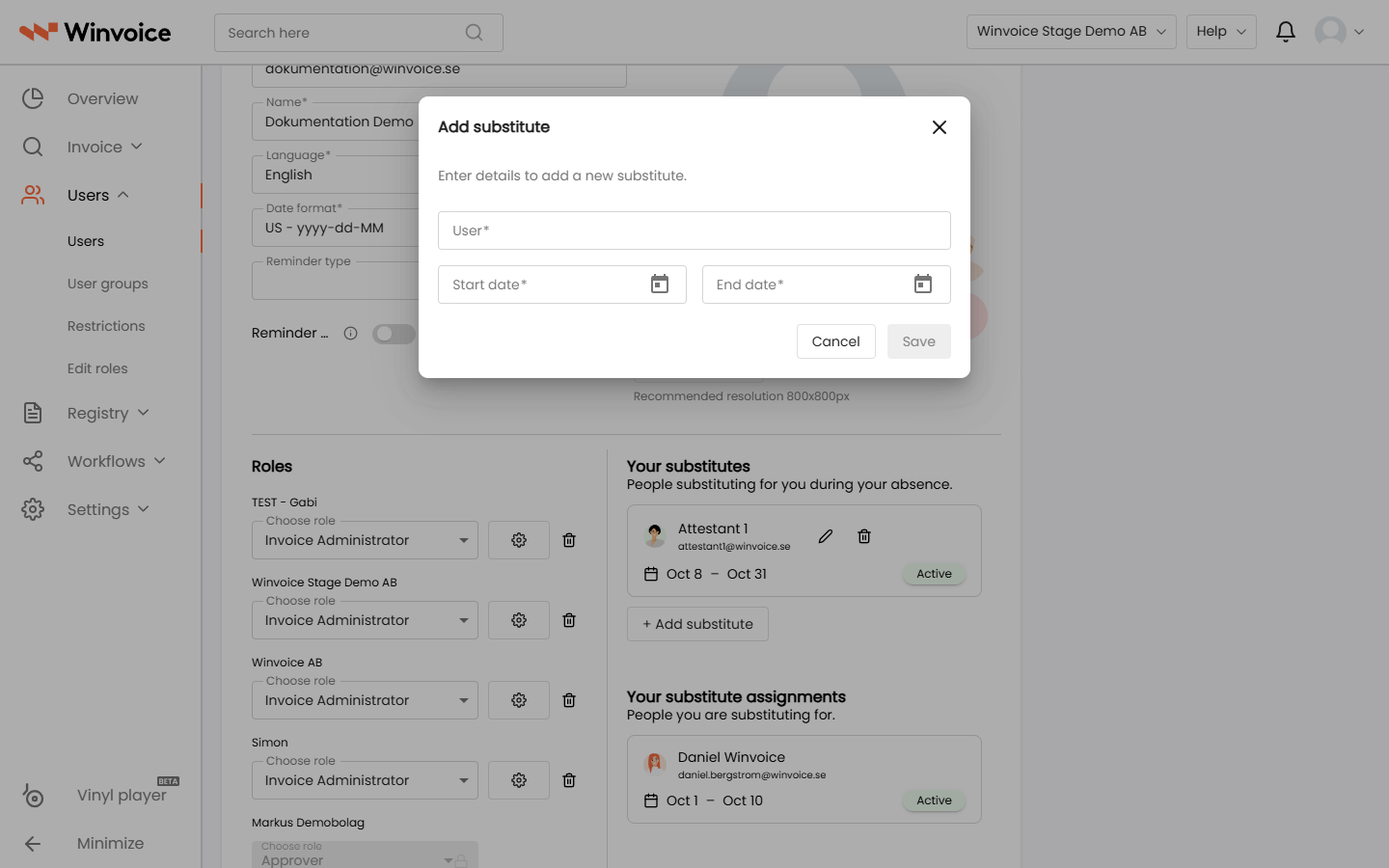
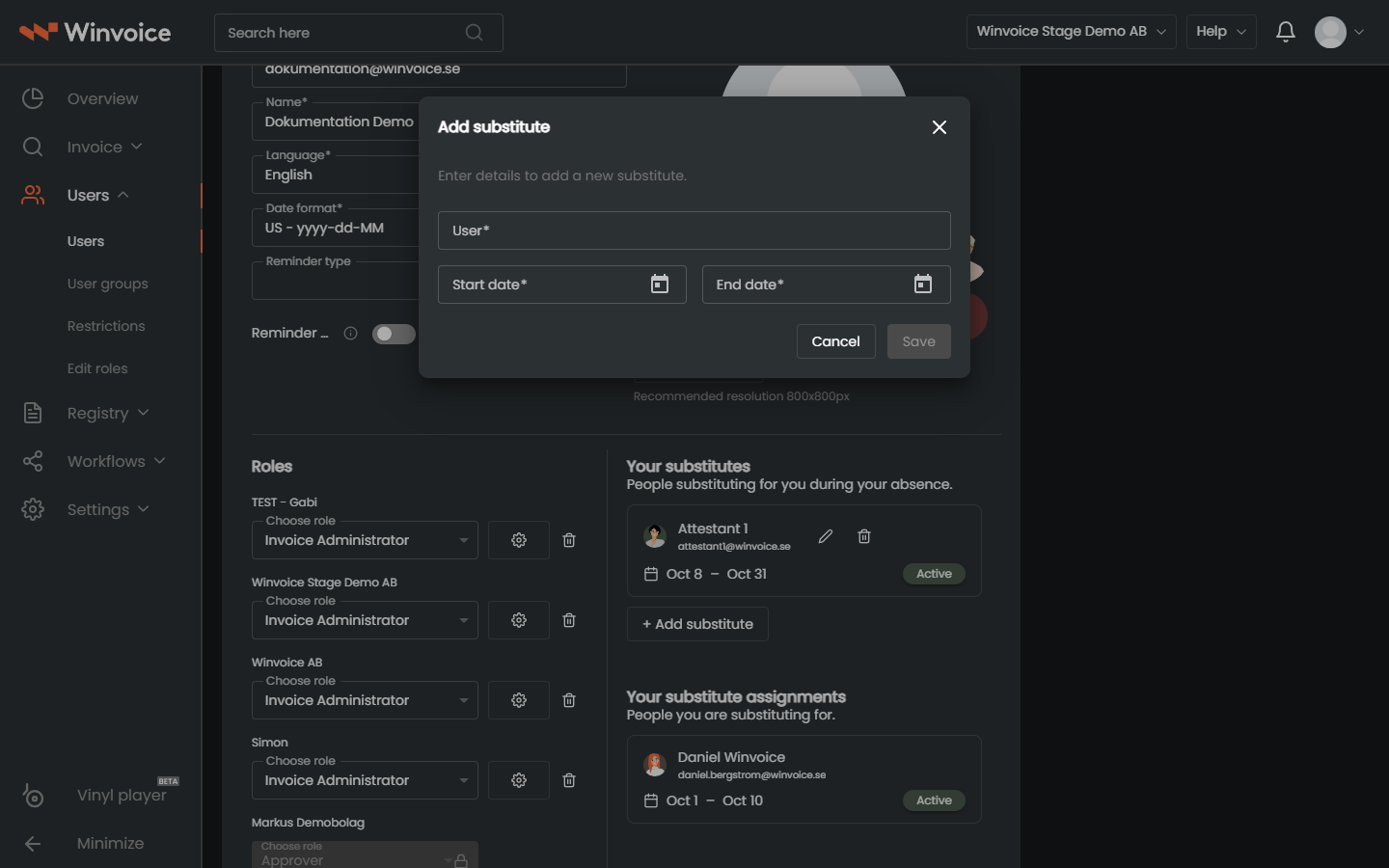
- Scroll down to the Substitutes section and click Add Substitute.
- Select your substitute colleague from the user list.
- Specify the Start Date and End Date for the absence.
- Click Save.
Setting Up as an Administrator
Invoice administrators can manage substitutes for all users across the organization:
- Navigate to Settings → Users.
- Click the user who requires a substitute.
- Click Add Substitute within the user's settings panel.
- Choose the substitute and specify the date range, then click Save.
3. Handling Invoices as a Substitute
When you are appointed as a substitute, invoices seamlessly enter your standard workflow:
- Invoice Inbox: Invoices appear in your Invoices to Handle list, flagged with the badge Substitute.
- Approve or Reject: You review, adjust distributions, and approve the invoice exactly like your own.
- Internal Notes: You can add comments and internal notes that remain visible for the primary approver upon their return.
4. Modifying or Ending a Substitute
The substitute arrangement terminates automatically at midnight following the specified end date. If you return early or need to change your designated substitute:
- Open your profile (or user settings as an administrator).
- Click the pencil icon to extend or shorten the date range, or click the trash icon to revoke the substitute with immediate effect.